Switching to Duży ZUS
When all benefits expire (usually after 24 months of składki preferencyjne), you need to switch to Duży ZUS.
Official website
Jakie składki na ubezpieczenia społeczne płaci przedsiębiorca do ZUS
When to switch to duży ZUS
What you need to do (in a nutshell)
Have an accountant? Just remind them that your benefits are about to expire. No accountant? Read the instructions below ⬇️
- Deregister from ZUS using the ZUS ZWUA form.
-
Register for insurance with code 0510:
a. If you're also working under an Umowa o Pracę and your salary is above the minimum, use the ZUS ZZA form;
b. Otherwise use the ZUS ZUA form. If you're switching from składki preferencyjne to duży ZUS, your old code is 0570 and the new one is 0510.
-
Switch to duży ZUS in your inFakt/wFirma/iFirma settings.
Each of these steps is described in detail below.
How do I access the ZUS payer online portal?
See available methods.
Step 1
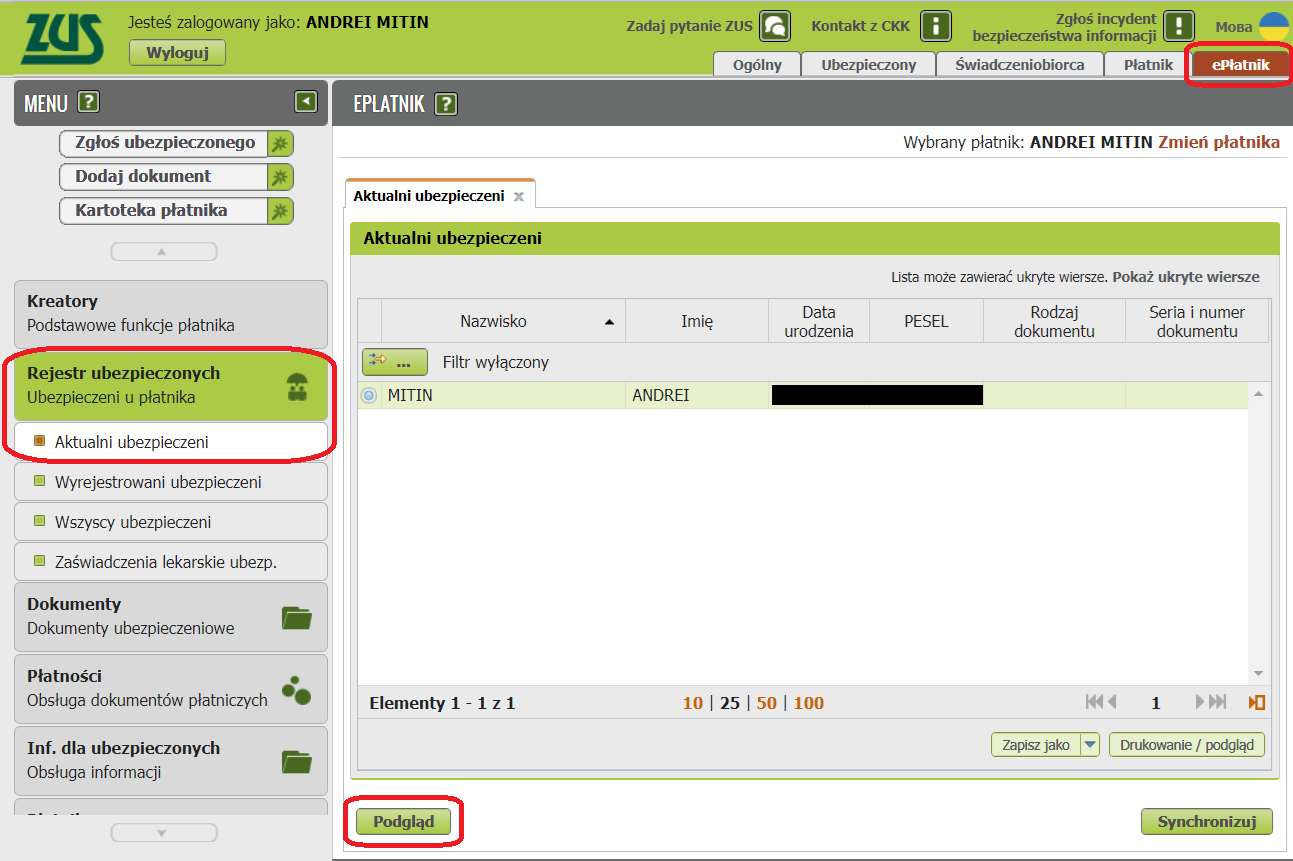
In the top right corner, select the ePłatnik tab, then in the left menu choose Rejestr ubezpieczonych -> Aktualni ubezpieczeni.
Click the Podgląd button.
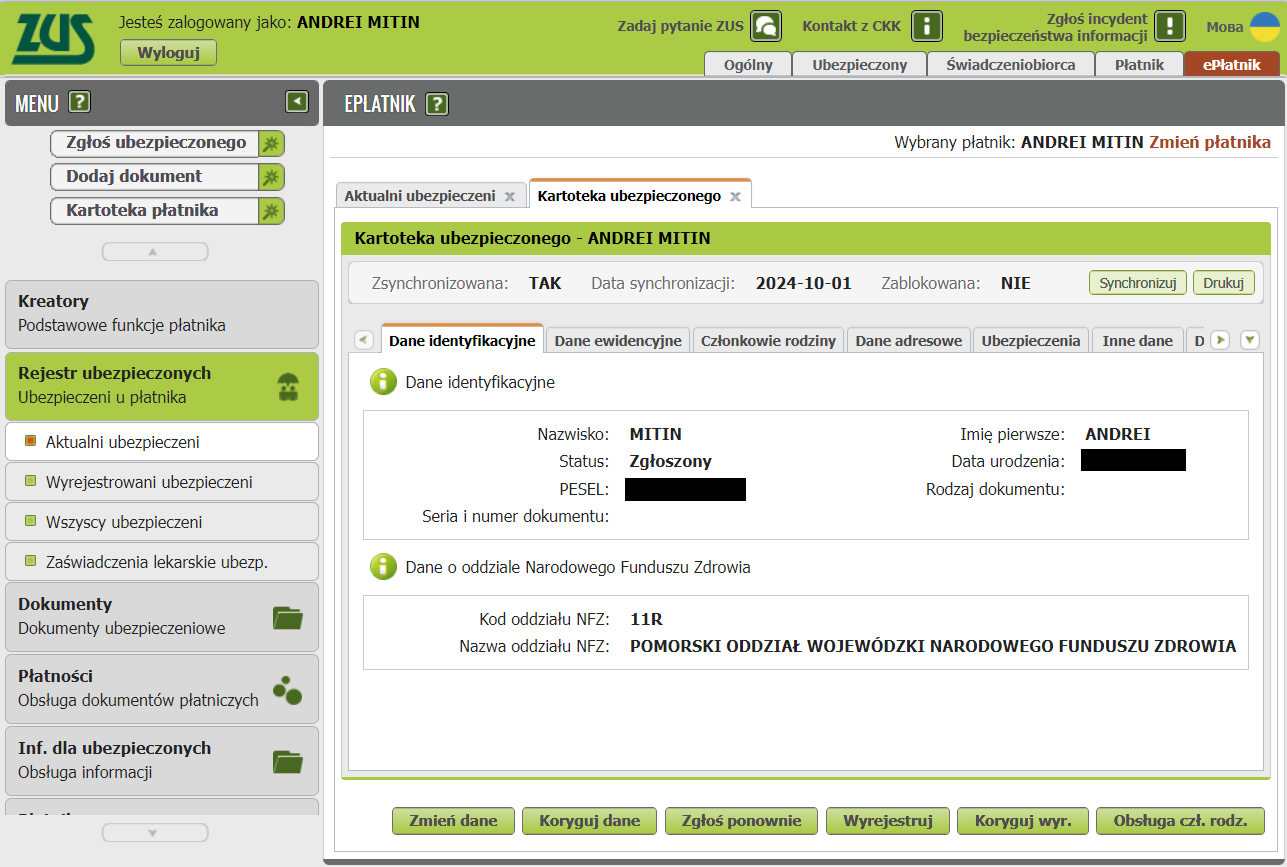
The Kartoteka ubezpieczonego (insured person's file) opens.
Step 2
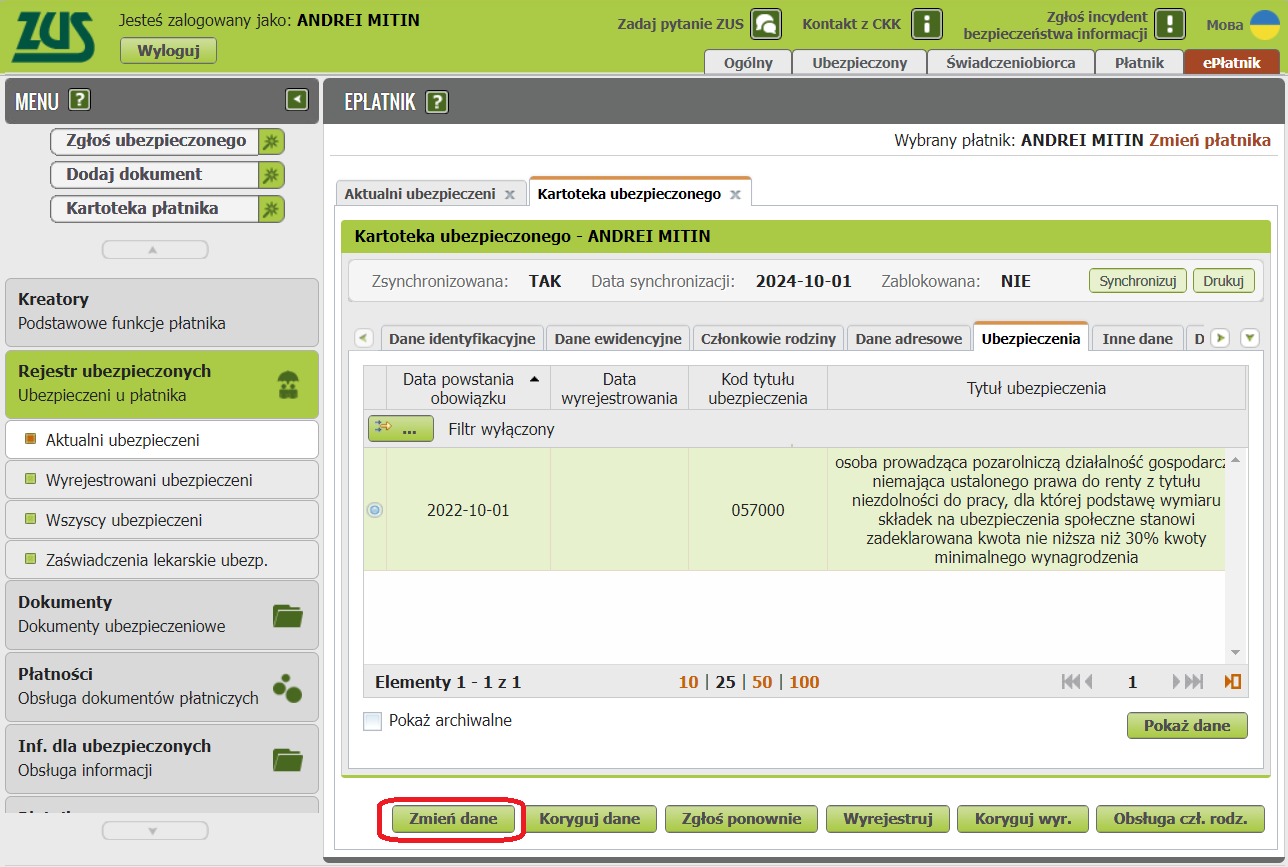
Inside the file you can select the Ubezpieczenia tab.
It shows the current code and the date from which it is effective. The screenshot below shows an example where składki preferencyjne (Składki preferencyjne) are already active and you need to switch to duży ZUS (Duży ZUS).
You can find information about all codes for entrepreneurs in the table.
Click Zmień dane.
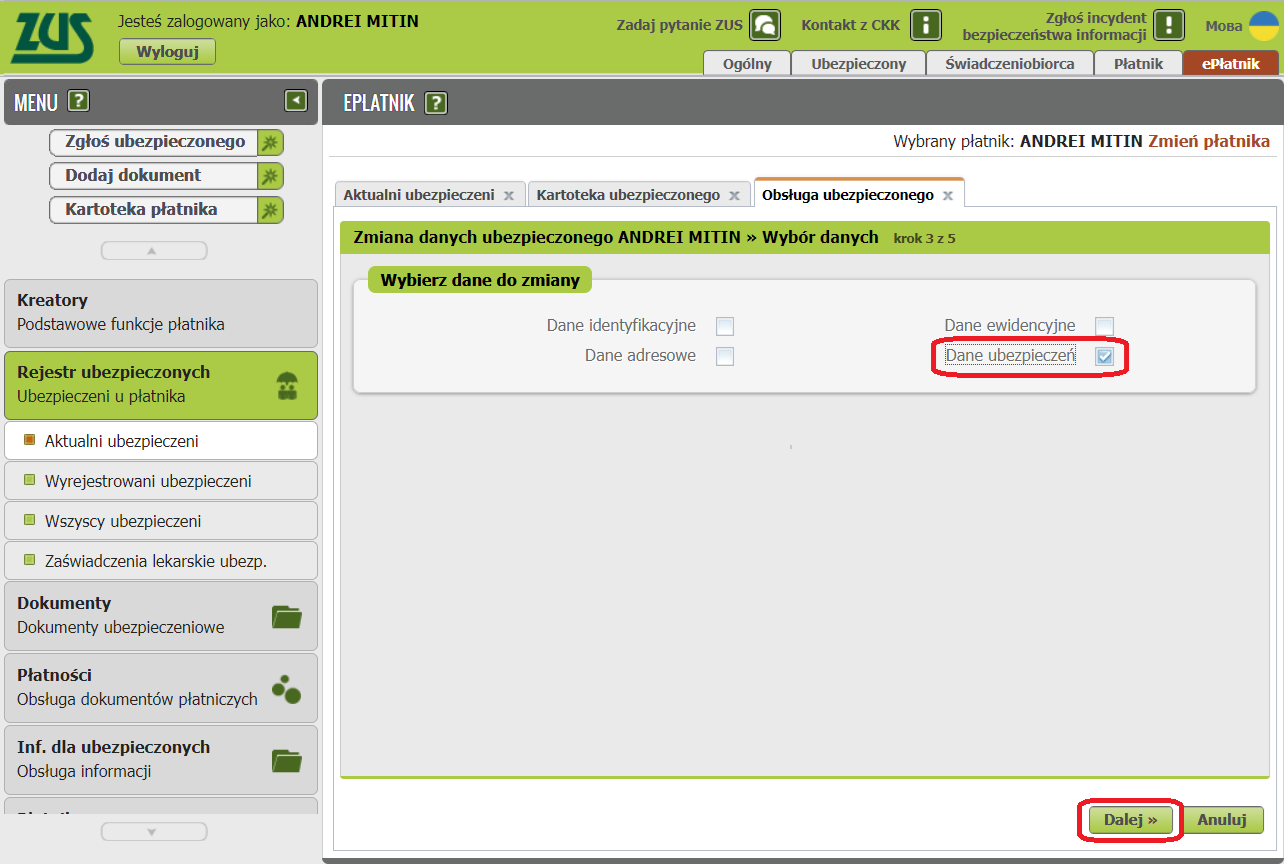
On the Obsługa ubezpieczonego tab, a step-by-step form for making changes appears.
On the "Wybierz dane do zmiany" step, check the box next to Dane ubezpieczeń and click Dalej.
Step 3
On the "Dane ubezpieczeń" step, click Edytuj.
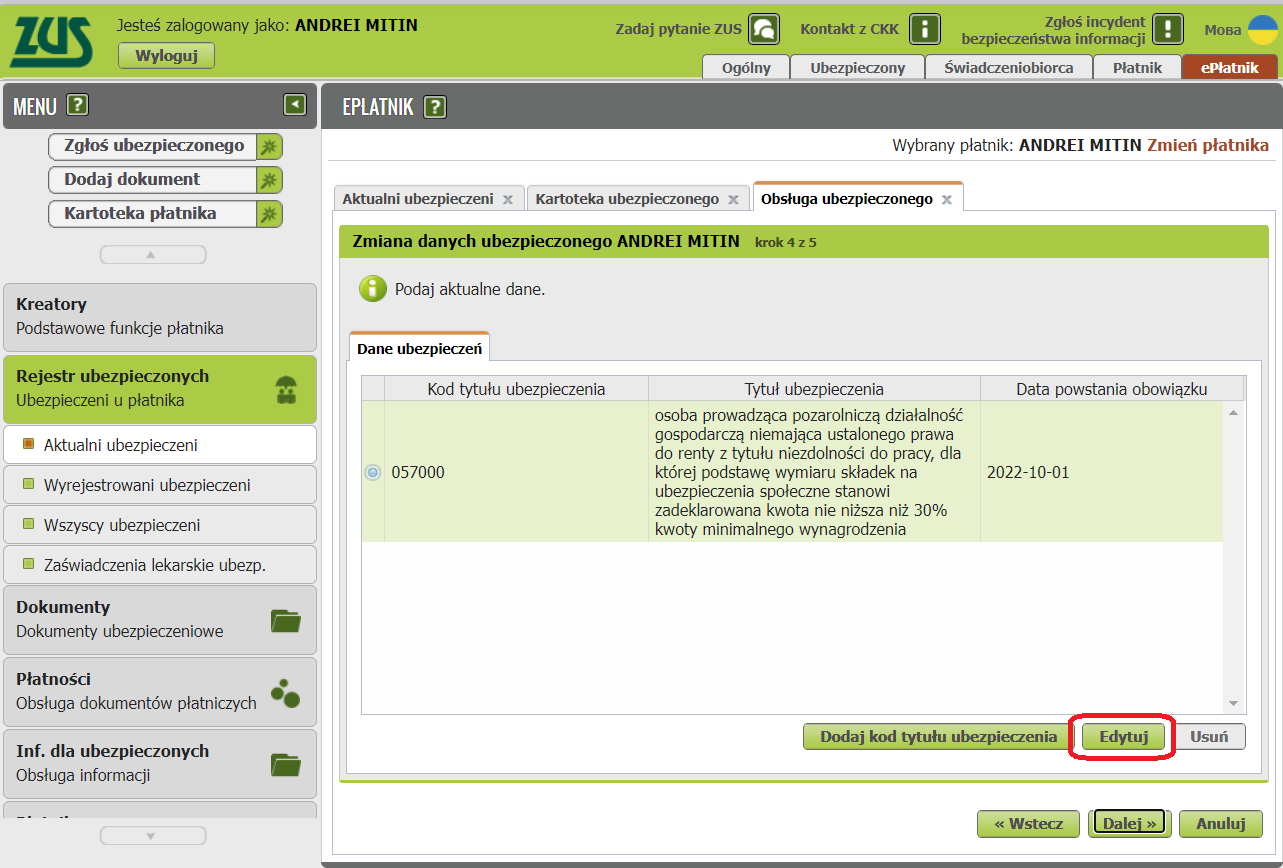
A popup titled "Zgłoszenie ubezpieczonego → Tytuły ubezpieczeń" appears with the current data.
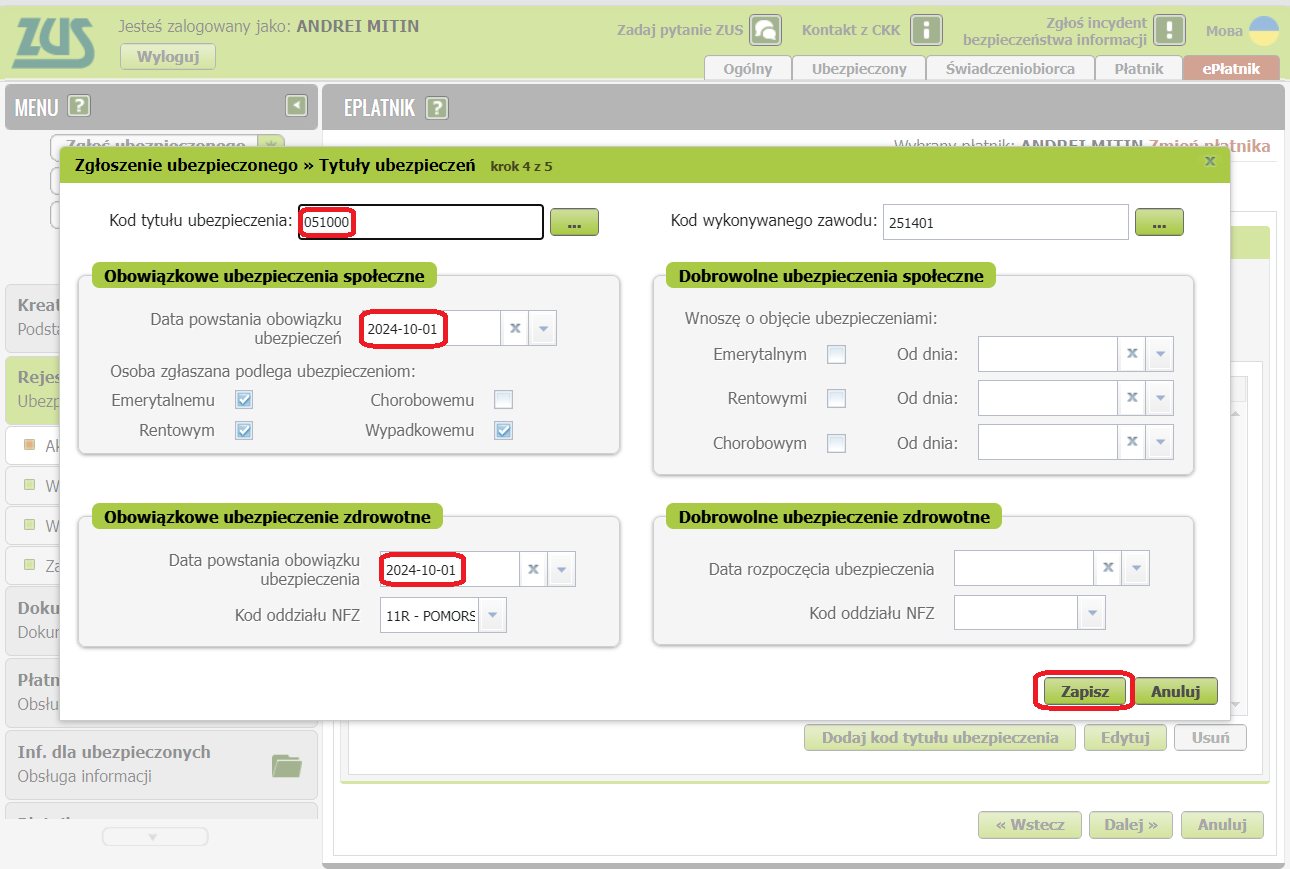
Update the data in the left column:
- On the left, change the Kod tytułu ubezpieczenia (insurance type code; remember, for switching to duży ZUS your new code is 05 10).
-
Change the dates on the left side to the first day of the month when Duży ZUS starts (usually the current month). As a result, the ZUS ZUA field Data powstania obowiązku ubezpieczenia (or Data zgłoszenia do ubezpieczenia) will show the same day as in ZUS ZWUA. This way there's no gap in the foreigner's insurance coverage.
-
Below the insurance type code there are 2 sections:
-
Obowiazkowe ubezpieczenia społeczne (Mandatory social insurance contributions). If you had ulga na start, the checkboxes will be empty. In that case, check 3 out of 4 as shown in the screenshot (TODO: does this instruction also apply to those who work on UoP in parallel?):
- Emerytalnemu
- Chorobowemu
- Rentowym
- Wypadkowemu
-
Obowiązkowe ubezpieczenie zdrowotne (Mandatory health insurance contribution)
-
Update the data in the right column:
- On the right, select the Kod wykonywanego zawodu (profession code). This is needed for statistics. See the profession codes table for details.
-
Below the profession code there are 2 more sections:
-
Dobrowolne ubezpieczenia społeczne (Voluntary social insurance contributions).
- Chorobowym - here you can optionally check the chorobowa contribution to be able to receive sick leave benefits in case of illness. The chorobowa contribution is optional. You can reduce your ZUS payments by 100+ PLN per month by opting out, but then you won't be able to receive sick leave compensation. The choice is yours. According to a poll in the chat, most entrepreneurs opt out. If you do check it, set the date to the first day of the current month accordingly.
-
Dobrowolne ubezpieczenie zdrowotne (Voluntary health insurance contribution). Leave this empty.
-
-
Click Zapisz
The popup closes and step 4 shows the updated "Dane ubezpieczeń" data. The screenshot below shows an example of switching from Składki preferencyjne to Duży ZUS.
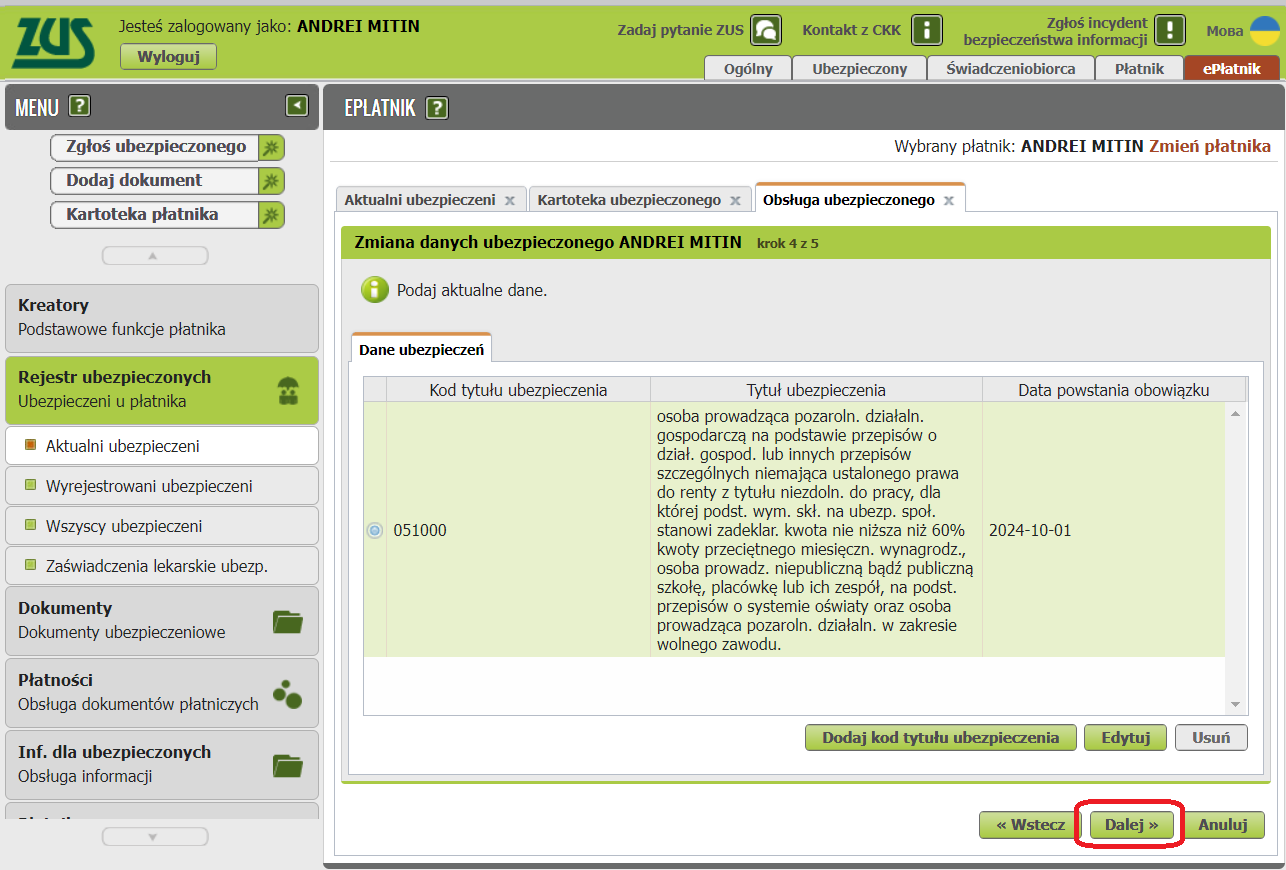
Screenshot translation
ℹ️ Fill in the current data.
Insurance data
| Insurance title code | Insurance title | Date obligation arose |
|---|---|---|
| ☑ 051000 | A person conducting non-agricultural business activity in accordance with the provisions on business activity or other special provisions, who does not have established right to a disability pension due to incapacity for work, for whom the basis for calculating social insurance contributions is a declared amount not lower than 60% of the average monthly salary. This may be a person managing a non-public or public school, institution, or their complex, in accordance with the provisions on the education system, and a person conducting non-agricultural activity in the field of a liberal profession. | 2024-10-01 |
Click Dalej
Step 4
On the last step "Utworzenie i walidacja dokumentów", two automatically created documents are shown:
- ZUS ZUA – for registration with the new code
- ZUS ZWUA – for formally cancelling the previous registration
Click Weryfikuj to make the Wyślij i zakończ button active.
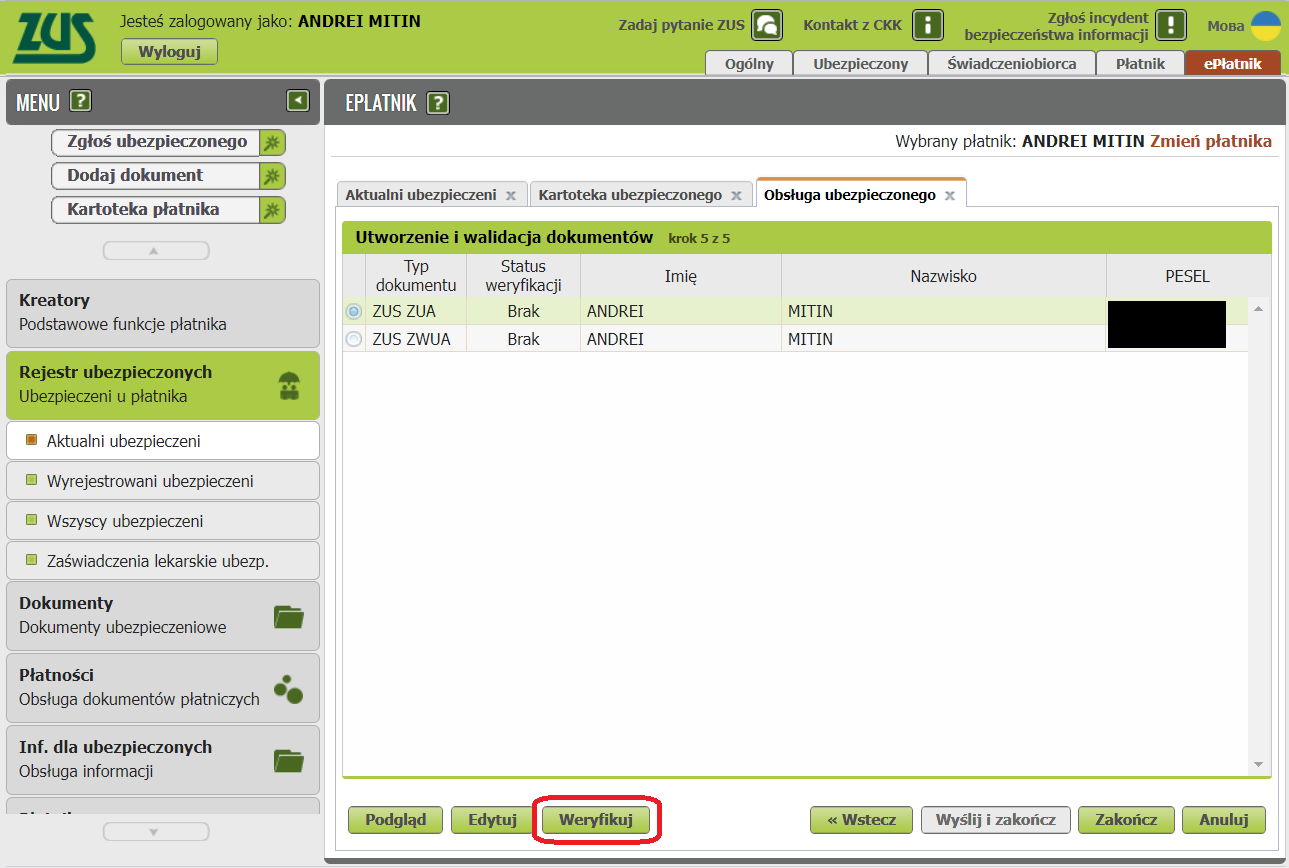
After verification, ZUA gets an "error" status (Status weryfikacji = Błąd) because the ZWUA application must be processed first and only then ZUA, but this is just a formality — that's how it's supposed to be. In reality, both applications are sent to ZUS simultaneously and processed by a clerk together, in the correct order.
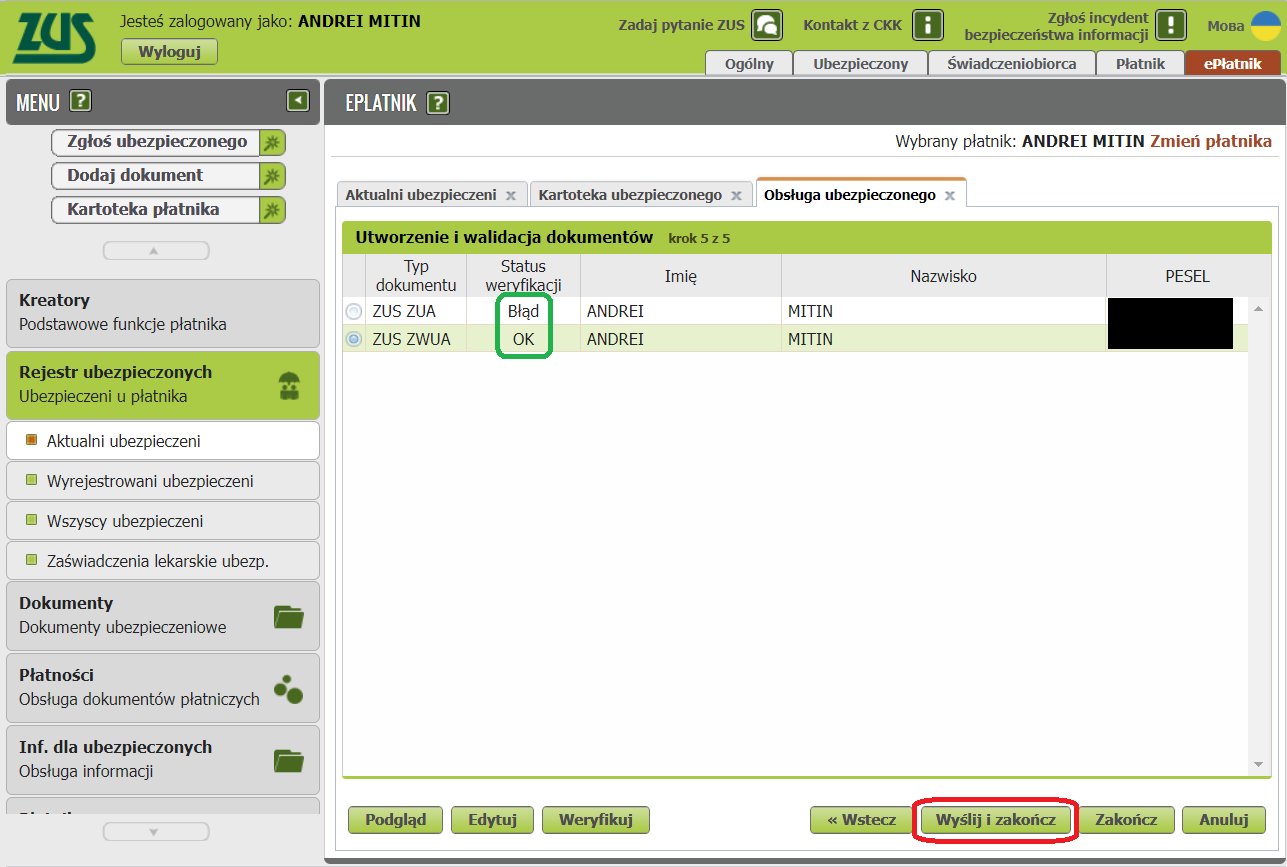
Click Wyślij i zakończ (Send and finish), then sign both applications with a single ePUAP signature.
Result
The applications are immediately moved to Dokumenty -> Dokumenty wysłane.
After processing, the data in the file should be updated (see screenshot 2).
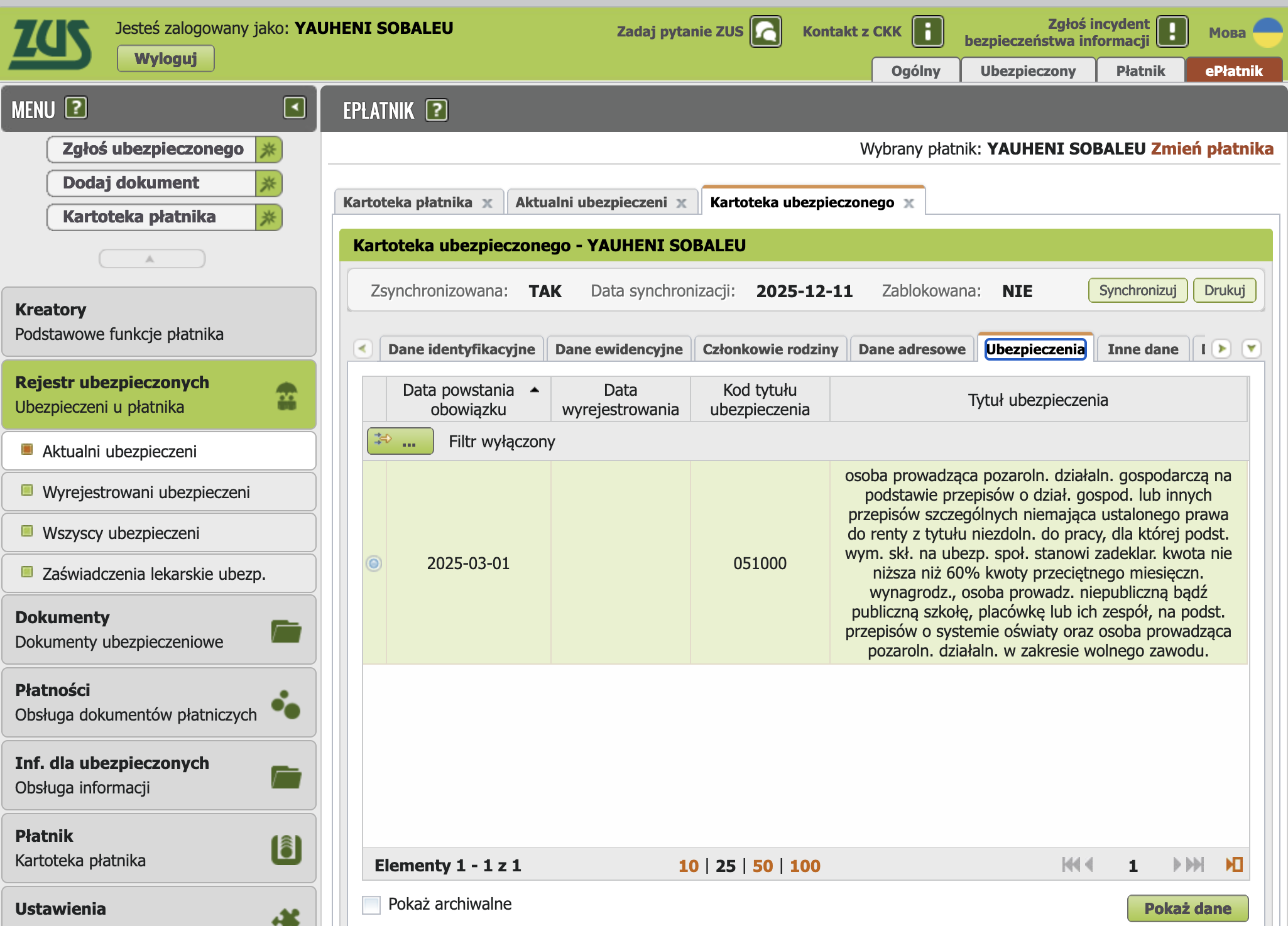
You can also verify that all previously added family members are still listed under the Członkowie rodziny tab in the file.
After some time, the applications will appear in Dokumenty w ZUS.
Switching your accounting service settings
Try not to let your ZUS settings on zus.pl get out of sync with the ZUS settings in your accounting software. So after you've reported the switch to duży ZUS in ZUS, go into your software settings.
This month you'll be sending several different declarations to ZUS:
DRA
ZUS payment and submission of ZUS DRA from the 1st to the 20th of the month following the reporting period.
ZWUA and ZUA/ZZA
ZUS ZWUA and ZUS ZUA/ZZA must be submitted to ZUS from the 1st to the 7th of the month in which you stopped using benefits.
Because of this, many entrepreneurs wonder:
Does the order of submitting declarations matter?
No. It doesn't matter in what order you do these things. Just meet the deadlines.
It's recommended to change settings in inFakt/iFirma/wFirma after you've submitted the documents listed above.
UPP - submission confirmation
See UPP.
Common mistakes
See error collection.
Support our guide with a cup of coffee ♥