Initial setup
wFirma online bookkeeping — first year free 🪄
Subscription for sole trader bookkeeping 2026: MALAKSIEGOWOSC-2026 (1 year) or PROX-KSIEGOWOSC (3 months) (works for ryczałt, skala podatkowa, liniowy).
Register only via this link ▶️ https://wfirma.pl/rejestracja-przez-kody ◀️
Registration
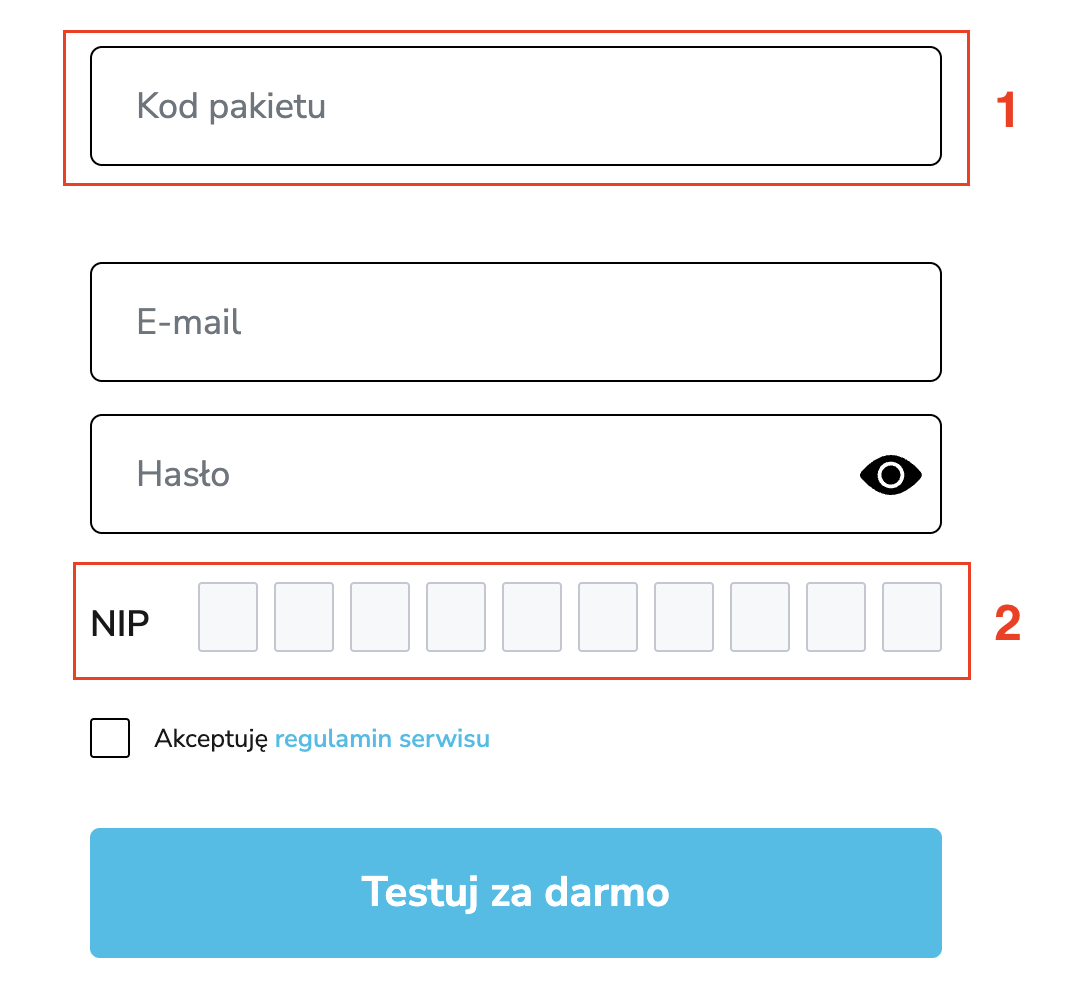
- In the Kod pakietu field, enter the code to get a free year.
- Enter your NIP number during registration so that your sole trader details are automatically pulled from the registry.
- Read and accept the terms of service (check the box Akceptuję regulamin serwisu).
After registration, we move on to settings.
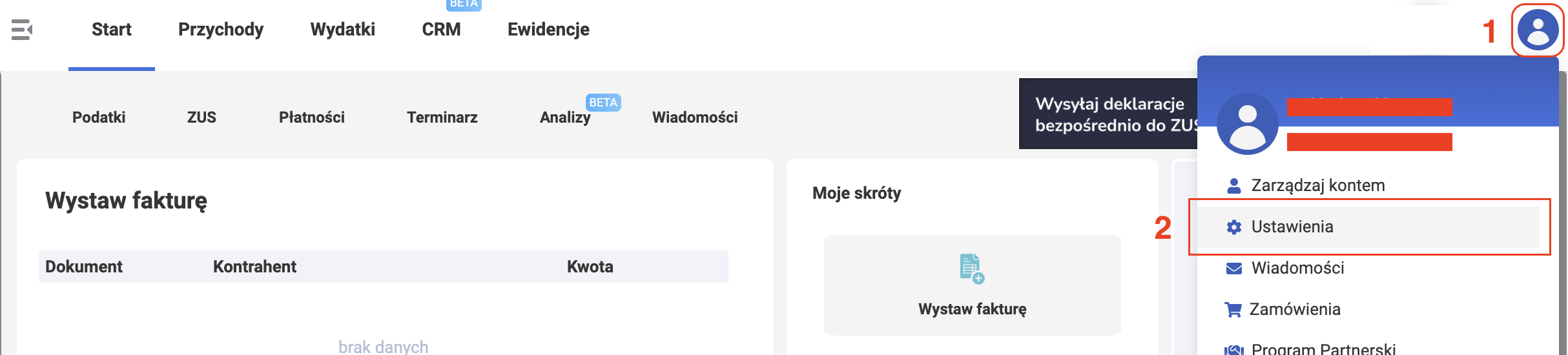
- Click the profile icon.
- Click Ustawienia (Settings).
Setting up company details
Company details are shown on invoices issued to your clients. Most likely, wfirma will prompt you to fill in these details right after registration and won't let you proceed until you do.
-
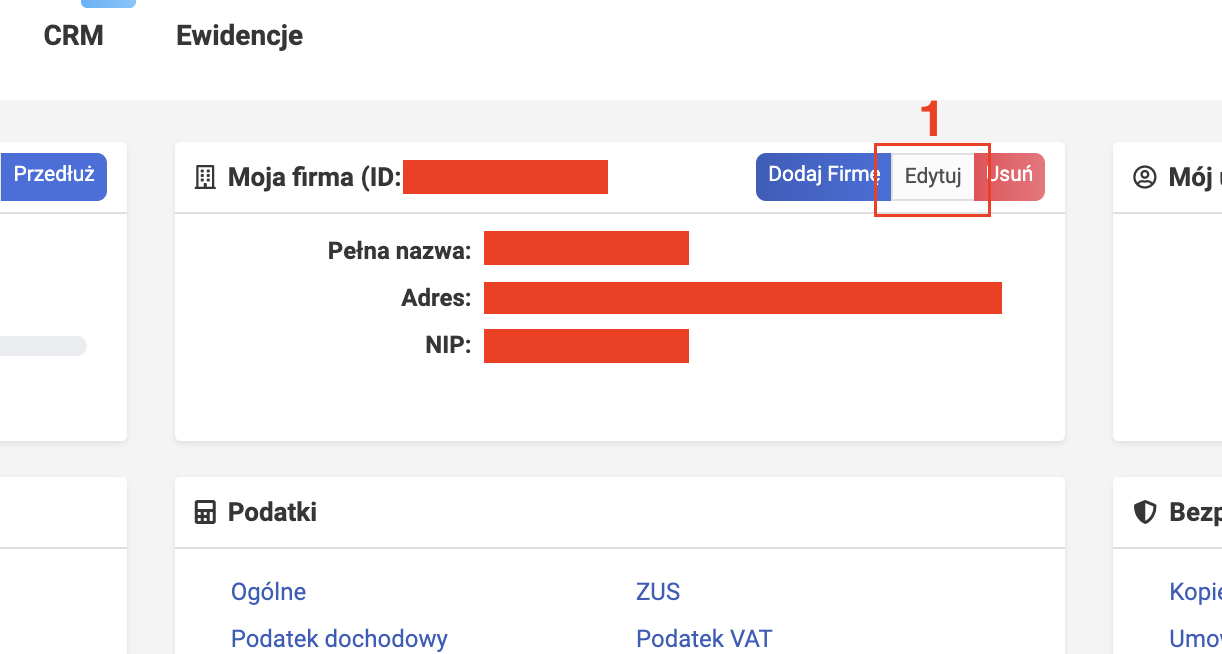
In the Moja firma settings panel, choose Edytuj (Edit).
-
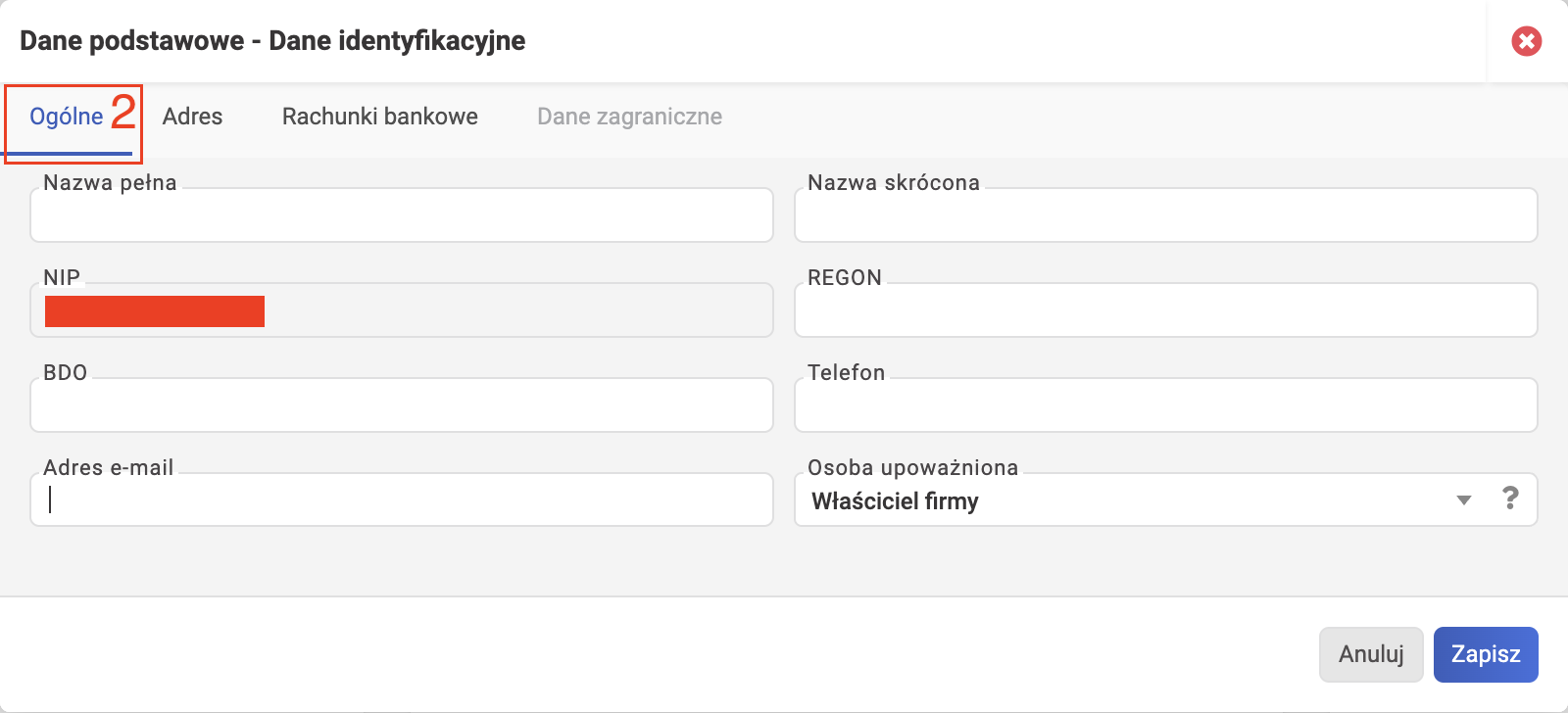
In the DANE PODSTAWOWE - DANE IDENTYFIKACYJNE dialog, fill in general information about yourself (tab OGÓLNE), such as:
- full name (Nazwa pełna)
- short name (Nazwa skrócona)
- NIP (digits only, without the PL prefix)
- REGON
- BDO (a regular software developer may not have this number — that's fine)
- phone
-
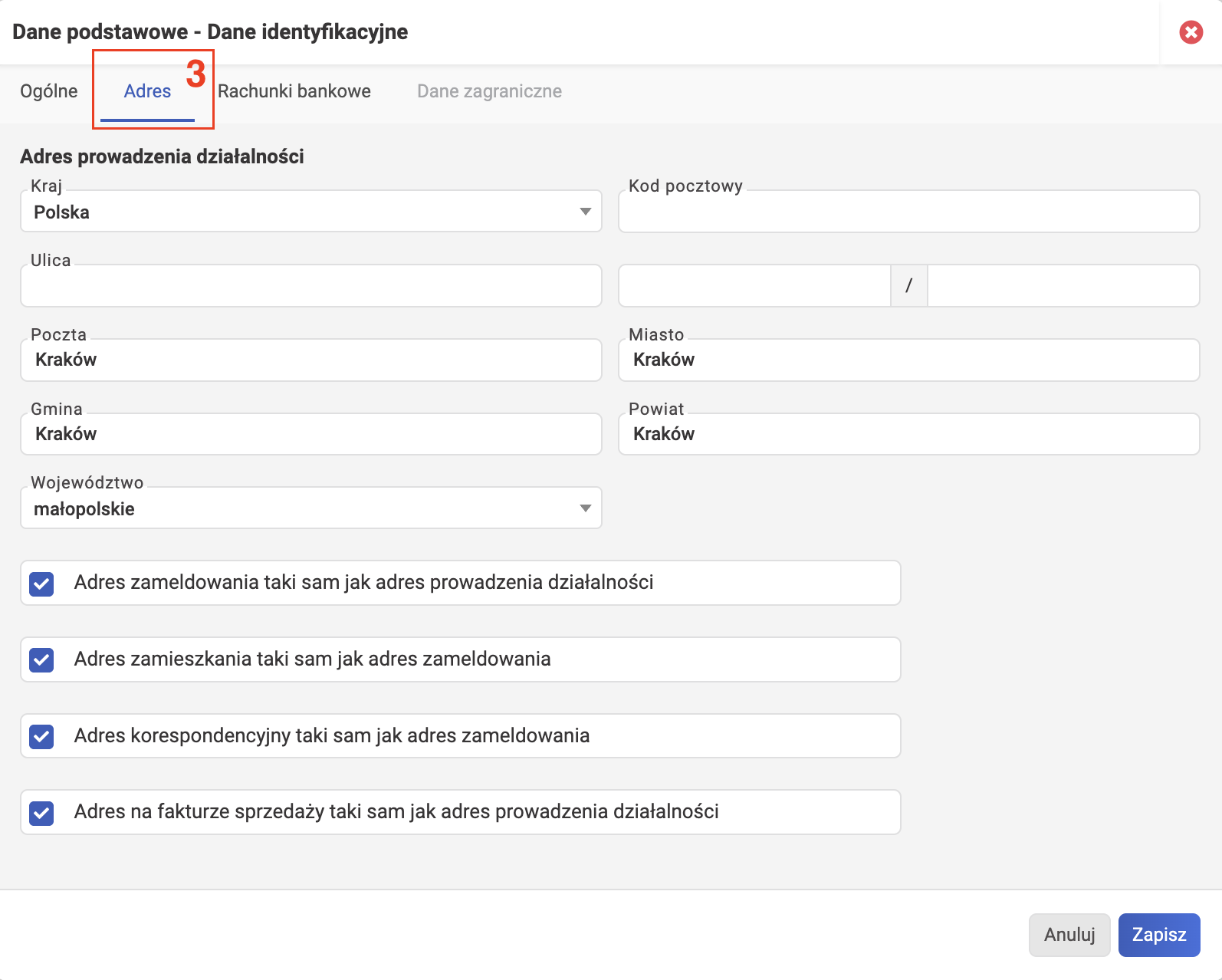
Fill in the address (tab Adres).
Enter the correct details for your 5 addresses:
Polski English adres prowadzenia działalności business activity address adres zameldowania registered residence address adres zamieszkania actual residence address adres korespondencyjny correspondence / mailing address adres na fakturze sprzedaży address on the invoices you will issue If you selected "no permanent place of business" when registering JDG, you can fill in the residence address, for example, the address of a rented apartment. In this case it's perfectly fine, because this address is needed for display on invoices to your clients.
-
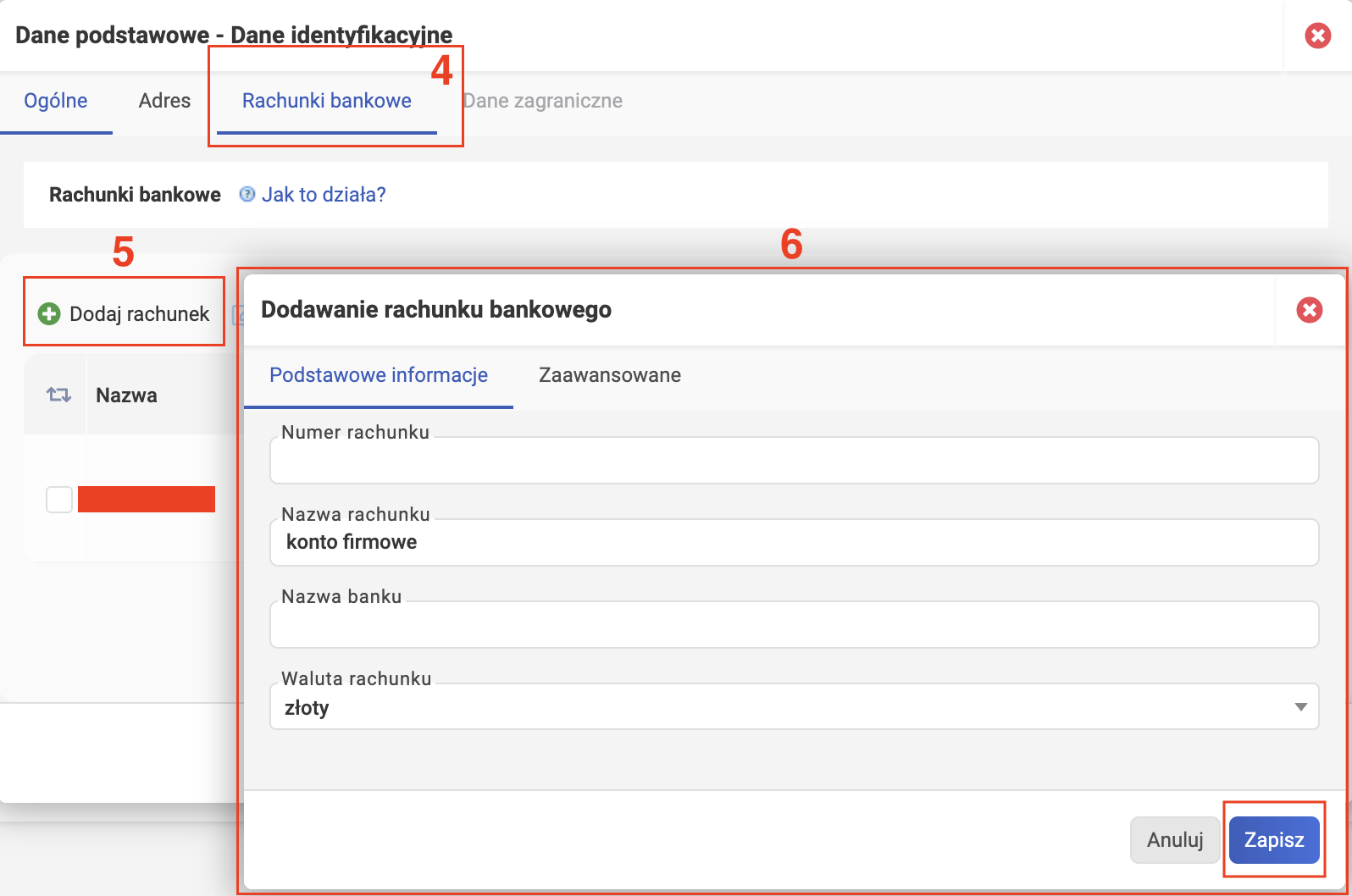
Go to the bank accounts tab (Rachunki bankowe).
- Click the Dodaj rachunek (Add account) button.
-
In the Dodawanie rachunku bankowego dialog, fill in the bank account details on both tabs (Podstawowe informacje + Zaawansowane) and click Zapisz (Save).
You can add multiple bank accounts. Later, when issuing an invoice, you can choose which bank account to display on the invoice for your client.
Click Zapisz (Save) to save the company details. You will receive an email from wFirma asking to confirm the changes.
Company owner details
Most likely wFirma will prompt you to fill in these details when you try to calculate PIT and won't let you proceed until you do (though the reason for this remains a mystery).
-
In the Dane podstawowe settings panel, choose Rodzaj firmy i właściciele (business type and owners).
-
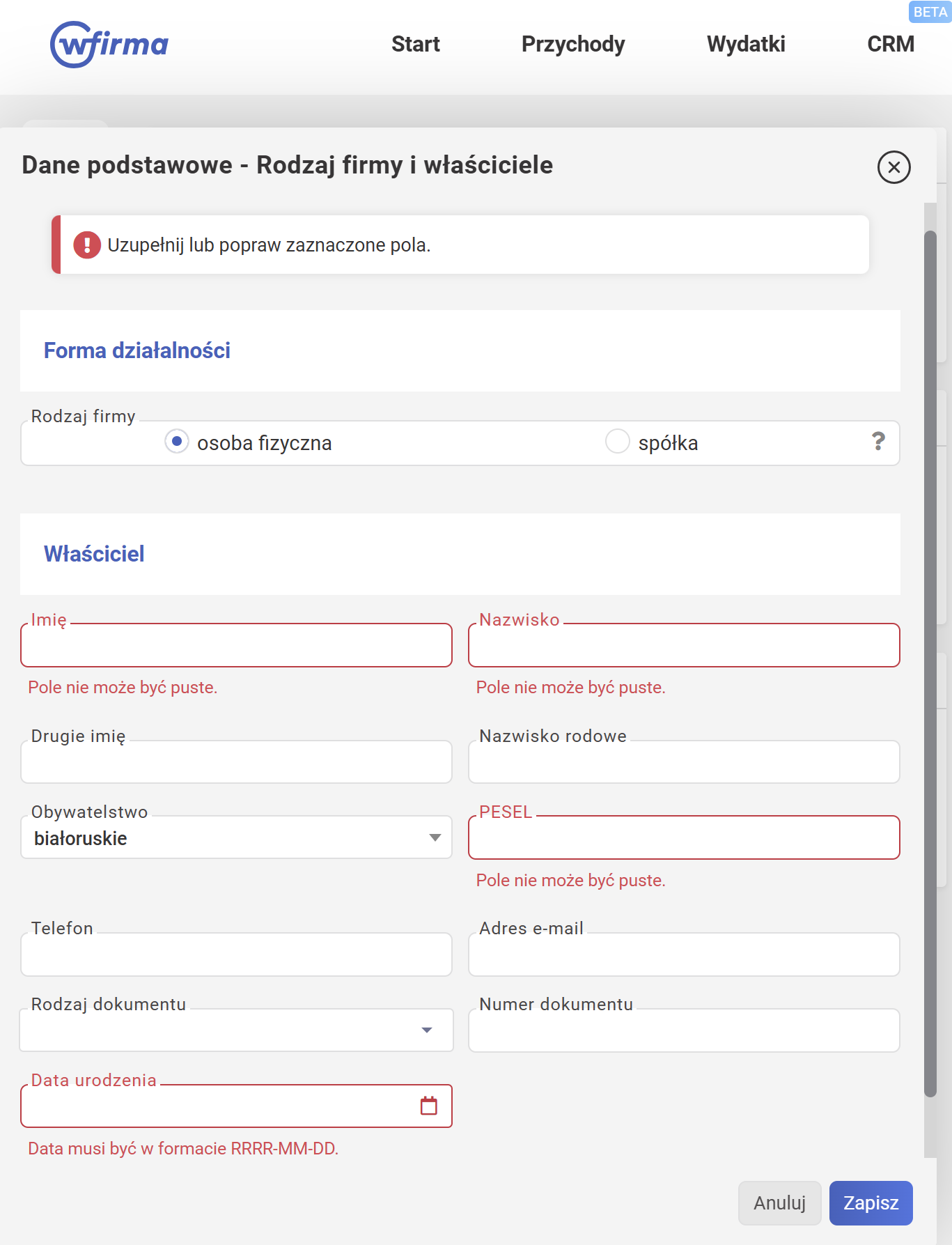
In the dialog, fill in general details about yourself as the owner, such as:
- Rodzaj firmy: osoba fizyczna (sole proprietor)
- Imię, Nazwisko: first name and last name
- obywatelstwo: citizenship (seems to be optional)
- PESEL: digits only, no spaces
- Rodzaj dokumentu, numer dokumentu: type and number of identity document (seems to be optional). If filling in, as a foreigner choose "paszport" (passport) and enter your passport number (Latin letters and digits only, no spaces).
- Data urodzenia: date of birth in YYYY-MM-DD format
Click Zapisz to save.
Tax settings
For this, we'll need the Podatki section.
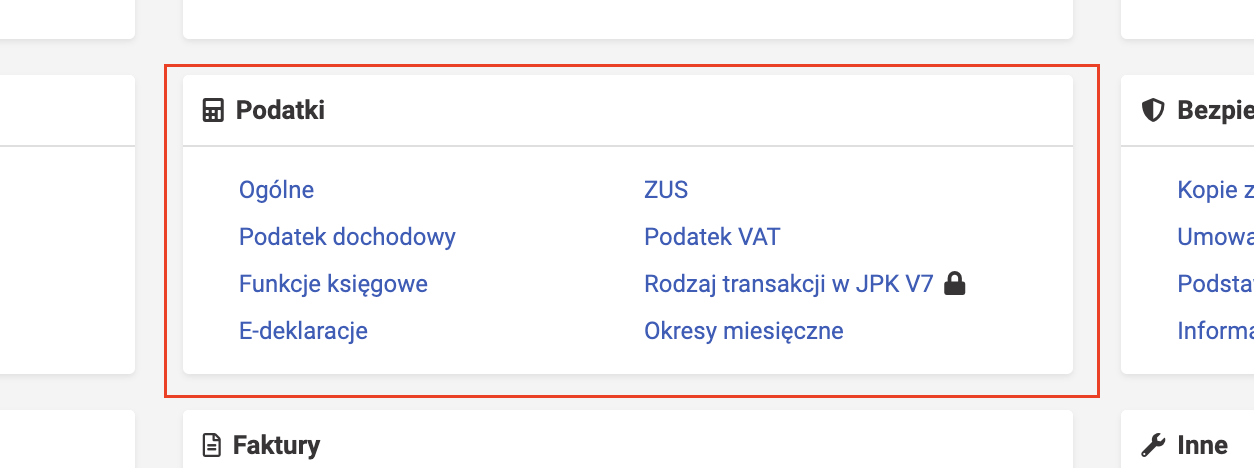
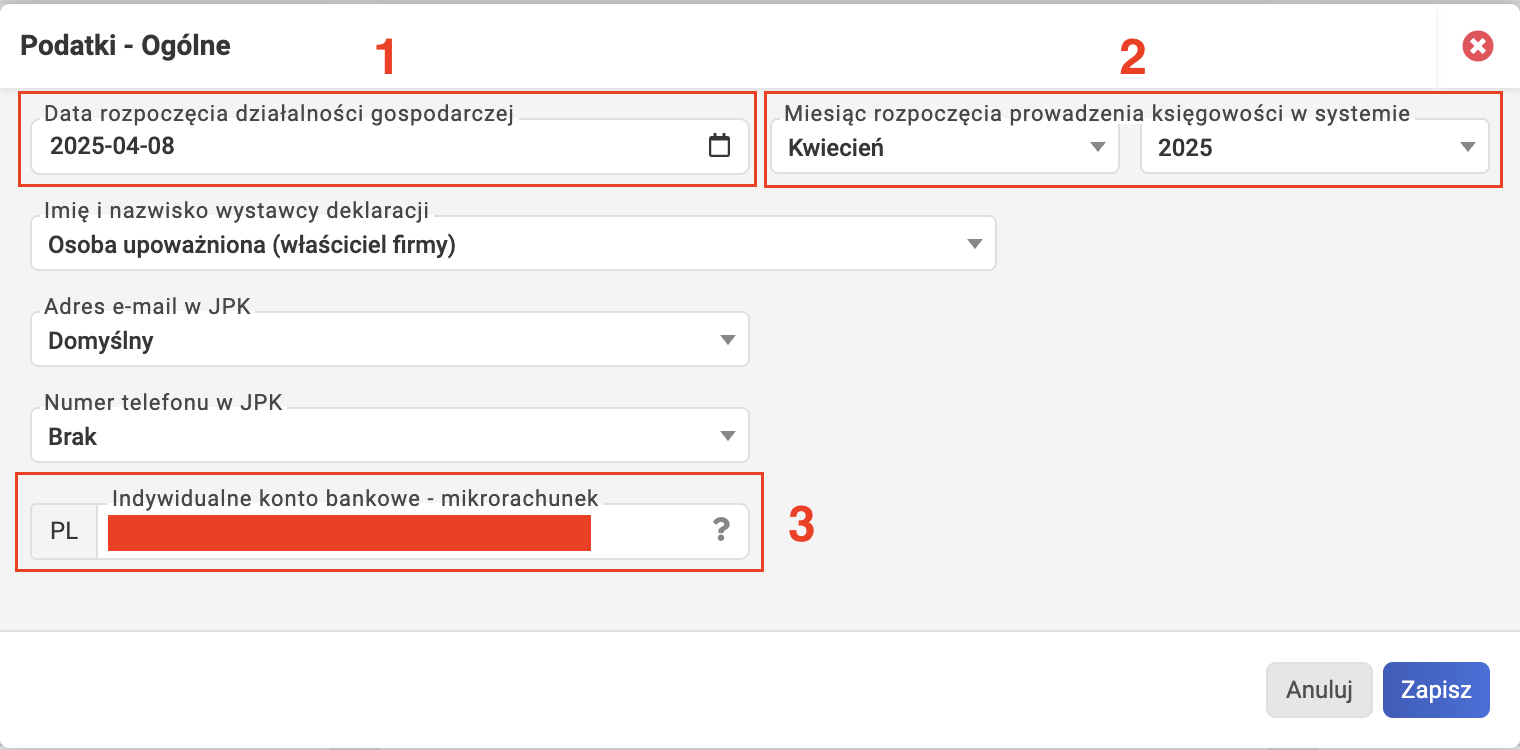
Podatki - Ogólne
- Select the JDG start date (data rozpoczęcia działalności gospodarczej) that you specified during registration.
-
Choose from which month you want to start calculating taxes in wFirma (Miesiąc rozpoczęcia prowadzenia księgowości w systemie).
Info
Almost always matches the month when you started your business activity.
For those migrating bookkeeping from another system
Keep in mind that older documents (dated before the selected month) simply cannot be entered in wFirma. Those of you who don't mind entering historical data are recommended to set this to styczeń (January) of the current year, so the entire year is in one system.
-
The individual account number — micro-account for paying taxes (Indywidualne konto bankowe - mikrorachunek) — is populated automatically. A "Confirm" button (Potwierdź dane) may appear next to the field; click it to confirm the micro-account number.
Info
You can verify the micro-account using the official tax service Generator mikrorachunku podatkowego by entering your NIP.
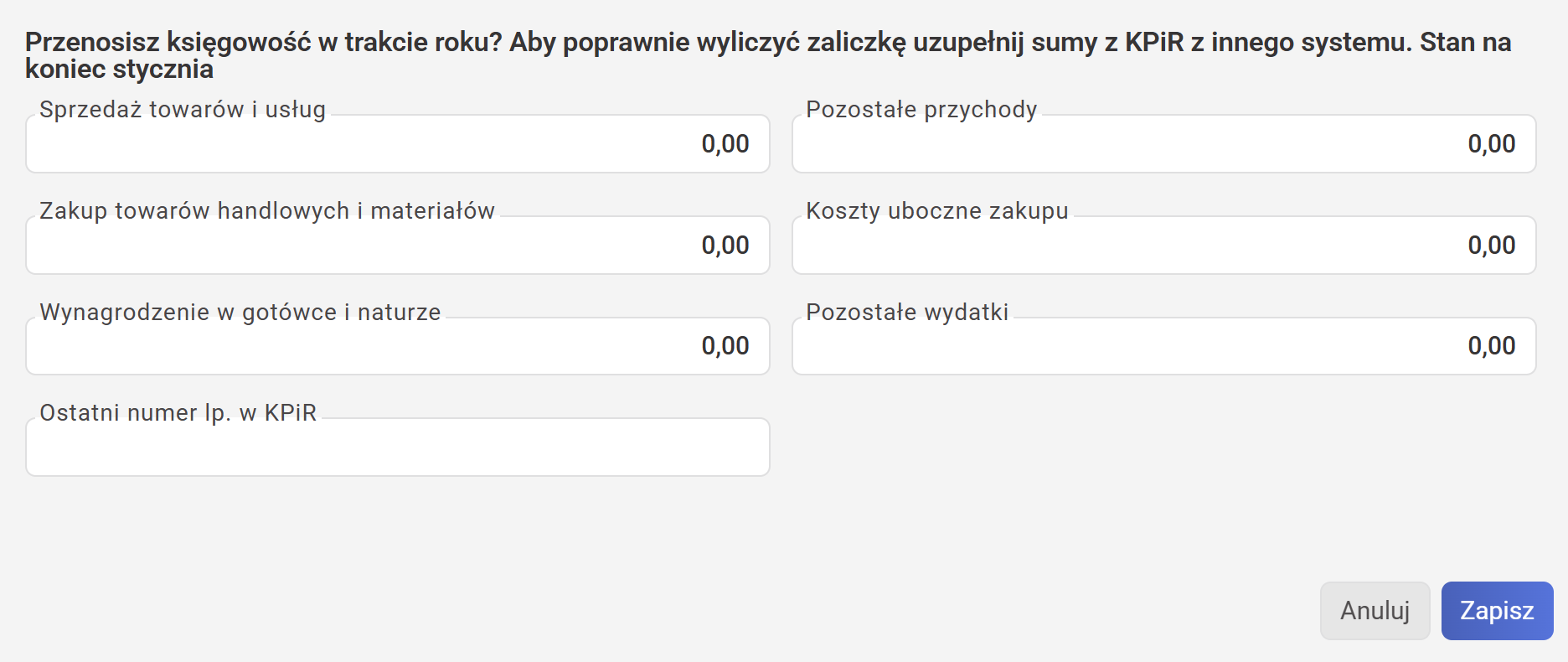
Additional step only for those keeping KPiR and migrating bookkeeping from another system mid-year
"Przenosisz księgowość w trakcie roku? Aby poprawnie wyliczyć zaliczkę uzupełnij sumy z KPiR z innego systemu. Stan na koniec..."
To correctly calculate the advance payment, transfer the sums from KPiR prepared in another system. Status as of end of ... (the previous month, see hints from wFirma).
Click Zapisz to save.
Podatki - ZUS
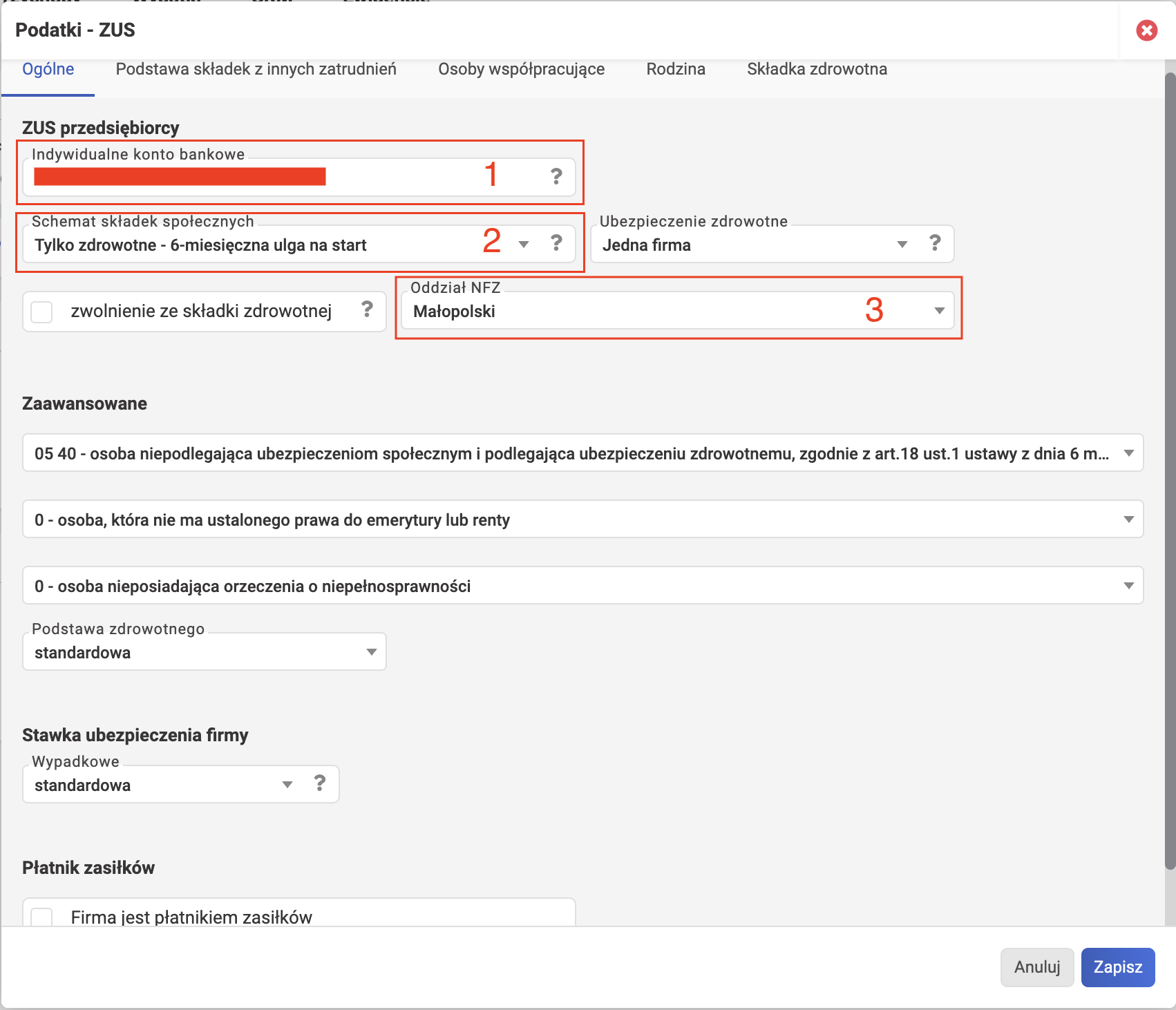
Enter exactly the same data in wFirma settings as you provided when registering with ZUS. Discrepancies between wFirma settings and ZUS settings are the cause of many errors! The correct data source: your latest ZUS ZZA or ZUS ZUA form.
-
The account number for paying ZUS contributions (Indywidualne konto bankowe) is populated automatically. A "Confirm" button (Potwierdź dane) may appear next to the field; click it to confirm the micro-account number.
Info
You can verify it using the official service e-Składka.
-
Select the contribution scheme (Schemat składek społecznych).
- If you're just starting your sole trader adventure, this is most likely Ulga na start (startup relief; make sure you're eligible for this relief!).
- If you're already an experienced entrepreneur, wFirma will additionally ask you to choose "Voluntary sickness contributions: YES/NO" (Dobrowolne chorobowe).
- Here are all available options:
Polski English Explanation Duży ZUS Full ZUS Social insurance, healthcare, and labor fund contributions. Calculation base: 60% of average salary. Code: 0510 or 0512. 2 letni preferencyjny ZUS 2-year preferential ZUS Reduced social insurance contributions — 30% of minimum wage. Code: 0570 or 0572. Mały ZUS Plus Small ZUS Plus For income up to 120,000 PLN in the previous year. Requires manual base entry. Code: 0590 or 0592. Tylko zdrowotne Health insurance only For those employed and running a business simultaneously — health insurance only. Code: 0510 or 0512. Tylko zdrowotne - 6-miesięczna ulga na start Health insurance only – 6-month startup relief New entrepreneurs. ZUS registration code: 0540. Tylko zdrowotne - 2 letni preferencyjny ZUS Health insurance only – 2-year preferential ZUS New businesses eligible for health insurance only. Code: 0570 or 0572. Tylko zdrowotne - mały ZUS plus Health insurance only – Small ZUS Plus Simplified system with health insurance only. Since 01.02.2020. Code: 0590 or 0592. Brak składek No contributions For those insured under KRUS or in another EU country — no need to pay ZUS in Poland. Mały ZUS i Tylko zdrowotne - mały ZUS Small ZUS and Health only – Small ZUS Deprecated schemes, valid until 31.01.2020. Can no longer be used. The advanced settings (Zaawansowane) are set automatically. Don't touch them. In very rare cases, such as a pensioner-entrepreneur or a disabled entrepreneur, something may need changing here. Read more in the wFirma documentation. 3. Select the NFZ branch (Oddział NFZ) that you specified when registering with ZUS. It changes if you move to a different voivodeship.
Pro Tip!
You can right-click the help buttons (the "?" icons) and choose "Open in new tab" to read the full article instead of the brief summary that pops up when you left-click.
Click Zapisz to save.
Only for those migrating bookkeeping from another system mid-year
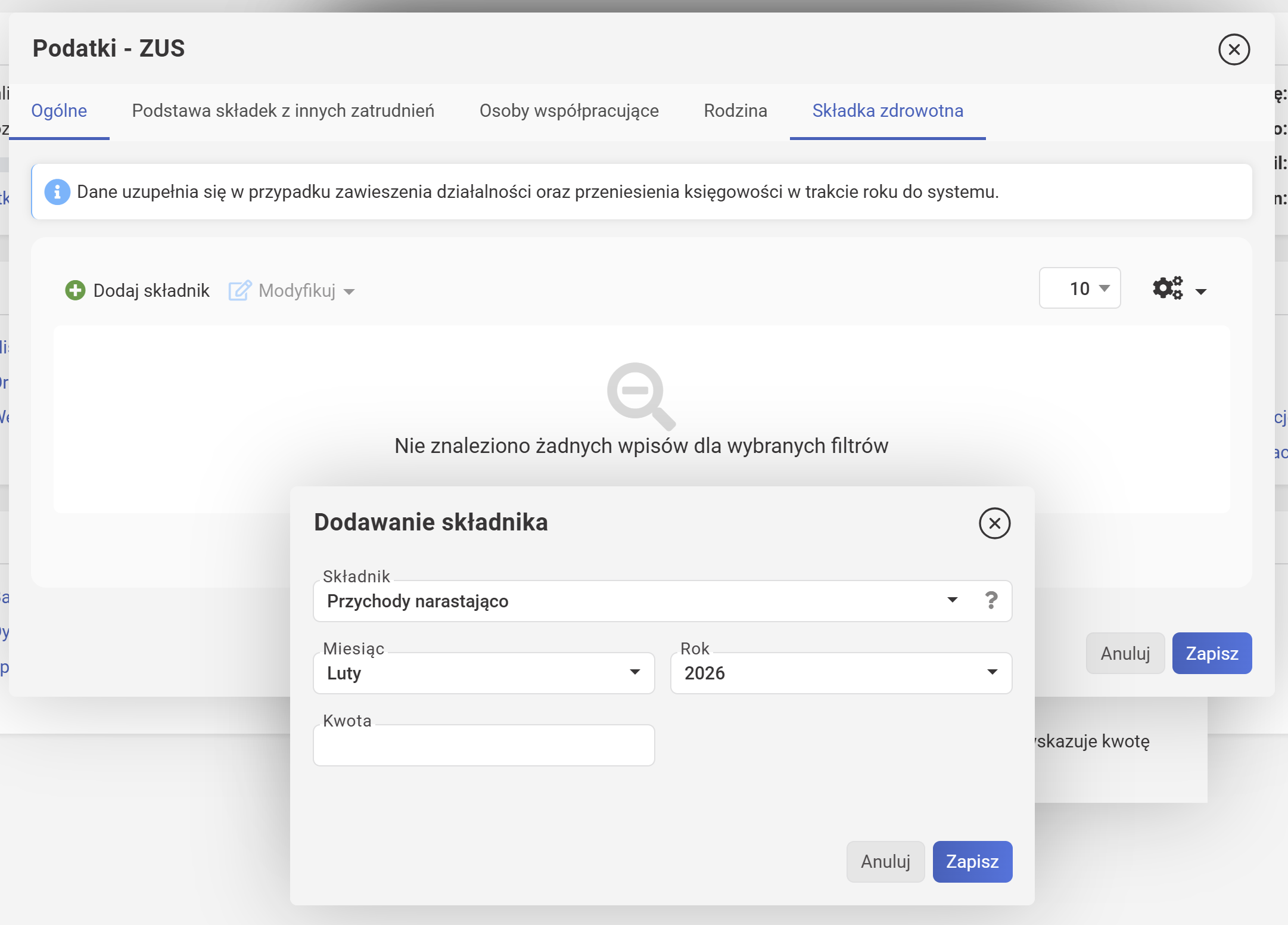
Open the "Podatki - ZUS" dialog again. Go to the "Składka zdrowotna" tab, click "Dodaj składnik" and fill in "Przychody narastająco" and "Suma składek społecznych zapłaconych od początku roku" following the hints.
Click Zapisz to save.
Podatki - Podatek dochodowy
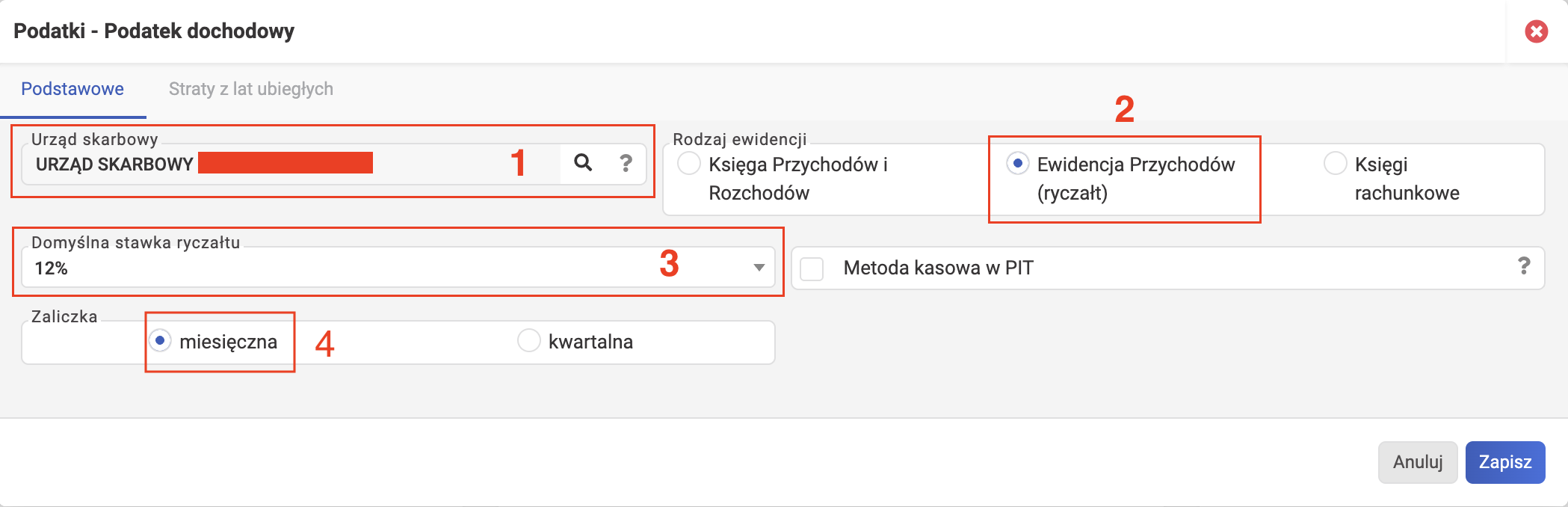
- Select the Urząd skarbowy (tax office) that you specified when registering JDG (or when you moved). If you forgot, you can check in your entrepreneur dashboard using the third-party tool CEIDG Viewer.
-
Specify the accounting type (Rodzaj ewidencji):
Polski English Ewidencja Przychodów (ryczałt) Revenue Records (ryczałt / flat-rate tax) Księga Przychodów i Rozchodów Revenue and Expense Ledger (PKPiR) Księgi rachunkowe﹡ Full accounting books﹡ * Księgi rachunkowe
Księgi rachunkowe is full accounting. Mandatory for those earning over 2,000,000 EUR. Small and medium entrepreneurs can adopt it voluntarily (but why?!).
Bad news
If you absolutely cannot select any options other than Księgi rachunkowe — i.e. EP and KPiR are greyed out — it's because you used the wrong promo code during registration. You'll have to delete this wFirma account and start the setup process from scratch. Use the JDG promo codes listed at the beginning of this article.
-
In the DOMYŚLNA STAWKA RYCZAŁTU field, select the tax rate matching your PKWiU code. If you have multiple business activities, choose the prevailing rate that will be used by default when issuing invoices in the system (you can change it to another rate per invoice).
- In the Zaliczka field, choose monthly (miesięczna) or quarterly (kwartalna) PIT advance payments. This choice is made once for the entire year.
-
Check the box if you use Metoda kasowa w PIT. Explanation:
Polski English Explanation Metoda kasowa w PIT Cash method in PIT Income and expenses are recorded when payment is actually received (into the bank account). You need to notify the tax office of your intention to use the cash method. Metoda memoriałowa w PIT Accrual method in PIT Income and expenses are recorded at the time the obligation arises (accrual). Applied by default to all sole traders.
Click Zapisz to save.
Podatki - Podatek VAT
Attention! wFirma settings must exactly match reality. It's recommended to perform simple checks to avoid mistakes.
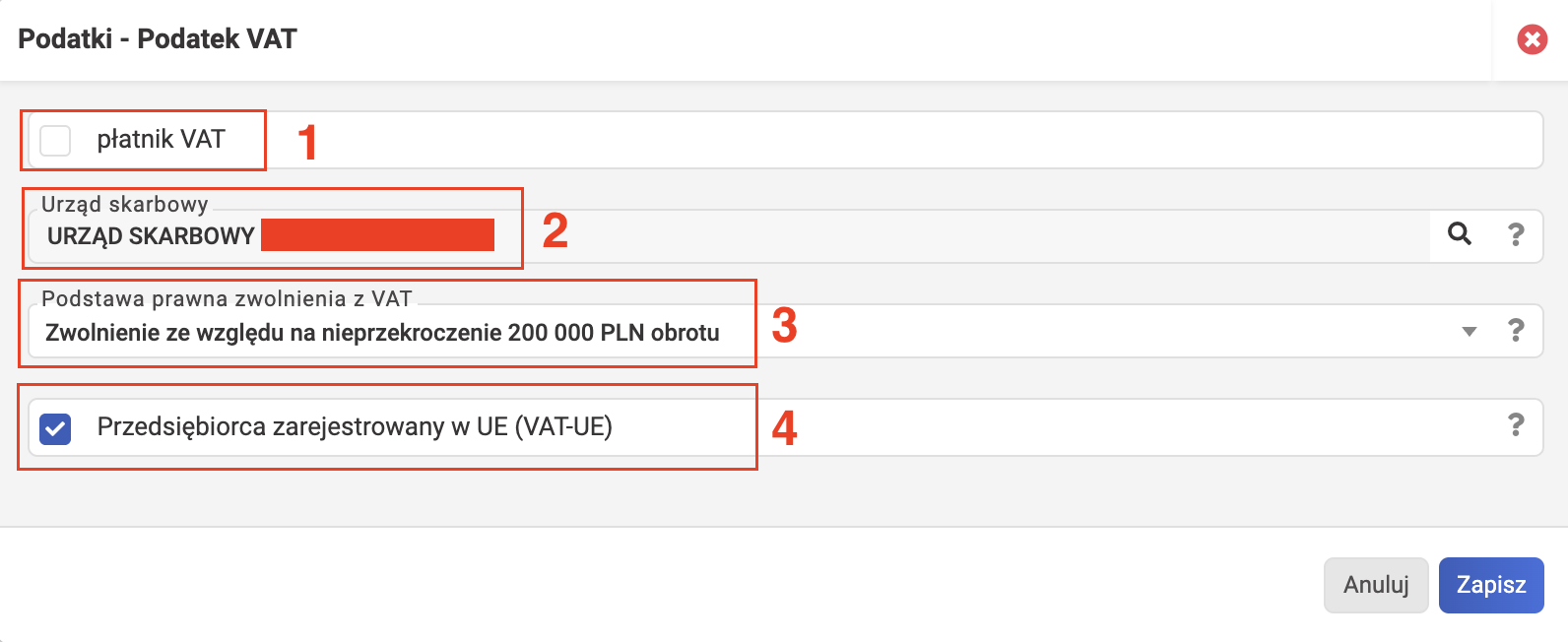
- Keep the płatnik VAT checkbox checked if you are registered for VAT in Poland.
- Verification:
- Go to podatki.gov.pl. This is the biała lista.
- Enter one of the identifiers: Account number (Numer konta), NIP digits or REGON, using your own data.
- Click the blue "Szukaj" button. Result:
- red "Nie figuruje w rejestrze VAT" or green "Status podatnika: Zwolniony" => Exempt from VAT => ☐ DO NOT check the box.
- green "Status podatnika: Czynny" => Active VAT payer => ☑ Check the box.
- error => verify you entered the data correctly. The service may be temporarily unavailable for technical reasons.
- Verification:
- Select the Urząd skarbowy (tax office) you specified when registering JDG (or when you moved).
-
Uncheck the płatnik VAT checkbox if you are NOT registered for VAT in Poland. Then in the "podstawa prawna zwolnienia z VAT" field, specify the reason for exemption.
Polski English Explanation Zwolnienie ze względu na rodzaj prowadzonej działalności Exemption due to the type of business activity Certain types of activity (e.g. educational services) are exempt from VAT by law Art. 43. - Zwolnienia przedmiotowe. Zwolnienie ze względu na nieprzekroczenie 240 000 PLN obrotu Exemption due to not exceeding 240,000 PLN turnover If annual revenue doesn't exceed 240,000 PLN, you don't have to become a VAT payer per Art. 113. - Zwolnienia podmiotowe. ⭐ Popular reason. Zwolnienie na mocy rozporządzenia MF Exemption under a Ministry of Finance regulation Special case. Inna podstawa prawna Other legal basis Very special case. -
Check the przedsiębiorca zarejestrowany w UE (VAT-UE) box if you are registered for VAT in the EU (required, for example, if you provide services to EU-based companies).
- Verification:
- Go to the VIES EU search system.
- Fill in the required fields "Member State" (Państwo Członkowskie) and "VAT Number" (Numer VAT, i.e. NIP) with your data.
- Click the blue "Verify" (Weryfikuj) button. Result:
- red "Nieważny numer VAT dla transakcji transgranicznych w obrębie UE" => Not registered for VAT-UE => ☐ DO NOT check the box.
- green "Tak, numer VAT aktywny" => Active VAT-UE payer => ☑ Check the box.
- error => verify you entered the data correctly. The service may be temporarily unavailable for technical reasons.
- Verification:
Podatki - Funkcje księgowe
-
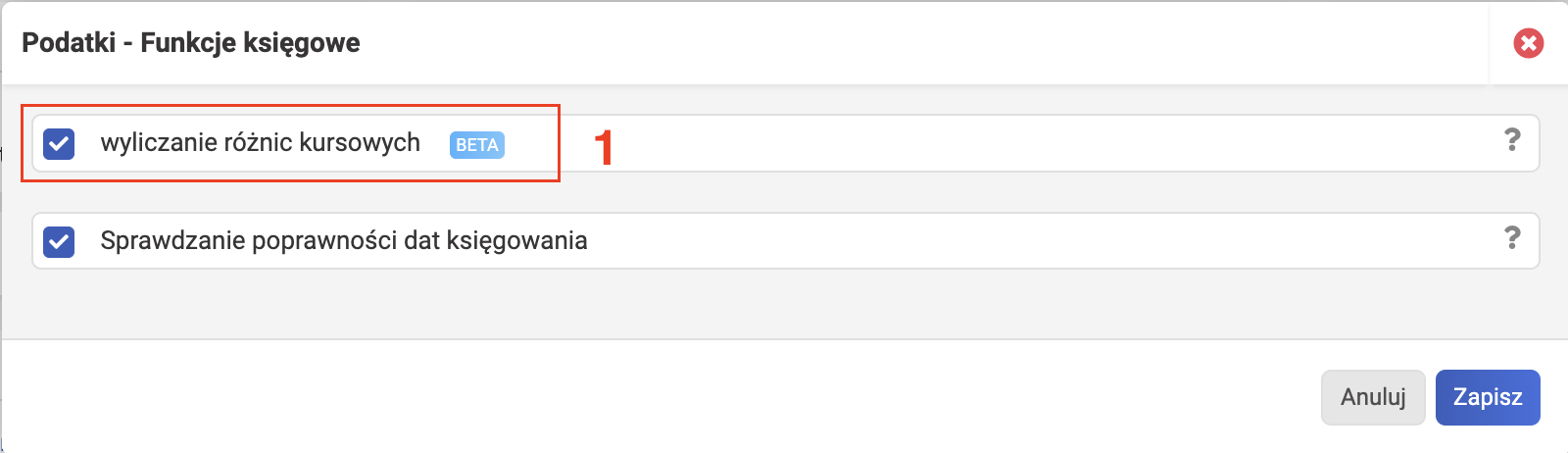
In the accounting functions settings menu, enable the exchange rate difference calculation (wyliczanie różnic kursowych).
This is useful if you receive payments in foreign currency and the invoice date (issue date or sale date — whichever is earlier) differs from the date the payment was credited.
-
The "Sprawdzanie poprawności dat księgowania" function is there so that wFirma checks the correctness of accounting entry dates.
In most cases it's recommended to keep this checkbox on. Unchecking it allows you to enter a document into the system that was issued before the wFirma start date, where the accounting date falls into the period when bookkeeping is already being managed in the system.
Setting up services
This is a catalog. Services added here can be selected when issuing an invoice to auto-fill the fields.
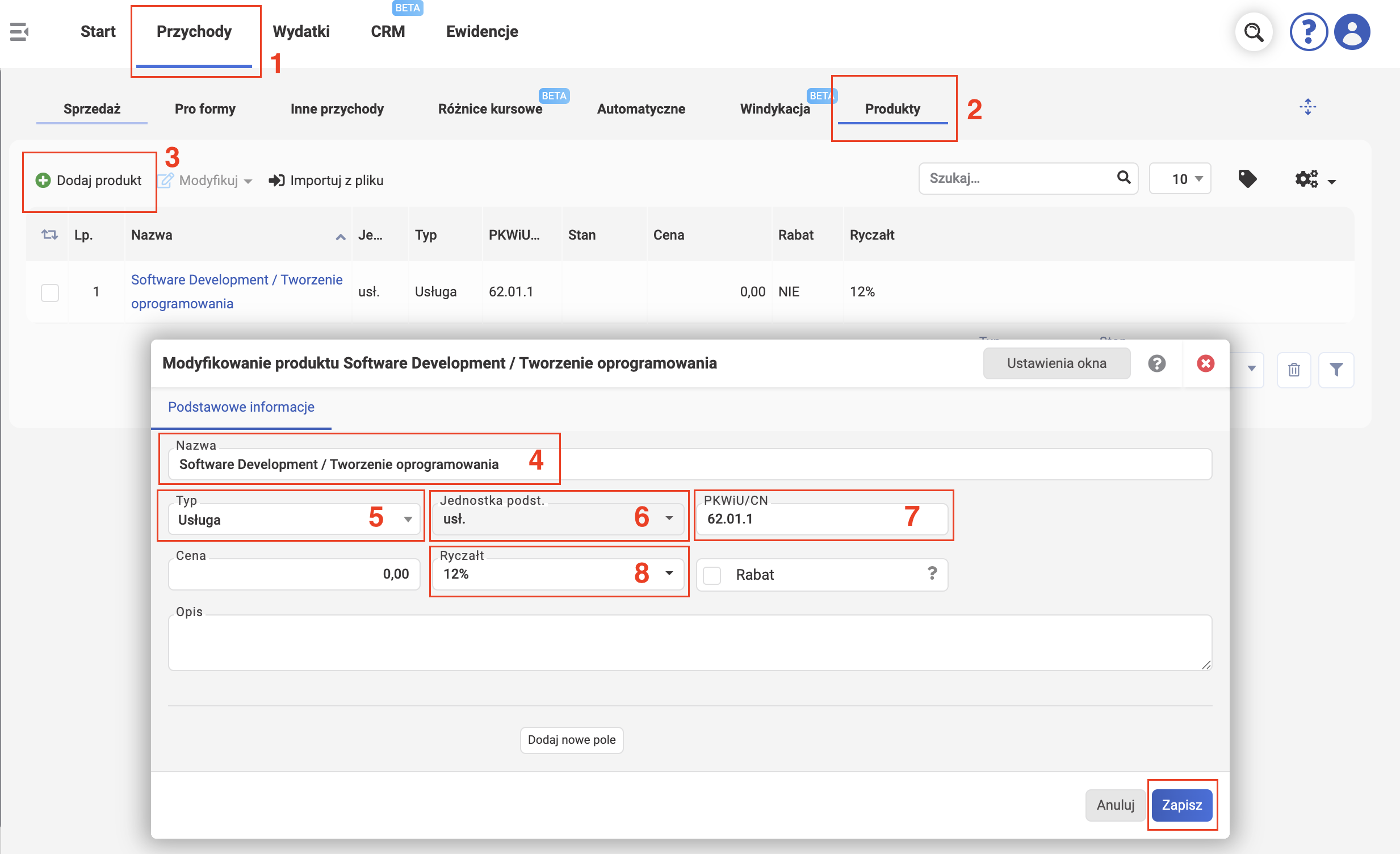
- Click Przychody or Magazyn (depends on your wFirma package).
- Click Produkty.
- Click Dodaj produkt.
-
Enter the service name (Nazwa). It's important to choose something that matches your line of business and PKWiU code. Common choices for software developers:
- Usługi komputerowe
- Tworzenie oprogramowania
- Usługi oprogramowania
For entrepreneurs engaged in international trade, we recommend specifying a dual name: Polish + foreign language. The foreign language part is for your client. The Polish part is for local offices.
- Tworzenie oprogramowania | Software development
-
Select the type (Typ) - Usługa.
- Select the default unit of measurement (Jednostka podst.) - usł.
- (optional) Enter the corresponding PKWiU/CN code. The code value on the screenshot:
- 62.01.1 = Usługi związane z projektowaniem i rozwojem technologii informatycznych = Services related to the design and development of information technologies.
- (if ryczałt) Select the corresponding tax rate. For PKWiU 62.01.1, it's 12%.
You can also set the net / gross price (for VAT payers) or just the price (Cena; for VAT-exempt payers) right away. But there's a catch: at this stage there's no way to specify the currency. If you set a price and then change the currency on the invoice, the price may be automatically converted. So you can skip the price here and enter it when issuing the invoice.
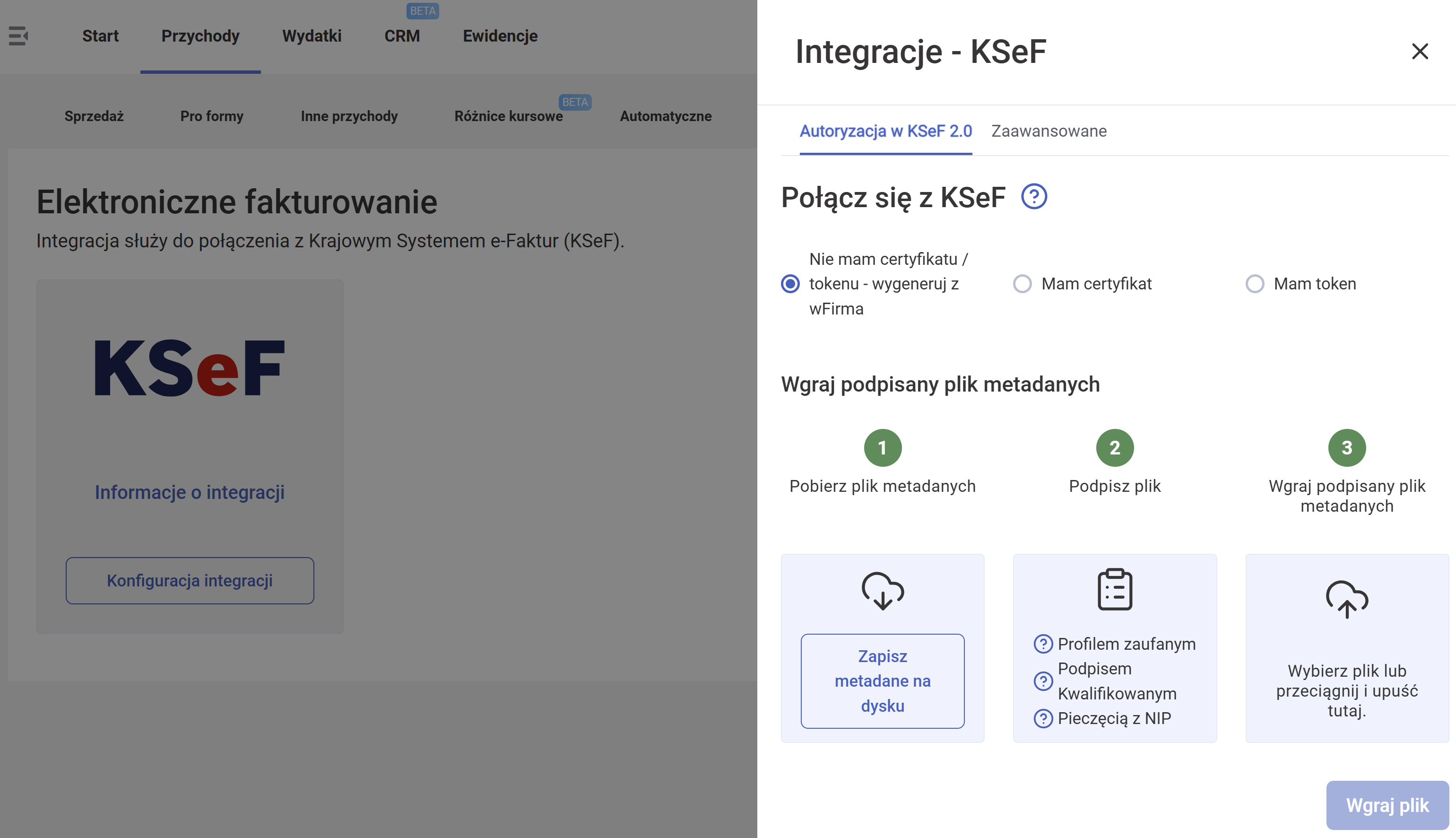
KSeF integration
KSeF is the national e-invoicing system (Krajowy System e-Faktur). It's a government registry where invoices issued in Poland are sent. Invoices from Polish companies are also received from it.
- Click Przychody.
- Click KSeF.
- Click Konfiguracja integracji.
From here, proceed as appropriate (follow the official on-screen instructions). In general, you'll need to use an existing certificate or create a pair of new certificates, download them, and upload them to wFirma. The process is straightforward but requires attention to detail.
Setting up counterparties
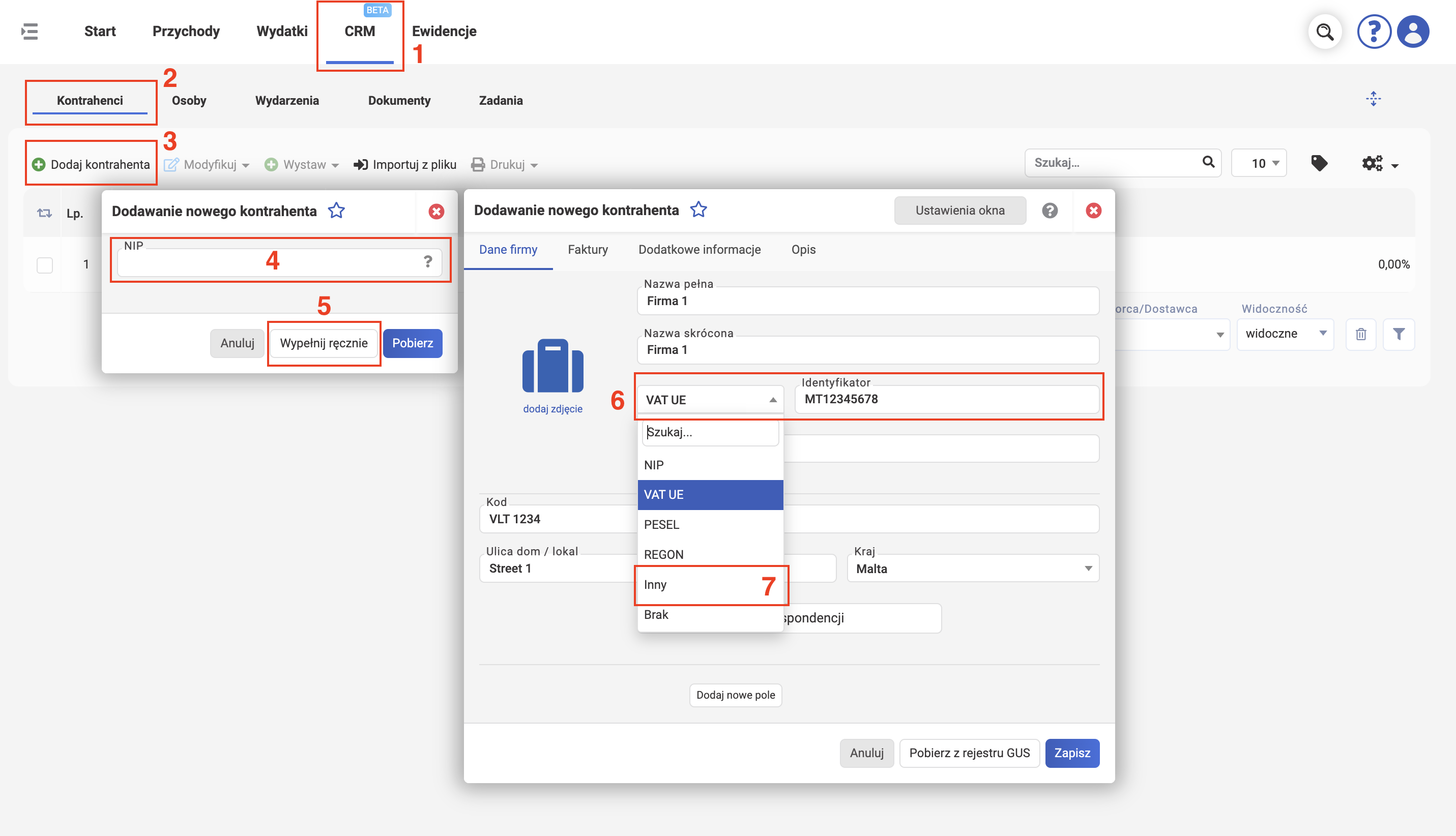
Add a counterparty to whom you'll be issuing invoices. Added counterparties can be selected when issuing an invoice for auto-fill. These settings are individual. The general steps are:
- Click CRM.
- Click Kontrahenci.
- Click Dodaj kontrahenta.
- If the counterparty is from Poland, enter their NIP in the Dodawanie nowego kontrahenta dialog and click the blue Pobierz button. The data will be populated automatically.
- Otherwise, you can fill in the details manually (button WYPEŁNIJ RĘCZNIE).
- For example, if the counterparty is from another EU country (not Poland), in the Dodawanie nowego kontrahenta dialog you can choose "VAT UE" as the identifier, enter the VAT-UE number including the two-letter prefix in the Identyfikator field, carefully fill in the address (if the address has no postal code — enter a space in the Kod field), and select the country from the "Kraj" dropdown. Here's a list of countries that belong to the "VAT UE" group.
- When adding a new foreign counterparty from outside the EU, after entering the company name, select the identifier type "Inne", fill in the address (if there's no postal code — add a space), and select the country from the "Kraj" dropdown. The US or the UK, for example, fall into this "Inne" group.
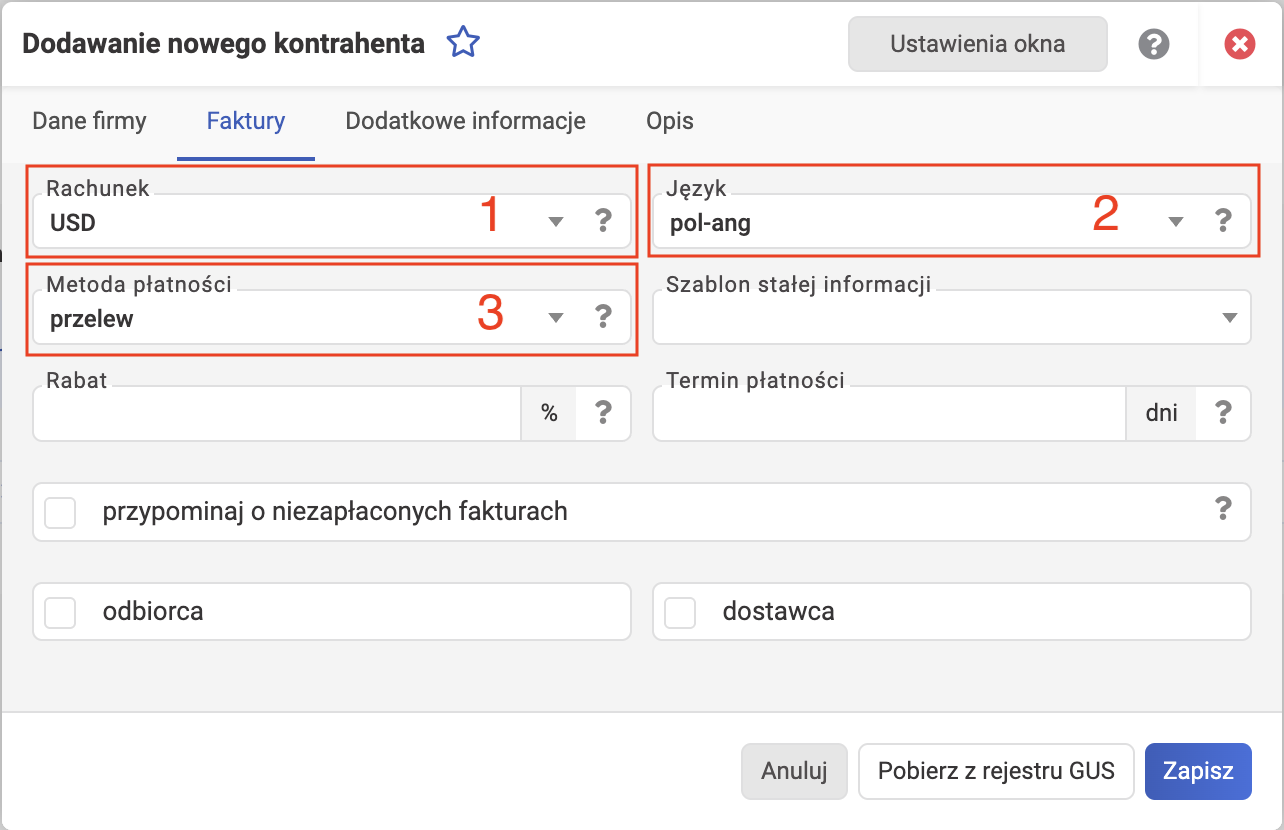
On the Faktury tab, there are no mandatory fields. But for your own convenience, it's recommended to fill in the following right away:
- Rachunek - your account that will appear on invoices in the seller details for this particular counterparty. A useful setting for businesses that have multiple accounts and use different ones for different groups of counterparties.
- Język - invoice language. In this case, Polish-English (pol-ang) is selected.
- Metoda płatności - payment method. On the screenshot, przelew is selected — that's a bank transfer.
- Szablon stałej informacji - permanent information template — here you can add a description that will appear on every invoice for this counterparty. Leave it empty.
- Rabat - discount. Skip it.
- Termin płatności - payment deadline. There's an option to set an individual payment deadline for the counterparty, counted in days from the invoice issue date.
- The przypominaj o niezapłaconych fakturach option — reminders about unpaid invoices. If this is unchecked, wFirma won't send reminders to this counterparty, even if the global settings say otherwise.
Click Zapisz to save, or Anuluj (cancel) to close the dialog without saving.
Invoice settings
Invoice numbering
In the Faktury => Serie numeracji section, you can add a custom numbering series for invoices.
- Click the Dodaj serię (Add series) button.
- In the Nazwa field, enter any name you like.
- In the Typ dokumentu field, choose "Faktura VAT" for VAT payers; or "Faktura (bez VAT)" for everyone else.
- In the Wzorzec field, enter the number pattern. For example, "[numer]/[rok]" if you want your invoices numbered as "1/2026" instead of the default "FV 1/2026". Available placeholders can be found by clicking the "?" (help) button.
- In the Numer początkowy field, enter the starting number for this series. Usually "1", but when migrating from another invoicing system you may want to start from a different number to keep the numbering continuous.
- "Resetowanie numeru: co rok" - reset the numbering every year (a sensible default).
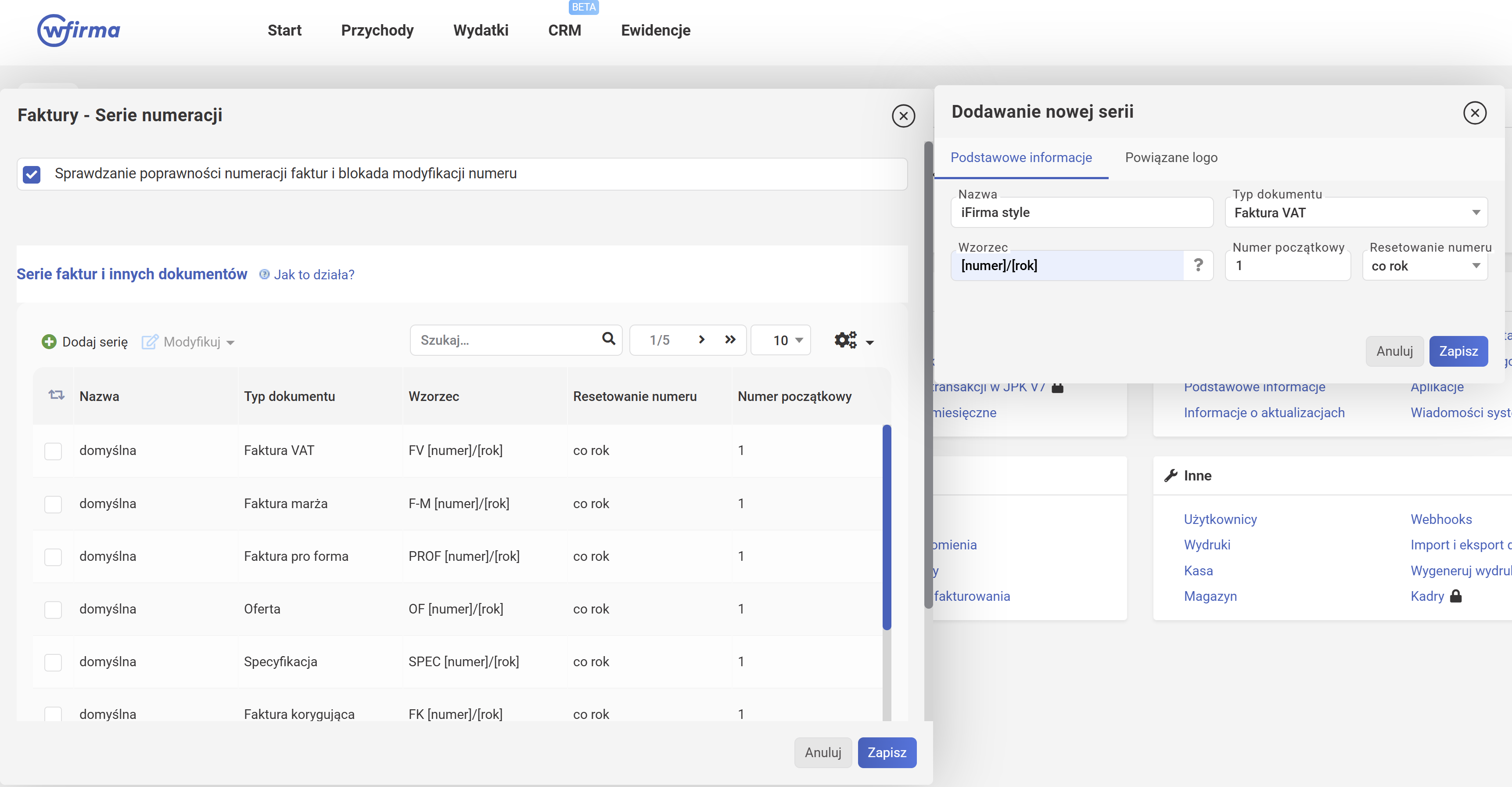
To save the changes, click Zapisz twice.
Invoice template
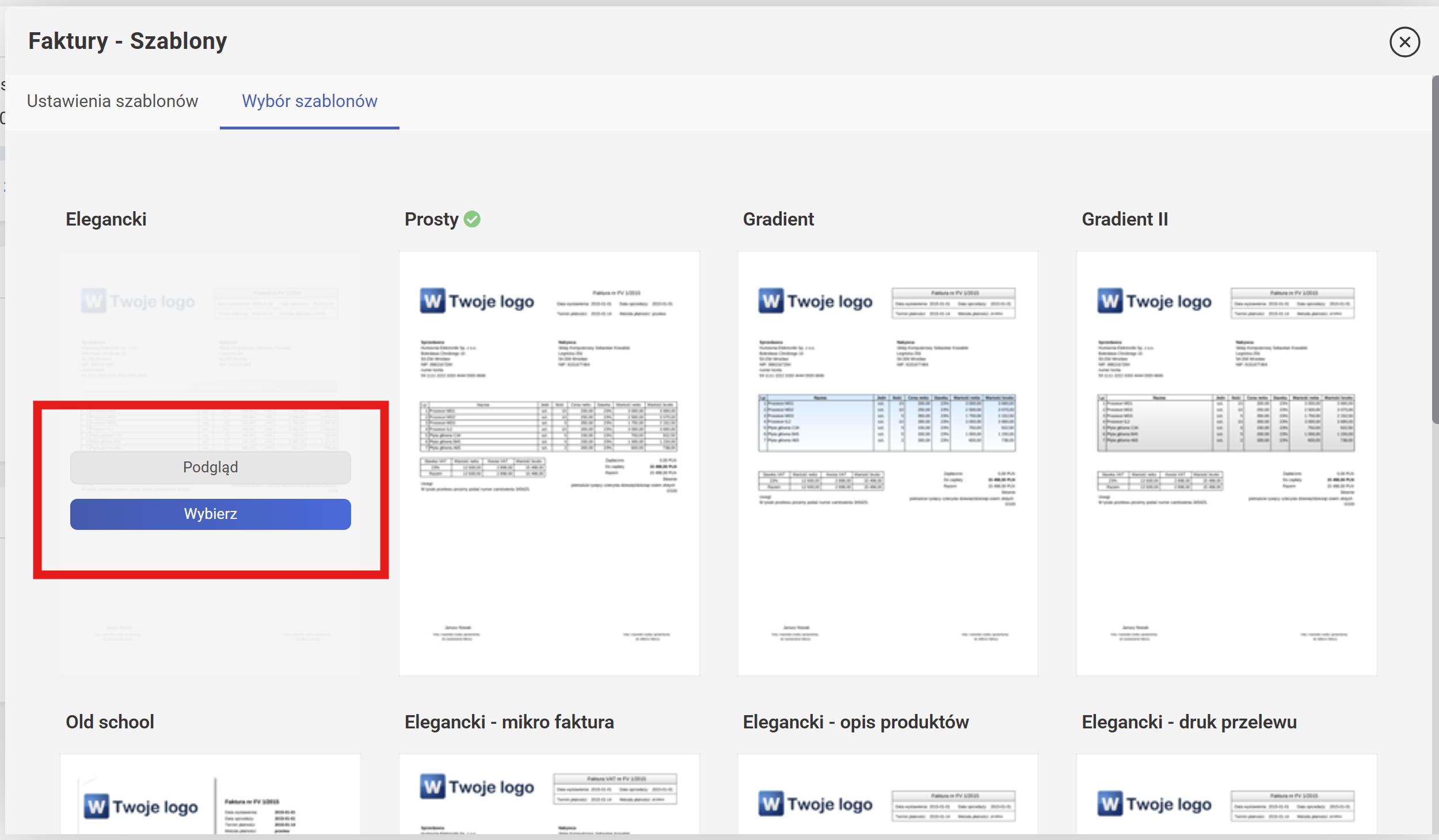
In the Faktury => Szablony section, on the Wybór szablonów tab, you can choose from several pre-configured invoice templates.
- the "Podgląd" (preview) button lets you see what the invoice will look like.
- the blue "Wybierz" (select) button lets you pick the template to use by default. You can always change the template for a specific invoice when issuing it.
Email template
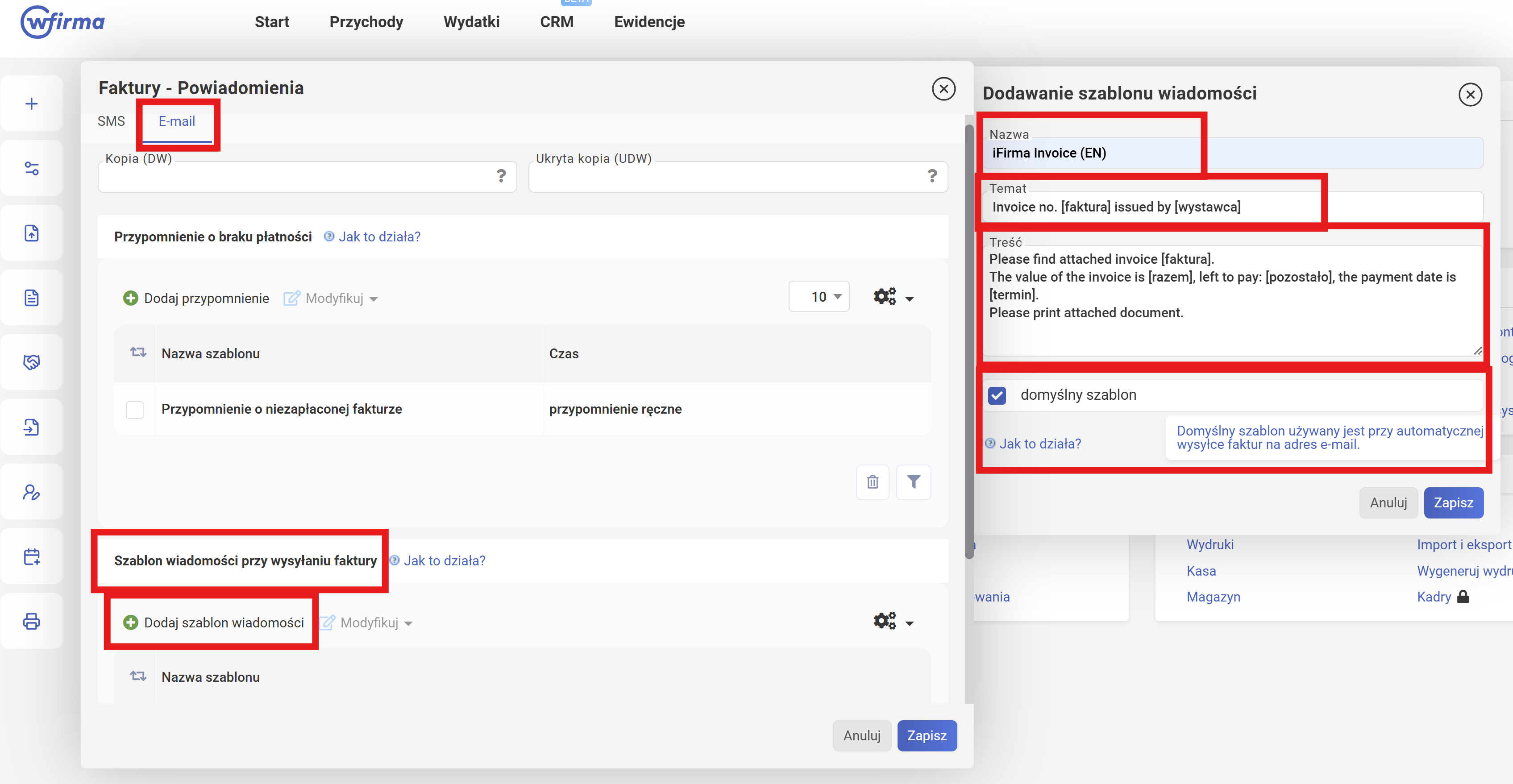
In the Faktury => Powiadomienia section, on the Email tab, you can change the email template used when sending an invoice to a client.
- Find the "Szablon wiadomości przy wysyłaniu faktury" section.
- Click the "Dodaj szablon wiadomości" button.
- In the Nazwa field, enter any name you like.
-
Temat (Subject):
Invoice no. [faktura] issued by [wystawca]
-
Body (Treść):
Please find attached invoice [faktura]. The value of the invoice is [razem], left to pay: [pozostało], the payment date is [termin]. Please print attached document.
-
Check the "domyślny szablon" (default template) box if you want this template to always be used when automatically sending invoices.
To save the changes, click Zapisz twice.
Signature on the invoice
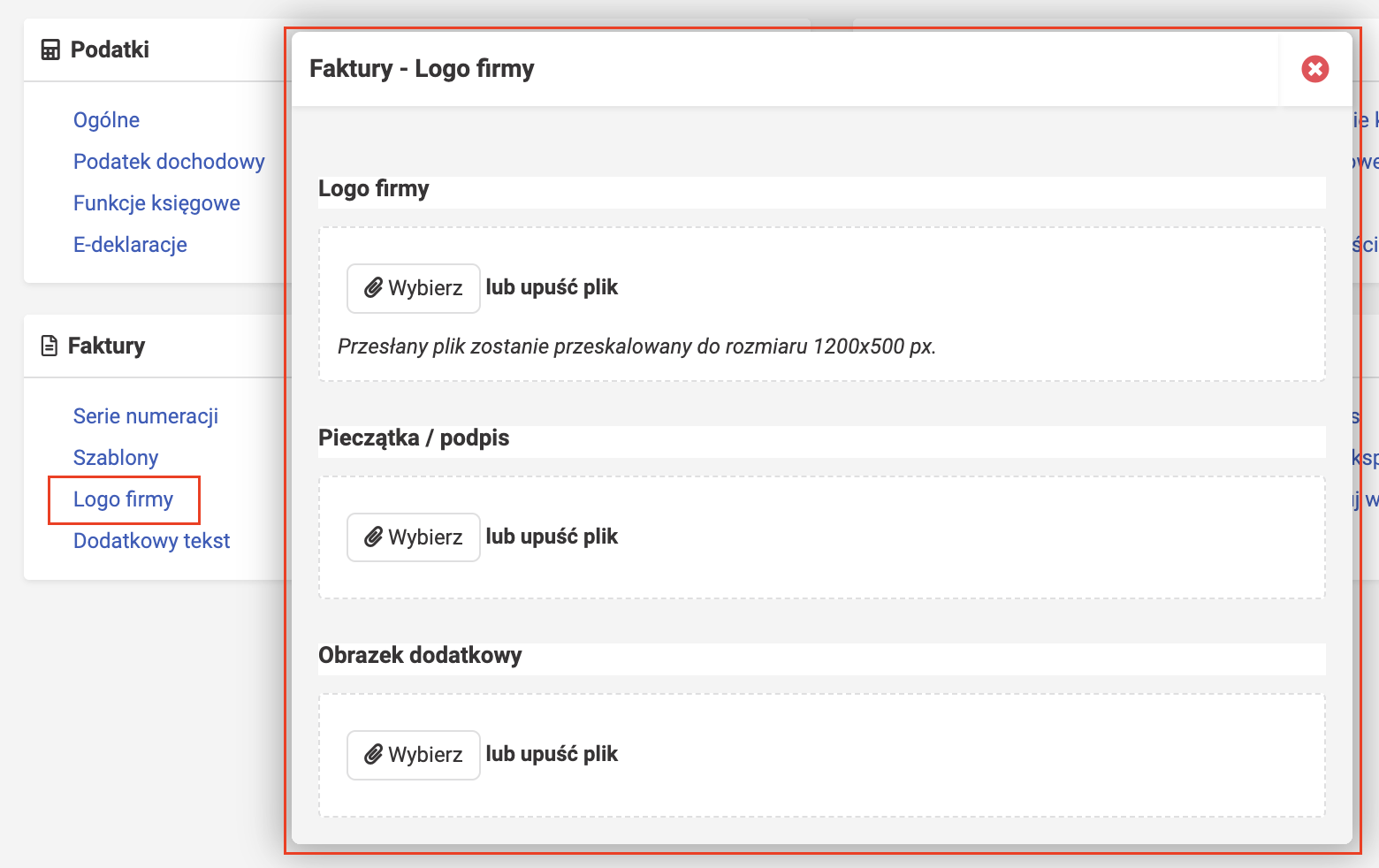
In the Faktury => Logo firmy section, you can upload an image of your signature or stamp (Pieczątka / podpis) and your company logo (Logo firmy), which will be displayed on invoices.
Company verification
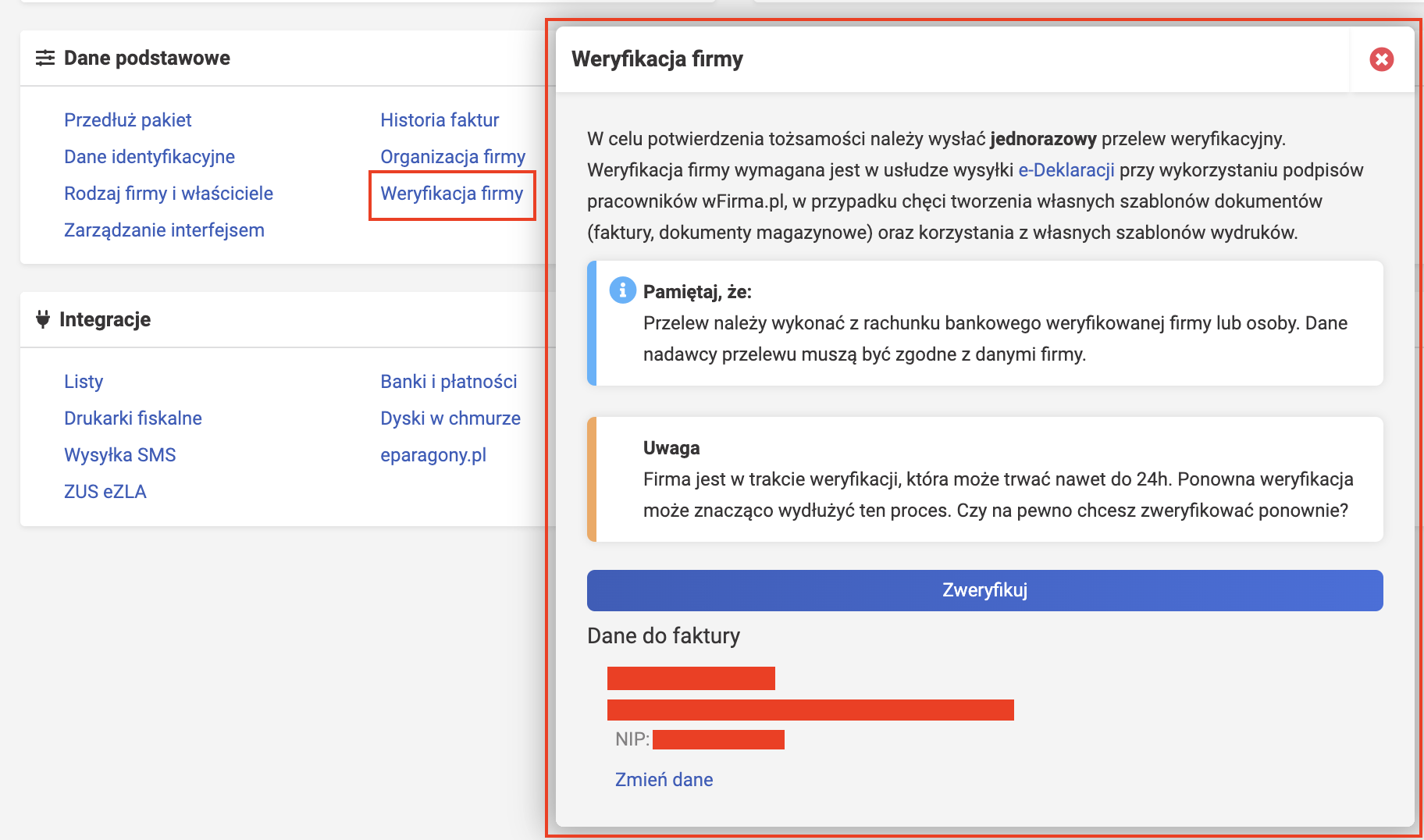
To send ZUS DRA declarations from wfirma, you need to verify your profile. This can be done in the Dane podstawowe => Weryfikacja firmy section. To confirm your identity, you'll need to make one bank transfer from your business account.
Info
It's worth noting that verification is not mandatory. Wfirma provides one free year upon registration. If you don't verify your profile, after a year you can re-register and get another free year (provided such a promotion is still available, of course). Whether it's worth the effort is up to you. However, in that case you'll have to download the ZUS DRA file yourself and upload it to the ZUS portal.
Migrating bookkeeping
For details on migrating from another system, check the guide Migrating to wFirma.
Backups
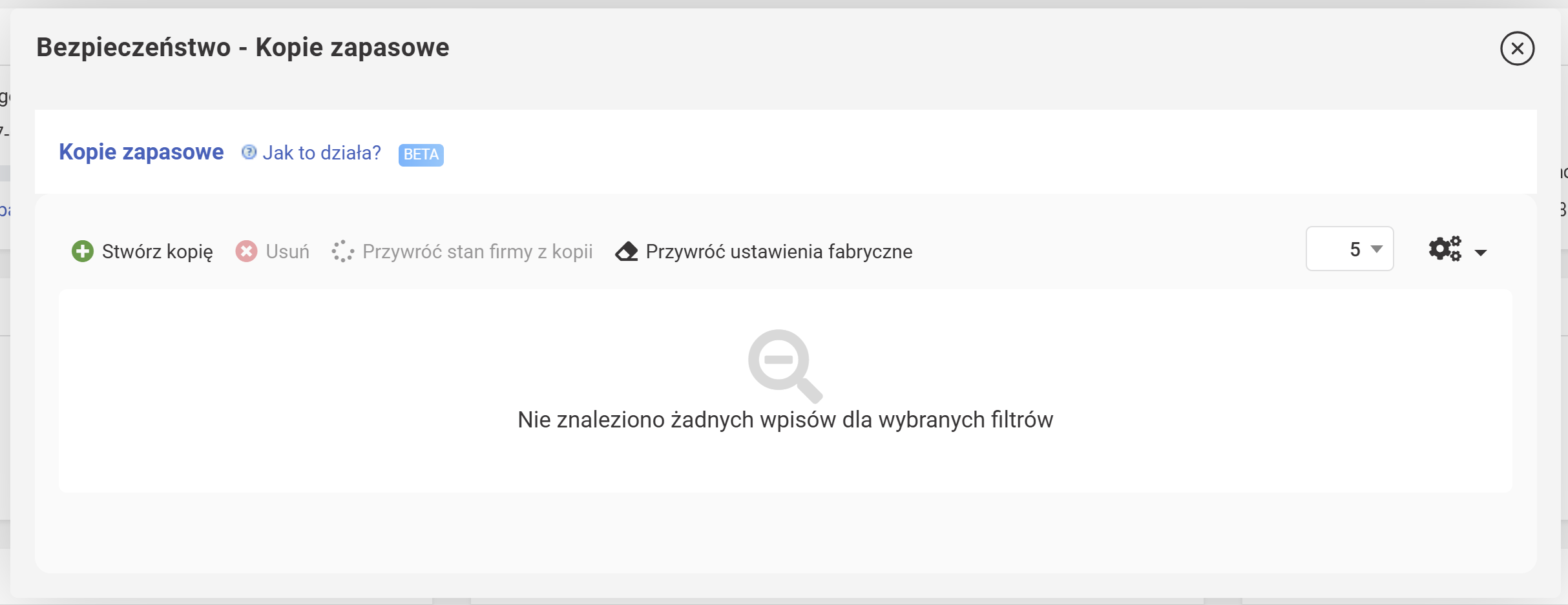
In the Bezpieczeństwo => Kopie zapasowe dialog, click the "Stwórz kopię" button to create a backup of your account settings. Backups are created automatically, but this button lets you create one at any time. Restoring data is a risky operation and should only be used as a last resort.
Done
If something went wrong or you ran into issues, you can reach out to wFirma support:
- Pomoc: click the (?) icon in the top right corner.
- Asysta: assistant
- email: buiro@wfirma.pl
Note: the first 2 methods are available only to logged-in users.
Support our guide with a cup of coffee ♥