Routine Operations for a Sole Proprietor (Monthly) Using wfirma.pl
This document covers the typical monthly operations for a sole proprietor on ryczałt in wfirma.pl. The minimum wFirma setup is described on the wFirma setup page.
Issuing Invoices
On the last day of the month (if you have a monthly billing agreement with your client), or upon completion (delivery) of work, you need to generate and issue an invoice to your client.
- Go to the main page.
- Click Wystaw fakturę (Issue an invoice).
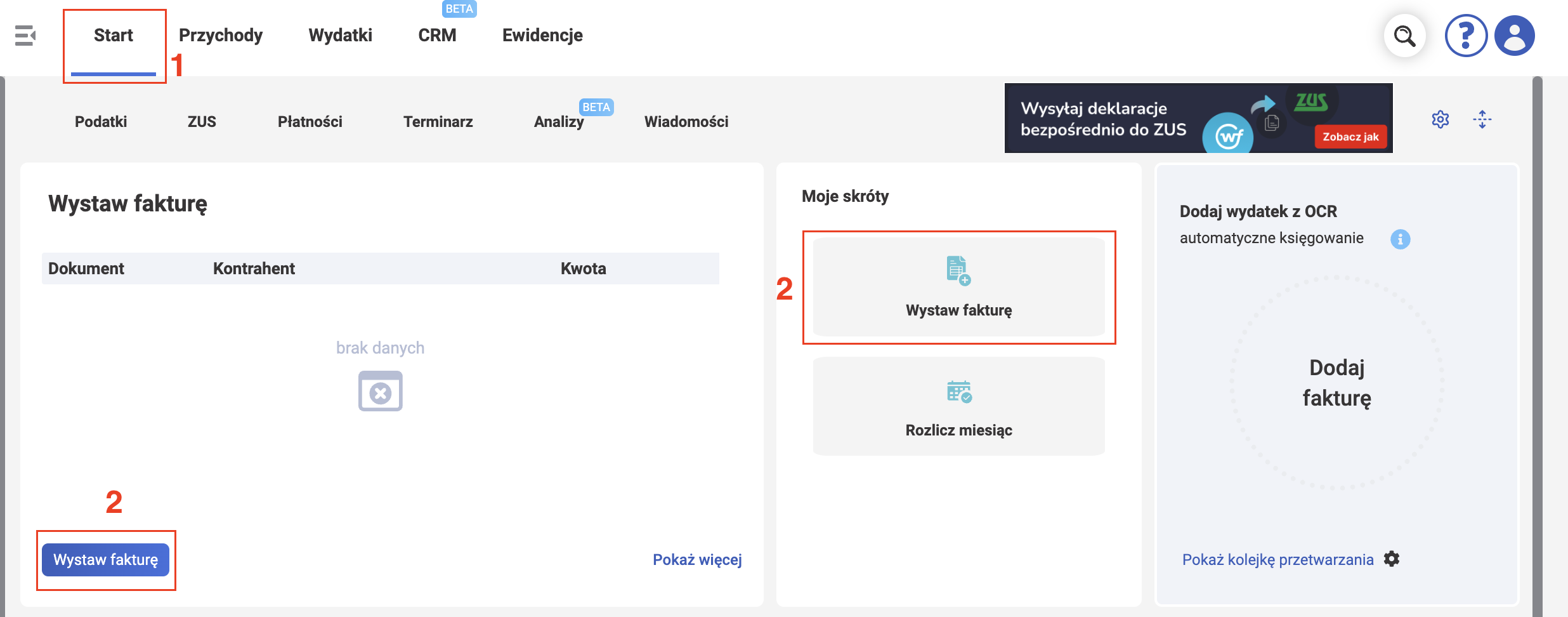
You can also do this on the Przychody - Sprzedaż page. The Wystawianie faktury window will open.
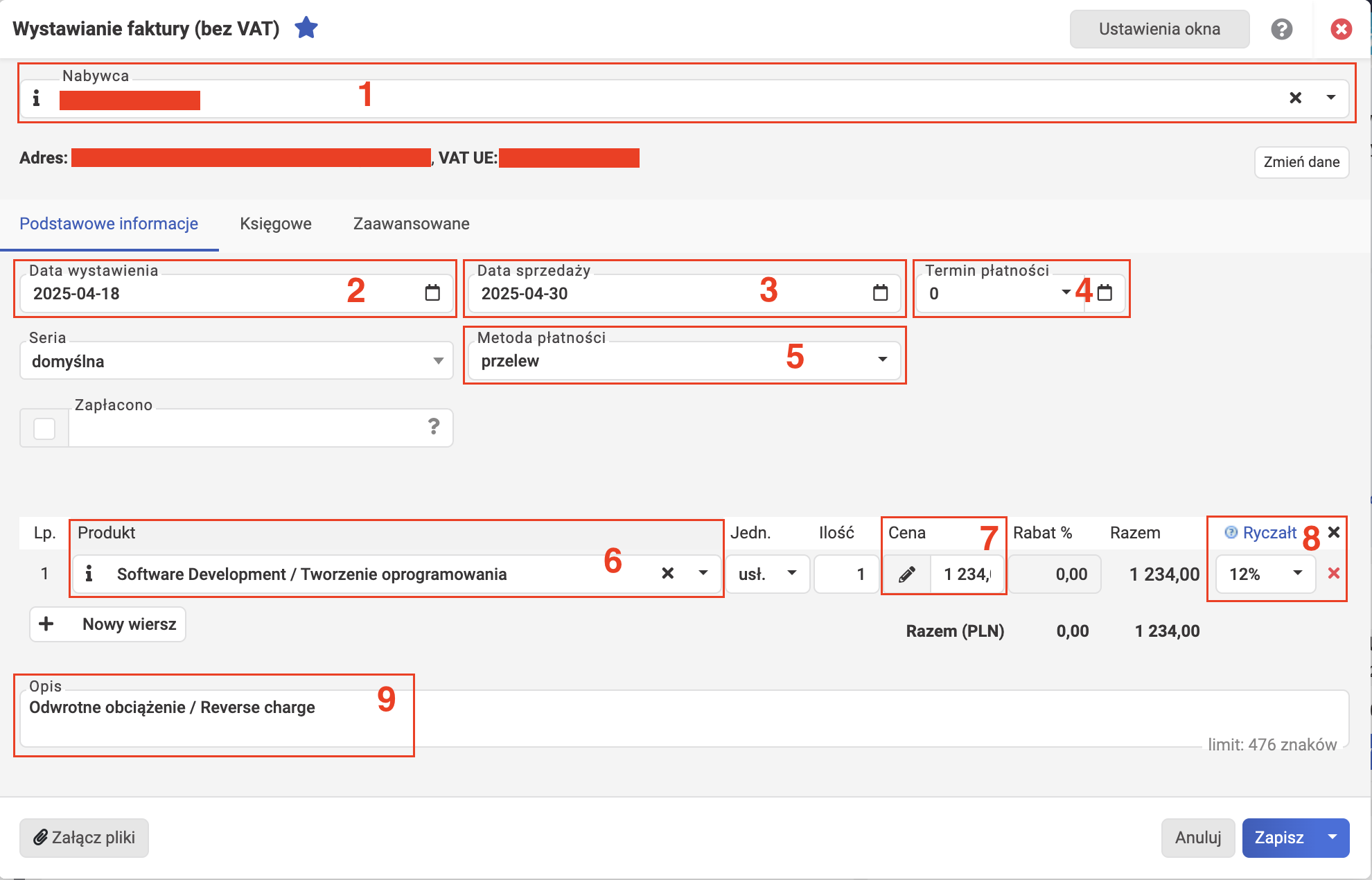
Podstawowe informacje
(Basic information)
- Select the counterparty you're invoicing (from the Nabywca dropdown). The address and NIP or VAT UE number will be pulled automatically from the directory.
- Data wystawienia — the invoice issue date. Previously you could choose "today" or a date in the past. But ever since the KSeF integration was configured in the wFirma account, the issue date = today (always). You cannot change this date on the invoice creation screen.
-
Data sprzedaży — the sale date, i.e. the date the service was provided (last day of the month, or the actual date of service if it's irregular).
Nieprzerwane usługi mogą być rozliczane w ustalonych z góry okresach rozliczeniowych, takich jak miesiąc lub kwartał – w takim przypadku za datę powstania przychodu uznaje się ostatni dzień okresu rozliczeniowego określonego w umowie lub na wystawionej fakturze, ale nie rzadziej niż raz w roku.
Source: point 1e from Art. 14.
-
Termin płatności — choose the payment deadline if needed. It's counted from the invoice issue date.
- Metoda płatności — choose the payment method. This is auto-filled when you select a counterparty from the form.
- Select the product (Produkt). In our case — a service. The rest of the data will be filled automatically from the product catalog (or enter it manually).
- Net price (Cena netto on a VAT invoice) or just price (Cena on a non-VAT invoice).
- (for ryczałt) The tax rate corresponding to the PKWiU code of the service provided.
-
If you're exporting a service to a legal entity (company) with an office in the EU or outside the EU (i.e. not to Poland and not to an individual), the invoice must include the following note:
Do rozliczenia podatku VAT zobowiązany jest nabywca usługi (odwrotne obciążenie). Reverse charge - VAT is charged to the buyer.
or simply:
"Odwrotne obciążenie / Reverse charge".
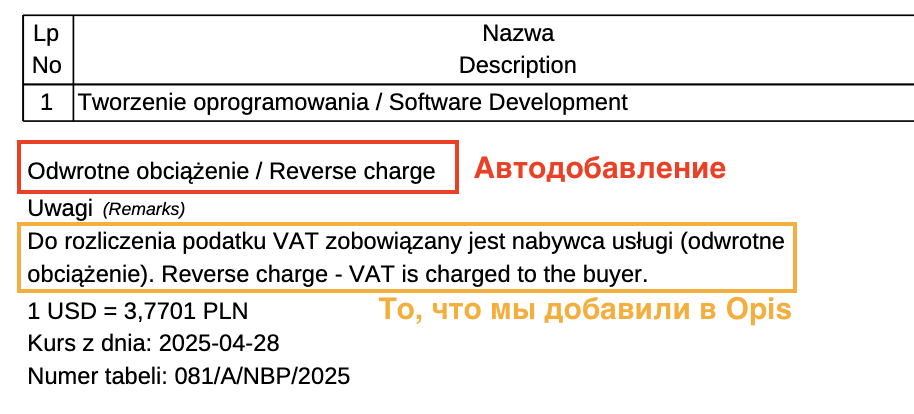
For a more detailed explanation, see the page dedicated to VAT. In the screenshot we added the note manually, but in fact wFirma adds this note automatically if you select the correct Schemat księgowy (more on this below).
-
Rabat — in theory, you can specify a discount in this field.
- Want to list multiple services on one invoice? Click "Nowy wiersz" — a new row will appear. Repeat steps 6-10.
Księgowe
(Accounting)
-
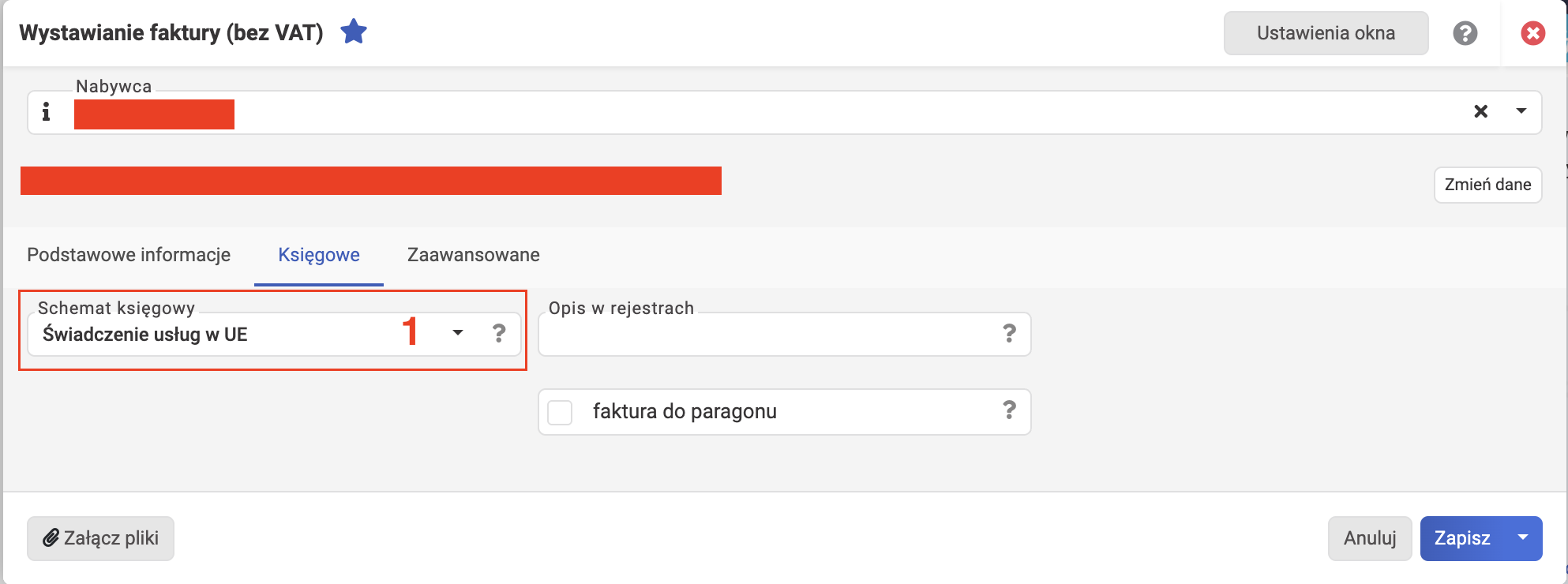
Schemat księgowy — Select the accounting scheme, which depends on whom and to which country you provide the service.
Export within the EU
For example, you need to select "Świadczenie usług w UE" if you're exporting a service under art. 28b ustawy o VAT (e.g. IT or marketing services) to a legal entity (company) with an office in another EU country (not Poland).
Export outside the EU
And if you're exporting a service to a legal entity (company) with an office outside the EU (e.g. the US or the UK), you need to select "Świadczenie usług poza UE".
In each case, wFirma will automatically add "Odwrotne obciążenie / Reverse charge" to the printed version of the invoice (double-check after saving):
Zaawansowane
(Advanced settings)
-
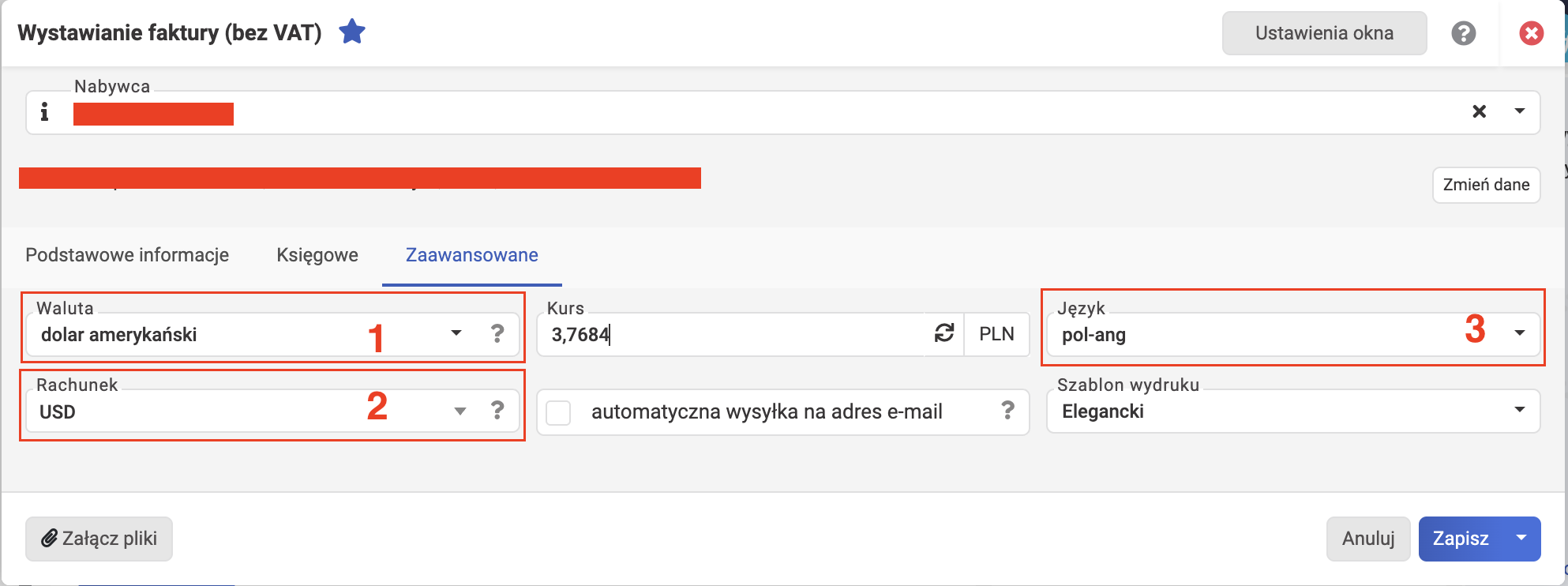
Select the payment currency (Waluta).
Warning
If you changed the currency, make sure the price on the Podstawowe informacje tab hasn't been converted — otherwise fix it.
-
Specify the bank account to receive payment (Rachunek).
- You can choose the invoice language (Język), e.g. Polish-English as in the screenshot.
KSeF
The new "KSeF" tab appeared after wFirma's integration with KSeF. Here you can optionally (it's not required at all) specify the contract number.
Final Step
Click Zapisz to save. The invoice is saved!
If you want to visually check the invoice, first save it as a draft and use the Podgląd feature.
Invoice Number and KSeF
At the moment the invoice is saved, it is automatically assigned a sequential number according to the numbering rules set in your wFirma account settings.
If the KSeF integration is configured in your wFirma account, the new invoice is sent to KSeF automatically right after saving.
Once the submitted document has been successfully processed in KSeF and the UPO (proof of submission) has been generated, it becomes available for download. This feature is available on the PRZYCHODY → SPRZEDAŻ page, where you need to select the submitted document and choose the POBIERZ UPO option.
Printing the Invoice
Depending on your account settings and what you did in the previous step, the new invoice may exist in draft status. Now we need to print the invoice so it moves to "confirmed" status and is definitely recorded in wFirma's accounting. You can also do this when issuing the invoice by clicking Zapisz i drukuj.
- Go to Przychody - Sprzedaż.
- Select the invoice from the table.
- Click Drukuj.
- Click Dalej.
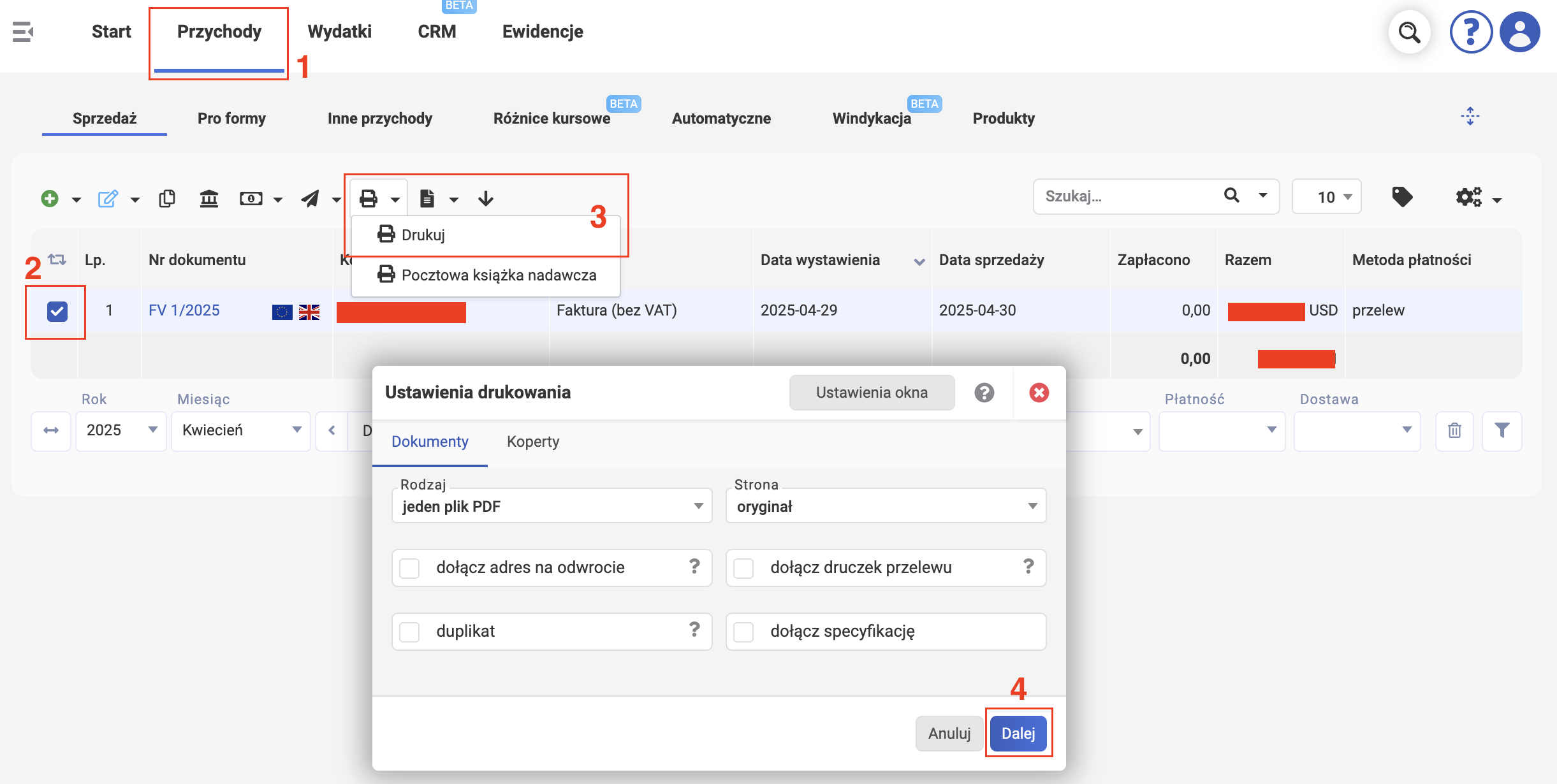
The invoice file will download — now you can send it to the client. It's a good idea to save it somewhere for yourself.
Receiving Payment and Accounting for Exchange Rate Differences
When the money arrives in your account, you need to record the incoming payment.
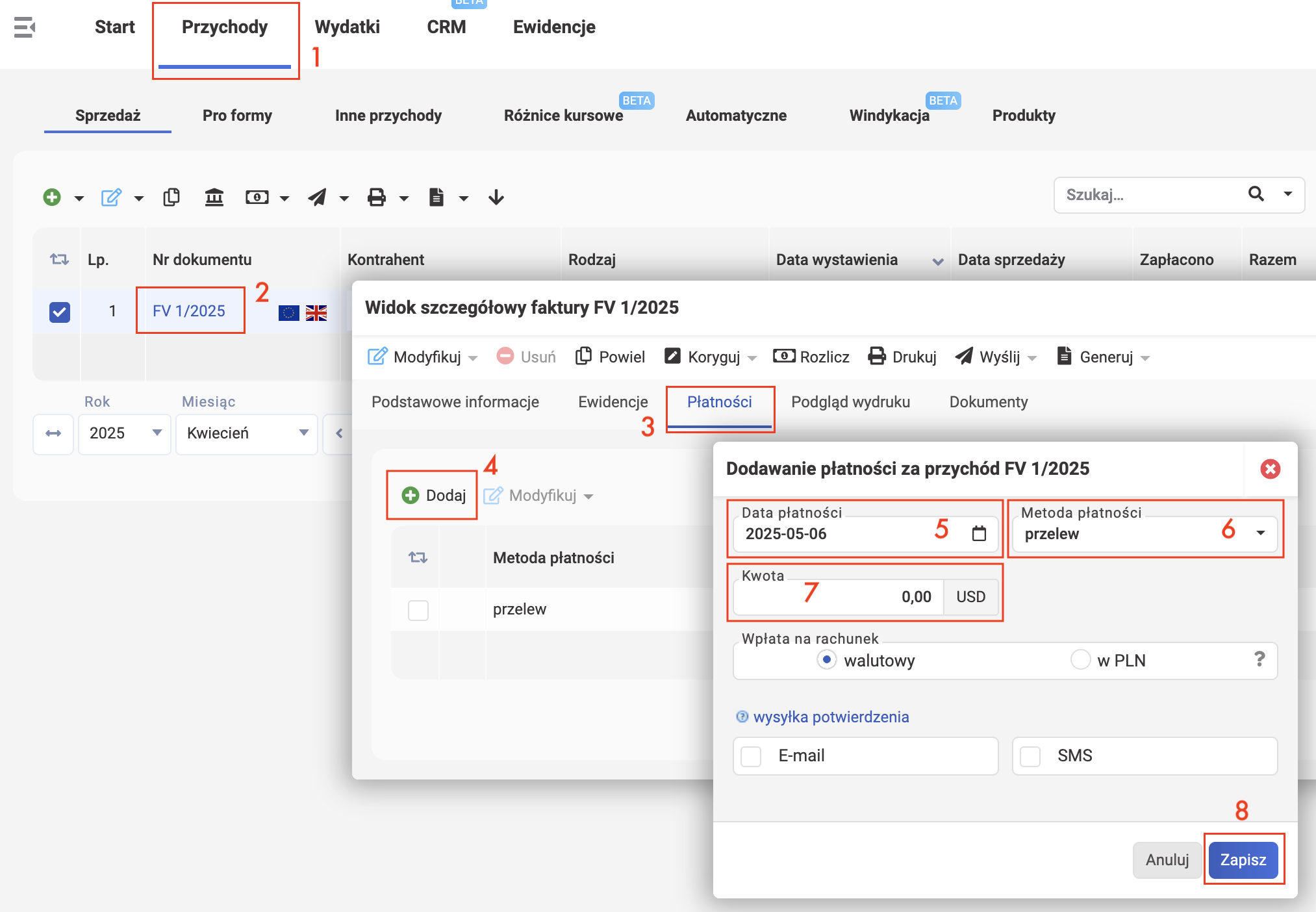
- Go to Przychody - Sprzedaż.
-
Select the invoice from the table.
About filters
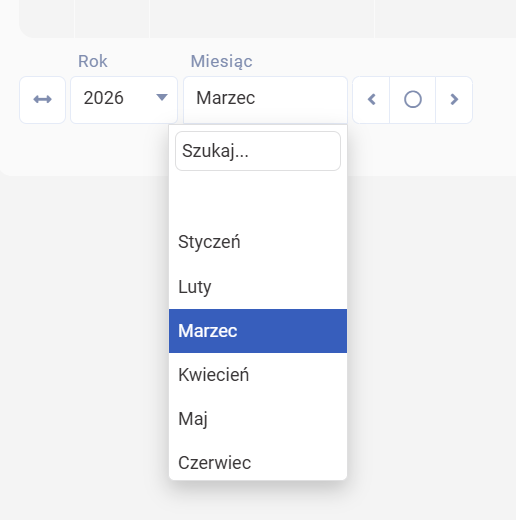
If you don't see the invoice in the table, switch to the year and month when the invoice was issued using the controls below the table.
-
Go to the Płatności tab.
- Click Dodaj.
- Enter the date the money was received (Data płatności).
- In the Metoda płatności field, select the payment type — przelew.
- Enter the amount (Kwota). If the invoice is for $1000 but $10 less arrived due to intermediary bank fees, still enter the full amount ($1000) so the invoice shows as "fully paid".
- Click Zapisz.
When receiving payment in a foreign currency, exchange rate differences may arise. The law requires you to account for exchange rate differences — both positive and negative.
Make sure you've enabled the exchange rate difference calculation feature before adding the incoming payment.
After recording the payment, do the following:
- Go to Przychody - Różnice kursowe.
-
Select the invoice from the table.
About filters
If you don't see the invoice in the table, switch to the year and month when the invoice was issued using the controls below the table.
-
Click Wystaw DW (exchange rate differences are recorded in accounting with a special document called "Dowód Wewnętrzny").
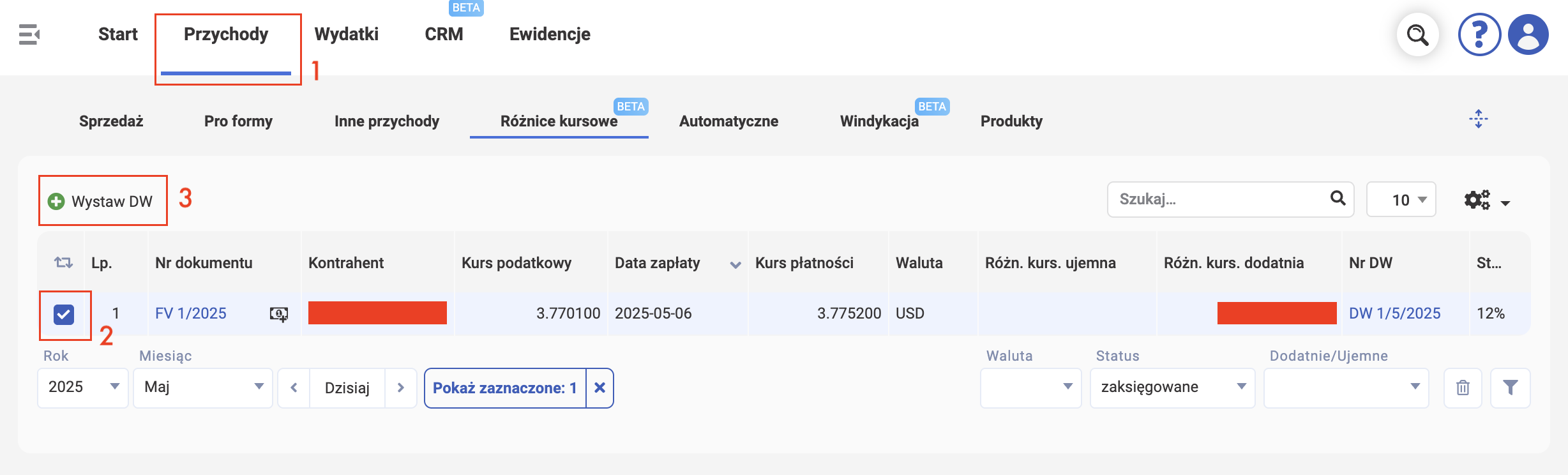
Done, the exchange rate difference has been added and will be taken into account when calculating the tax base.
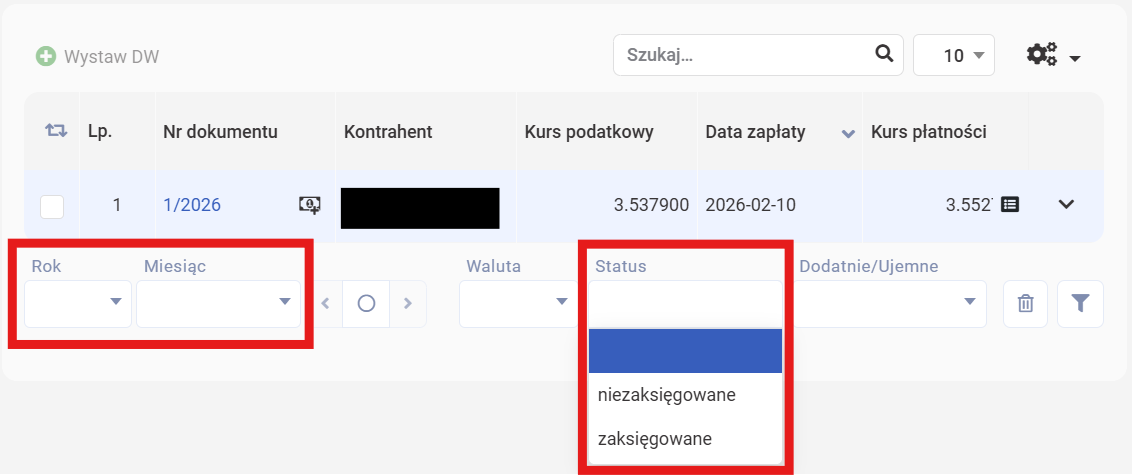
How do I find all my exchange rate DWs in my accounting?
On the same page, to see the full list of your DWs, you can clear all filters below the table: Rok, Miesiąc and Status.
Calculating and Paying Taxes
PIT
-
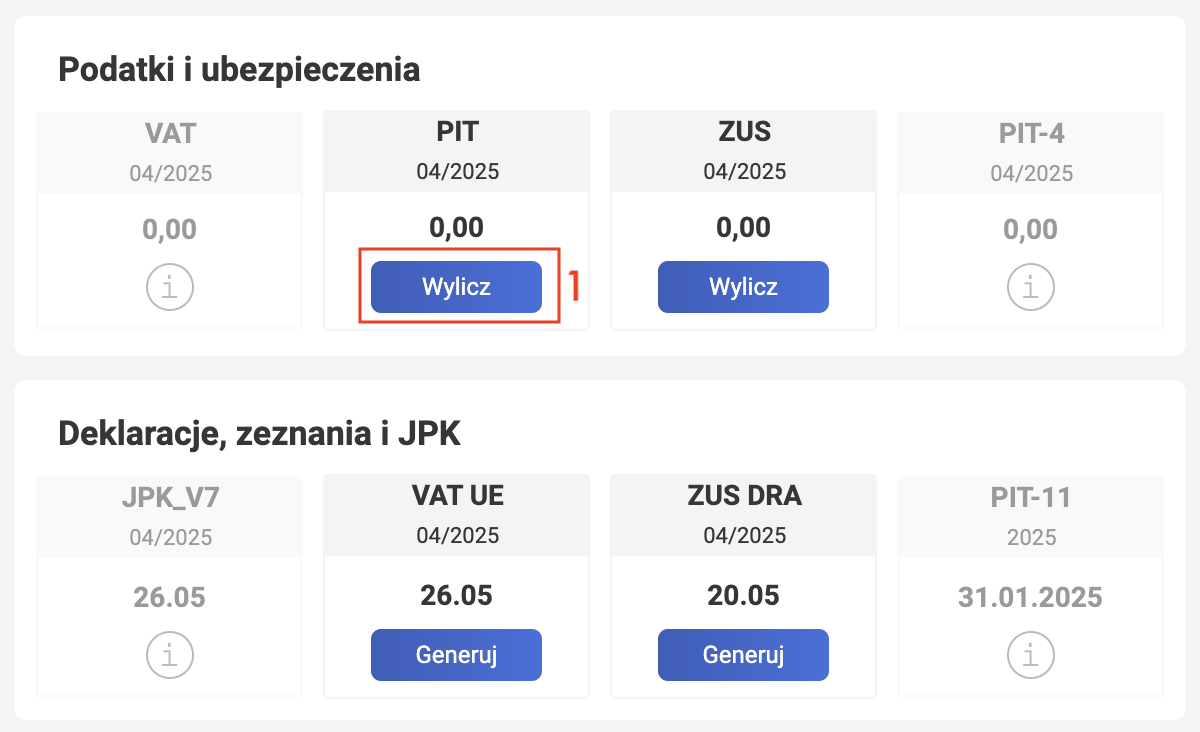
On the main page, if you've set up the dashboard correctly, you'll see a panel like this. Click Wylicz. You can also do this by going to Start - Podatki and clicking Wylicz podatek.
-
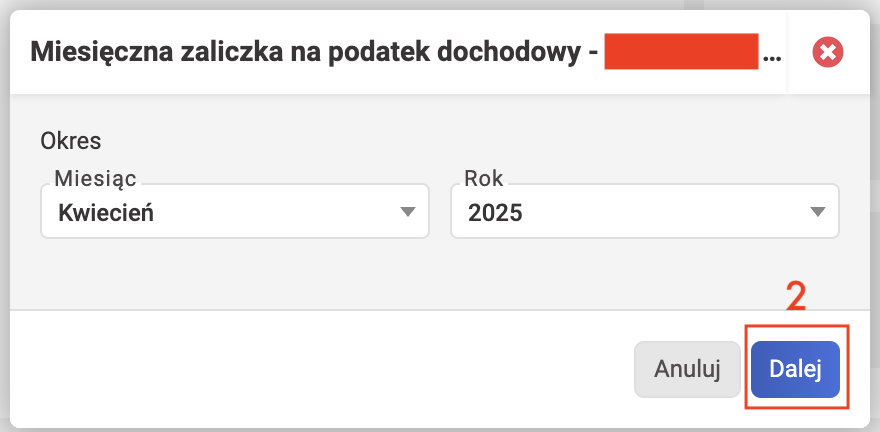
In May we pay for April. That's why on the screenshot the Miesięczna zaliczka na podatek dochodowy window shows Okres as Miesiąc: Kwiecień and Rok: 2025. Select the previous month and click Dalej.
-
Leave everything as is:
- Stawka ryczałtu — for ryczałt, the system will use the tax rate specified on the invoices.
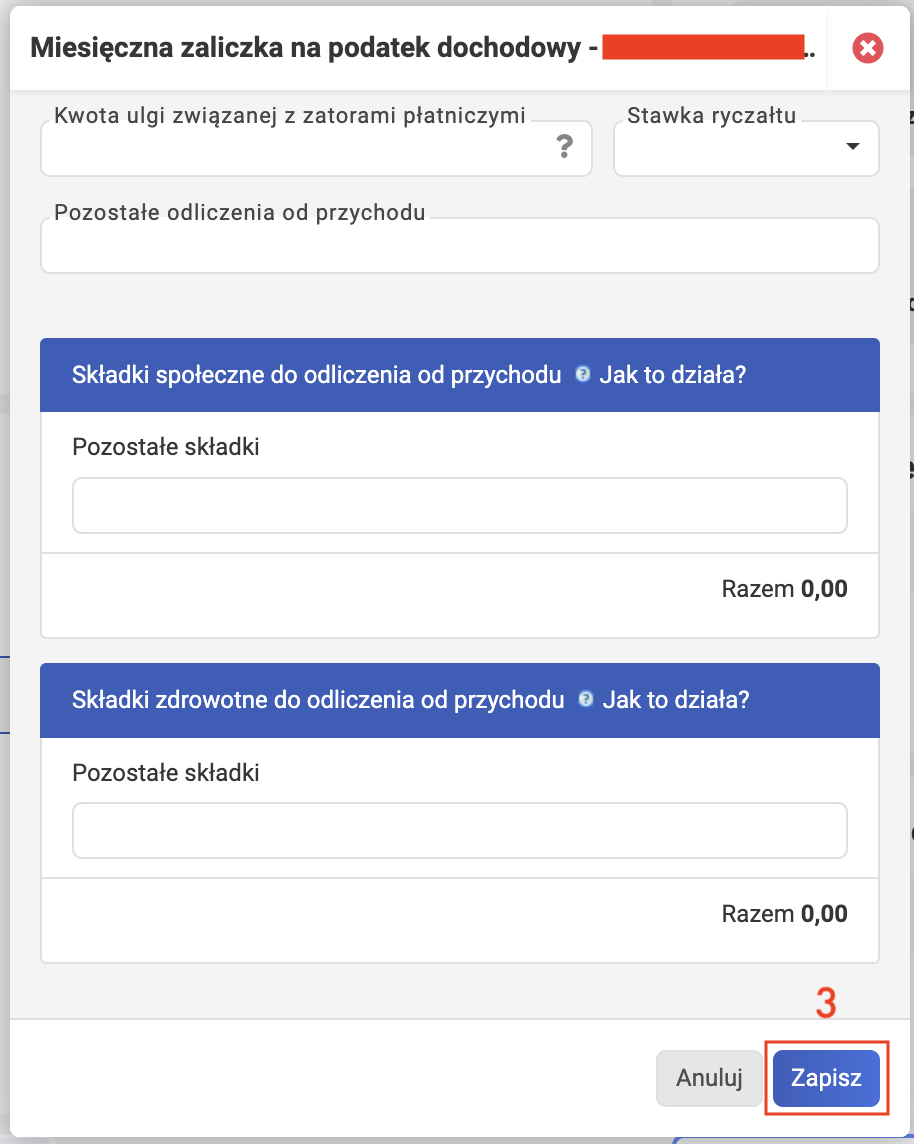
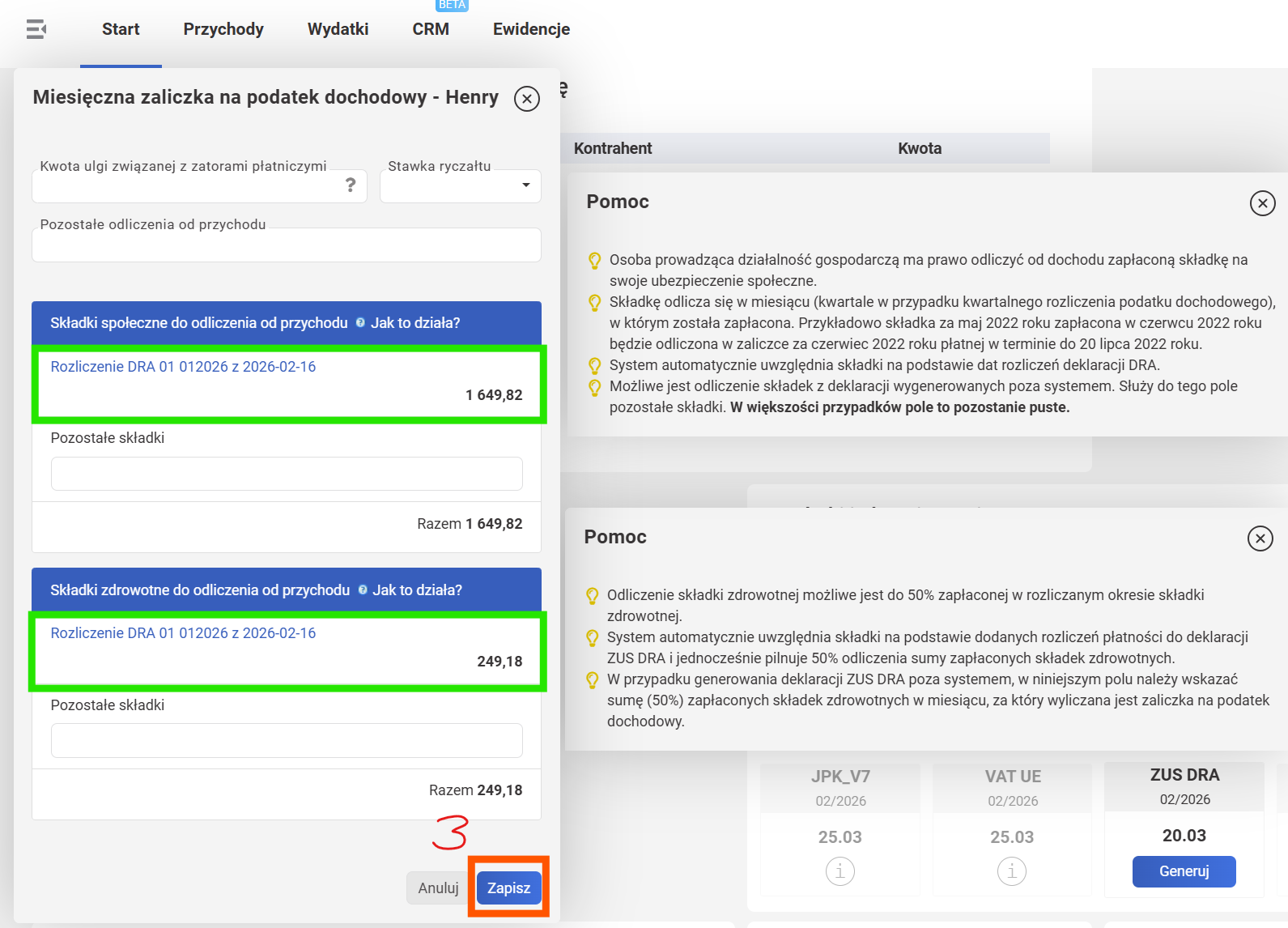
- Składki społeczne do odliczenia od przychodu — The system will deduct 100% of the social insurance contributions actually paid to ZUS in the previous month. While you're on Ulga na Start, you're exempt from social insurance contributions, so "Razem 0,00" as in Example 1's screenshot is normal.
- Składki zdrowotne do odliczenia od przychodu — The system will deduct 50% of the health insurance contributions actually paid to ZUS in the previous month. The first time you'll see "Razem 0,00" — this is normal. If this month you pay 498.35 zł for health insurance (the minimum składka zdrowotna for 2026), then next month expect to see 249.18 zł in this field.
Example 1: Report for the first month of business activity
Everything is zero and that's expected.
Example 2: A regular month of bookkeeping in wFirma (Duży ZUS)
As expected, the system automatically pulls 100% of the social insurance contributions actually paid to ZUS in the previous month and 50% of the health insurance contributions actually paid to ZUS in the previous month. You didn't forget to mark ZUS DRA as paid, right?
Special case: starting bookkeeping in wFirma not from the very beginning of JDG registration
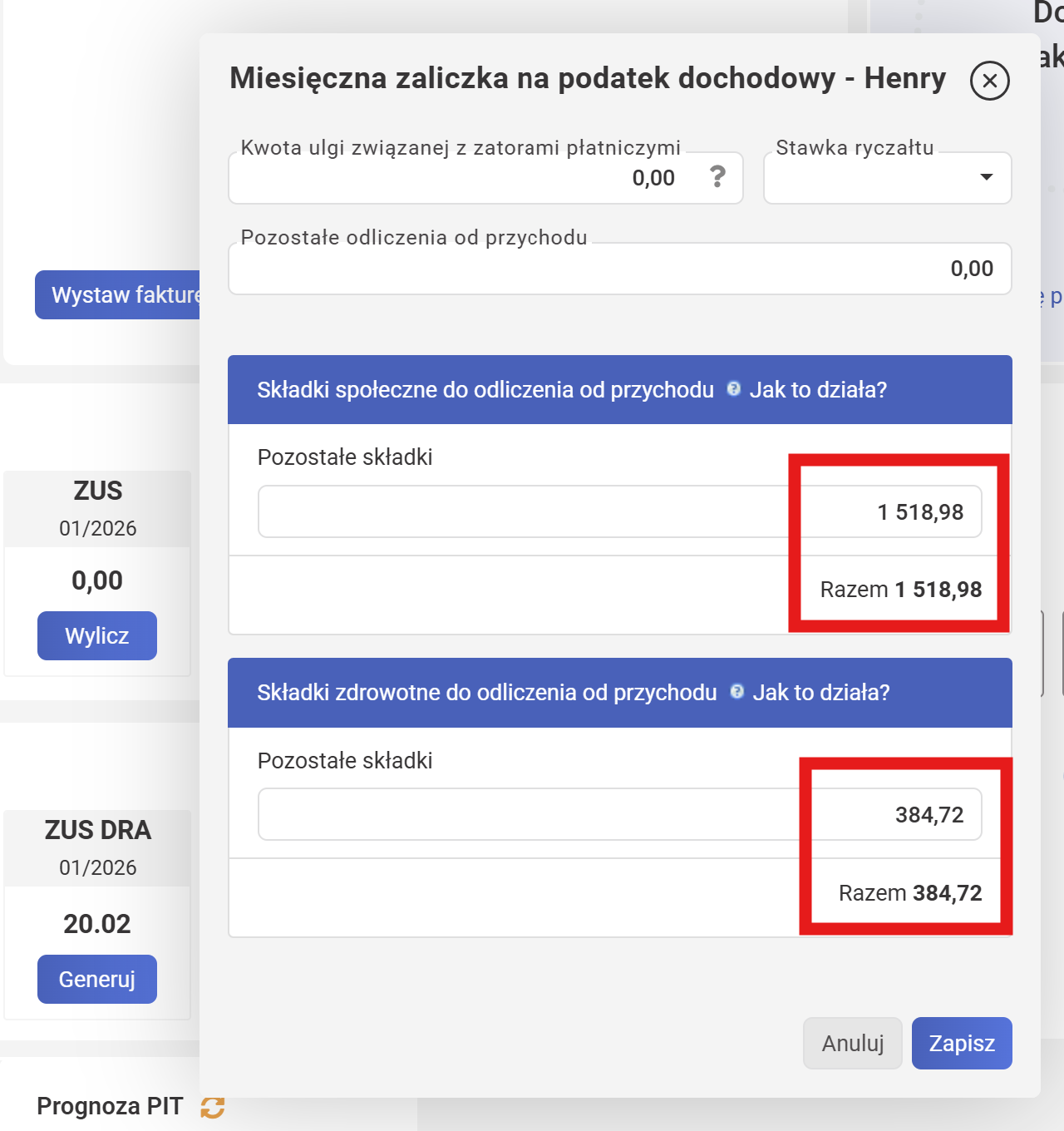
You need to fill in manually. Take the amount of contributions actually paid to ZUS in the reporting month:
- Enter 100% społeczne (Emerytalna + Rentowa + Wypadkowa + Chorobowa, WITHOUT składki Na Fundusz Pracy!) in the "Składki społeczne do odliczenia od przychodu" field. In the screenshot, 1518.98 zł corresponds to the ZUS for entrepreneurs on ryczałt without benefits for December 2025.
- Enter 50% zdrowotnej in the "Składki zdrowotne do odliczenia od przychodu" field. In the screenshot, 384.72 zł corresponds to half the ZUS for entrepreneurs on ryczałt with annual income from 60,000 to 300,000 zł in 2025.
- Click Zapisz to save.
-
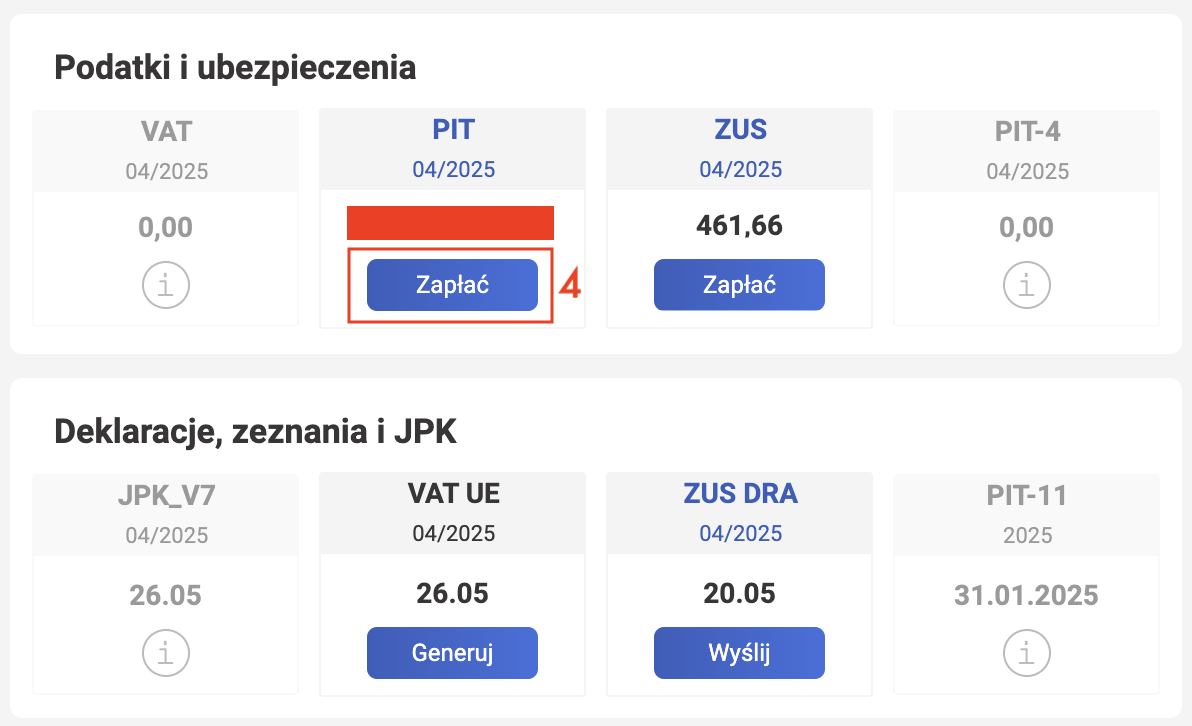
If the amount matches your expectations, click Zapłać to pay. Payment deadline: by the 20th of the month following the reporting month.
-
If the amount doesn't match your expectations, double-check the calculations (wFirma shows them step by step) and click Modyfikuj to make changes.
ZUS
-
On the main page, if you've set up the dashboard correctly, you'll see a panel like this. Click Wylicz. You can also do this by going to Start - ZUS and clicking Wylicz podatek.
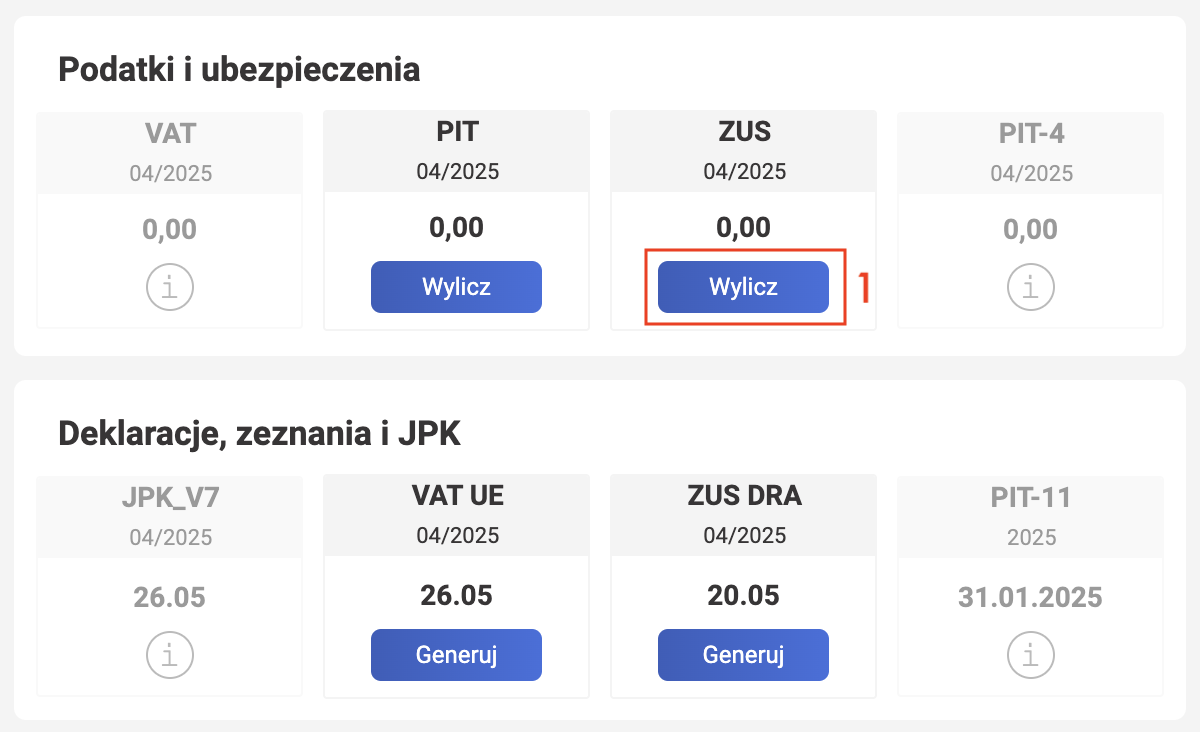
-
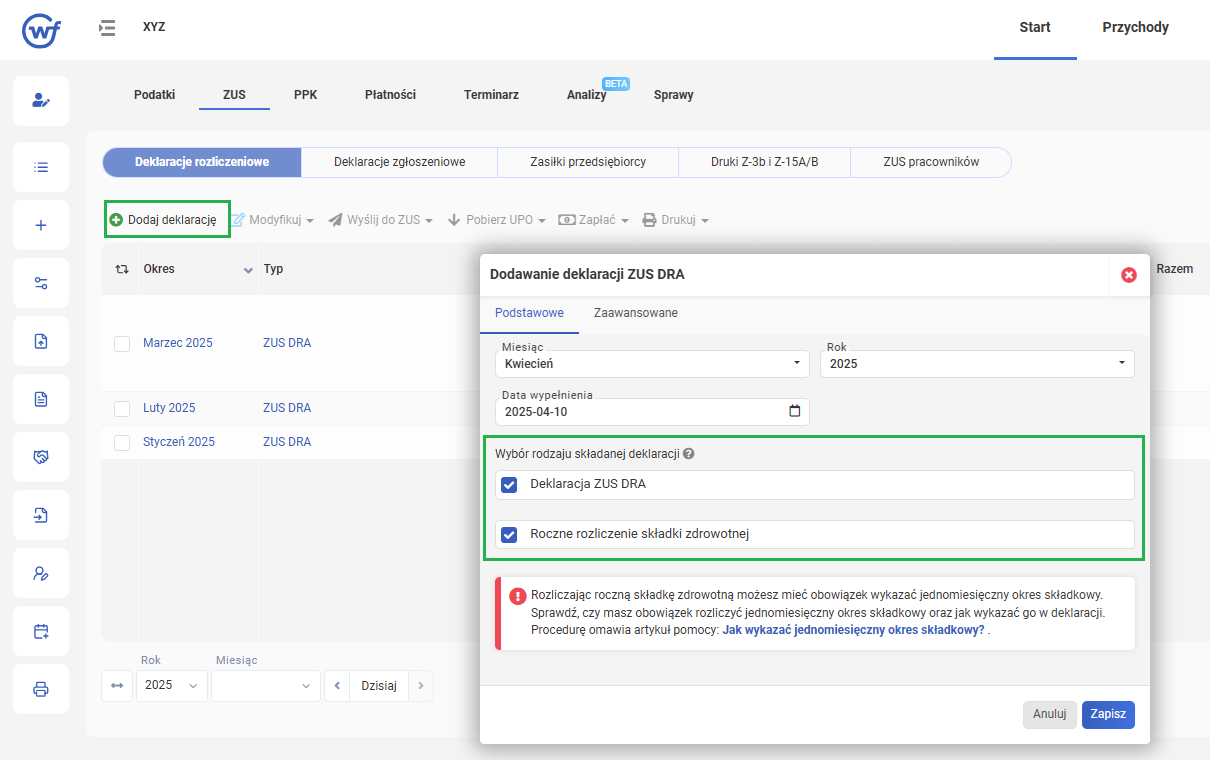
In the Dodawanie deklaracji ZUS DRA window, check everything:
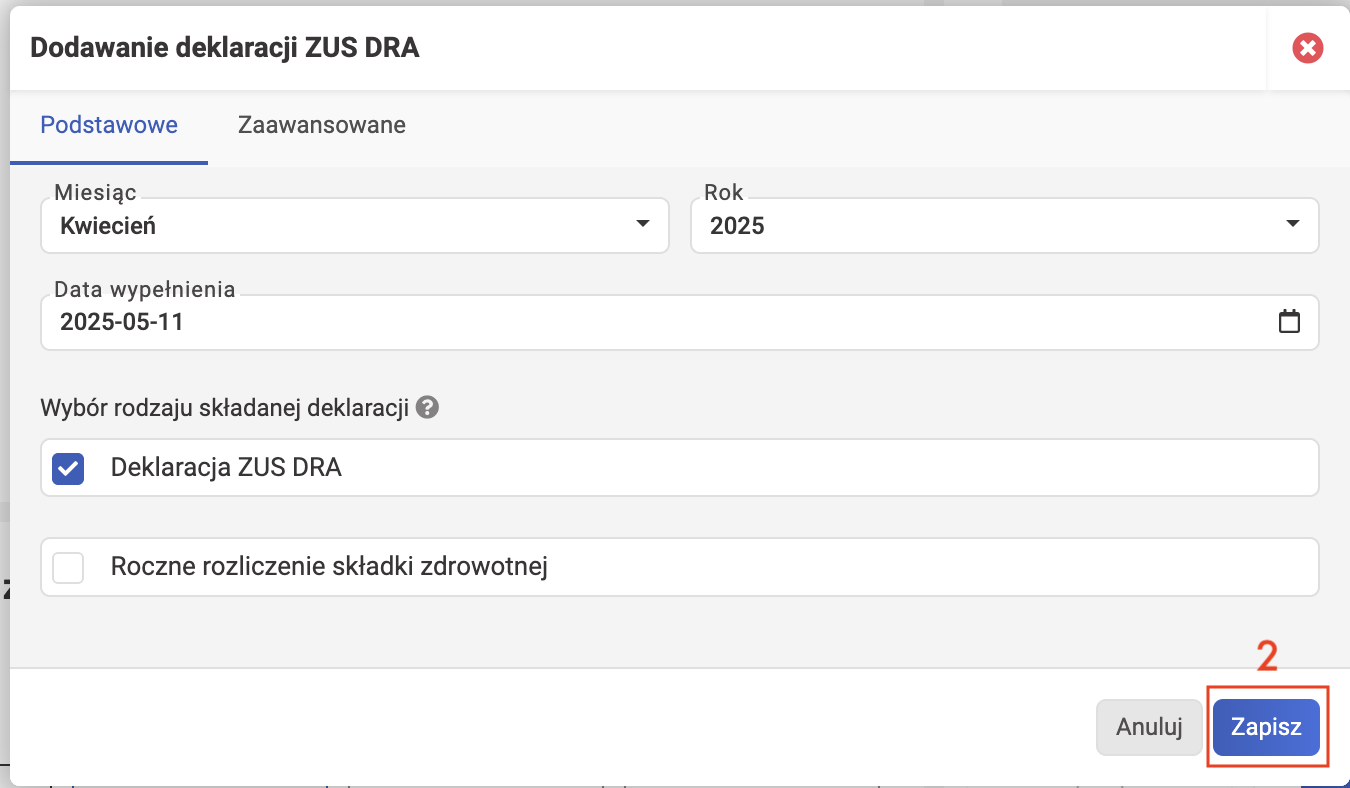
Comments on the screenshot
The Podstawowe tab contains the basic settings. Typically, the ZUS DRA report is prepared for the previous month. For example, in May we report for April. That's why the corresponding dates are selected in the screenshot. In our example, we don't check the "Roczne rozliczenie składki zdrowotnej" checkbox because the JDG is on ryczałt and didn't conduct business activity in the previous year.
- Miesiąc, Rok — the reporting month and year.
- Data wypełnienia — the date of completion.
-
Roczne rozliczenie składki zdrowotnej — Annual health insurance contribution settlement (for the previous year). This is a special checkbox that only appears in the form for April.
When do you NOT need to check this box?
- If you're on ryczałt and started business in January, February, March, or April of the current year.
- If you're on podatek liniowy or skala podatkowa and started business in February, March, or April of the current year.
- (rare exception) If you calculate składka zdrowotna under some special rules that don't require you to prepare an annual settlement.
It's important to understand that ZUS counts the insurance year in its own way, and it doesn't coincide with the calendar year for all tax systems. That's why these conditions are non-obvious.
When do you need to check this box?
In all other cases. I.e. if you conducted business activity in the previous year. It's quite possible that a ZUS surcharge awaits you based on the calculation results. Read more in the wFirma article: Roczne rozliczenie składki zdrowotnej.
Advanced settings
On the Zaawansowane tab, you can indicate that you have a ZUS holiday in the reporting month (Wakacje składkowe checkbox).
It's also worth checking that the selected method for calculating health insurance contributions (Sposób wyliczenia składki zdrowotnej) matches what you chose at the beginning of the year. If it's the beginning of the year, you're preparing ZUS DRA 01/20YY, and last year you conducted business activity the full year from start to finish, now is the time to make this choice. Pick whichever you prefer, but remember that the chosen method is locked in until the end of the current year.
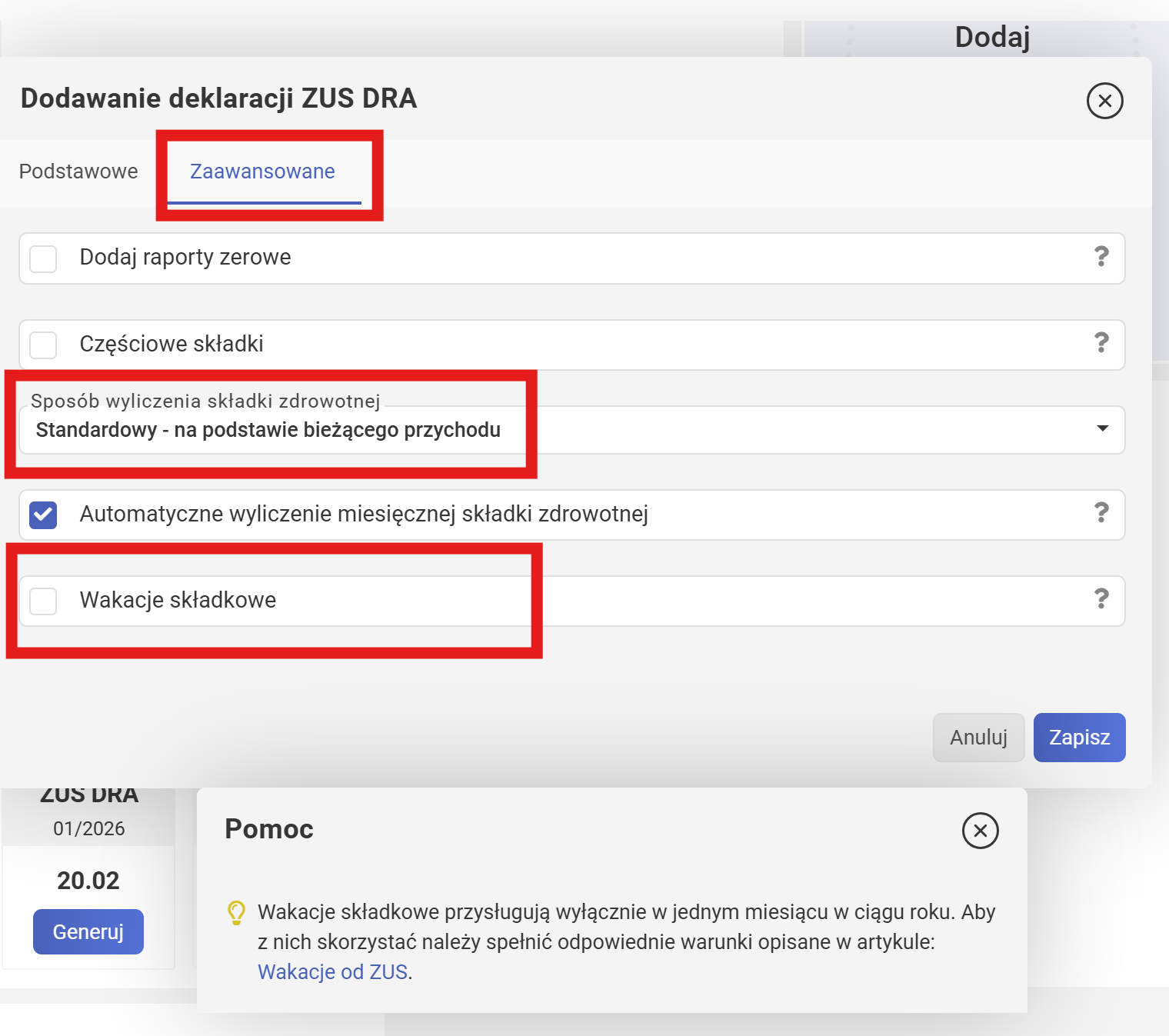
The expected settings for beginning entrepreneurs as shown in the screenshot: "Sposób: Standardowy - na podstawie bieżącego przychodu", and "Wakacje składkowe" is unchecked.
-
When ready, click Zapisz to save.
-
(an extra step, if you checked the Roczne rozliczenie składki zdrowotnej box in the previous step) The annual recalculation in May.
In May 2026, experienced entrepreneurs need to fill in the "Dodawanie rocznej składki zdrowotnej za 2025 rok" window. The other 11 months out of 12 this window doesn't pop up — just move on to the next step.
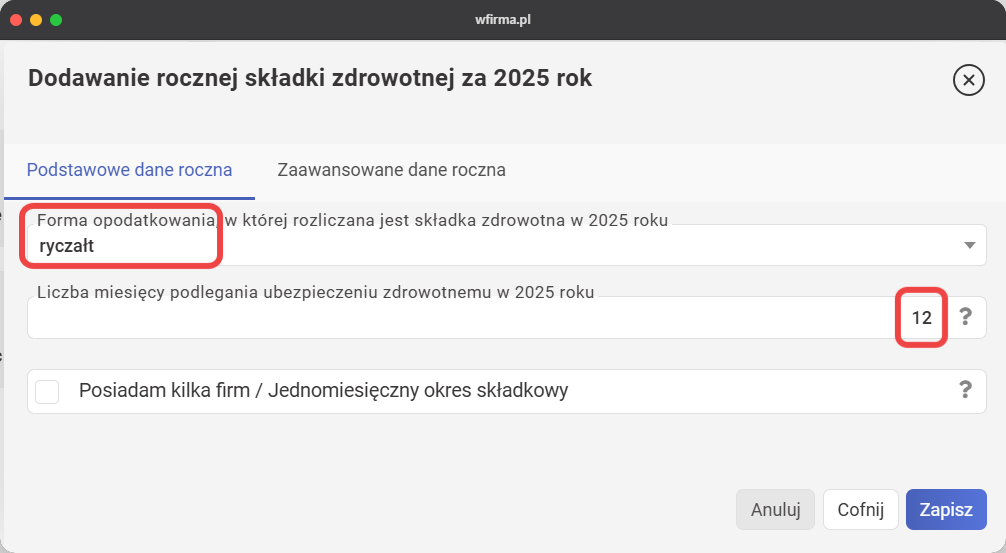
Comments on the screenshot
The Podstawowe dane roczna tab contains the basic settings. The screenshot shows ryczałt selected, for the full year (12 months).
- Forma opodatkowania, w której rozliczana jest składka zdrowotna w 20.. roku — The tax system in the previous year.
- Liczba miesięcy podlegania ubezpieczeniu zdrowotnemu w 20.. roku — The number of months you were covered by health insurance in the previous year. A maximum of 12, but it can be less for those who took breaks (zawieszenie działalności) or started business mid-year.
- Posiadam kilka firm / Jednomiesięczny okres składkowy — I have several companies / A one-month contribution period.
Advanced settings
On the Zaawansowane dane roczna tab, you need to verify the calculations.
-
The "Automatyczne wyliczenie rocznej składki zdrowotnej" checkbox — Automatic calculation of the annual health insurance contribution
If all your ZUS DRA for the previous year are in wFirma, they are marked as paid, and the system knows your annual income for the previous year, then you're in luck — wFirma will calculate the składka zdrowotna surcharge automatically.
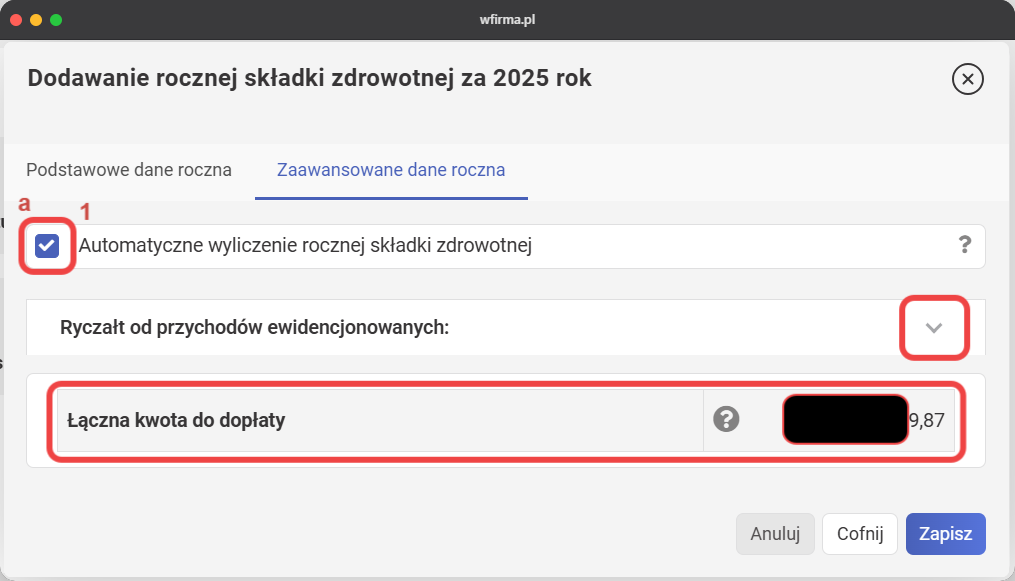
- Ryczałt od przychodów ewidencjonowanych — Ryczałt. Click "v" to see the calculations.
- Łączna kwota do dopłaty — The total amount to pay extra. Double-check it.
If you've only recently switched to wFirma and kept your books in some other system before that, you need to uncheck "Automatic calculation" and enter last year's data in "Parametry".
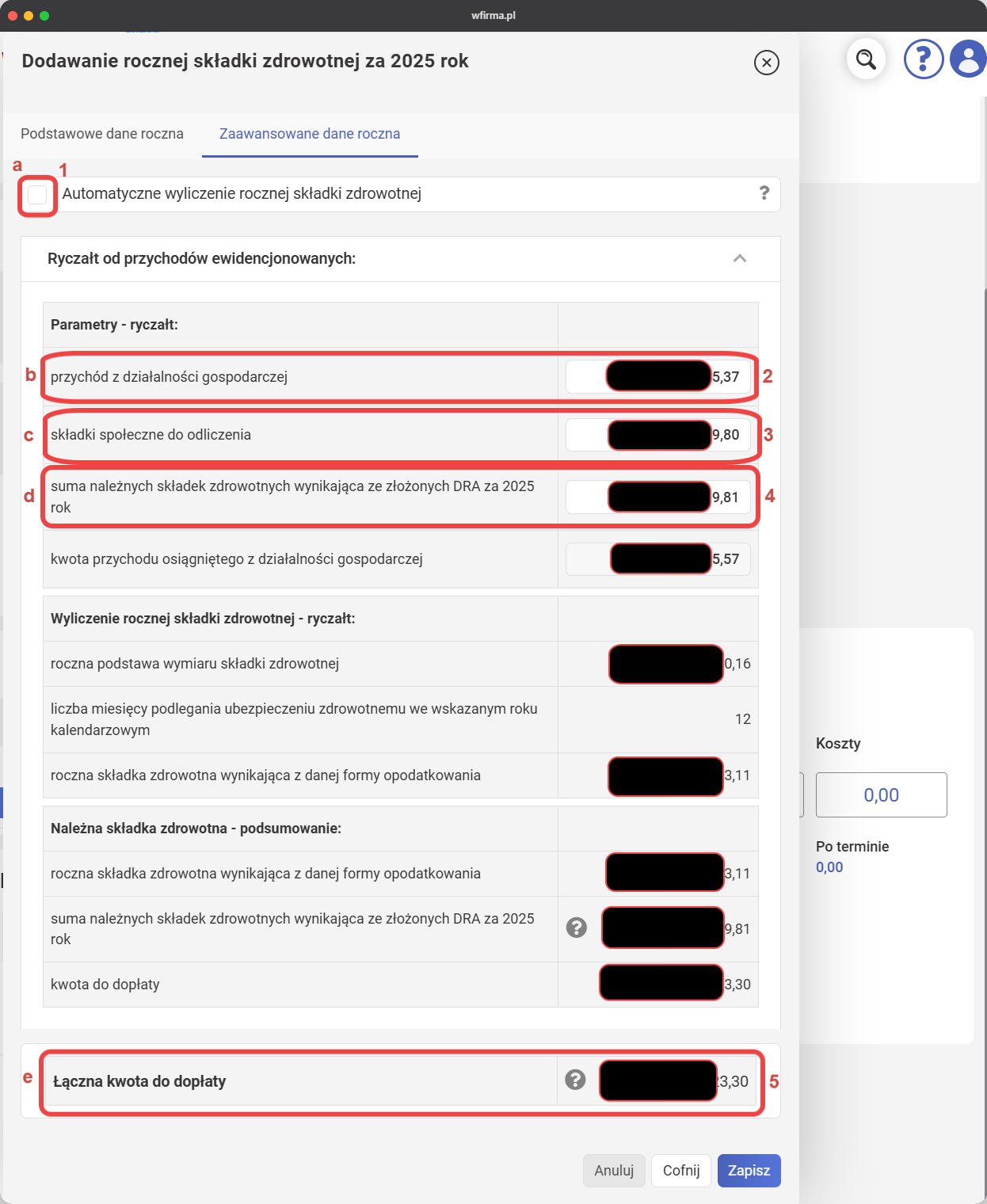
The screenshot shows an example for ryczałt.
-
przychód z działalności gospodarczej — annual income from business activity.
Source
Ewidencja przychodów (or KPiR) for the last month of the previous year.
-
składki społeczne do odliczenia — social insurance contributions to deduct.
Source
The informacja roczna report from ZUS, last page, the FUS total.
-
suma należnych składek zdrowotnych wynikająca ze złożonych DRA za 20.. rok — the sum of health insurance contributions due according to the DRA declarations submitted for the year 20...
Source
The ZUS DRA declarations for all months of business activity in the previous insurance year. On ryczałt — from January to December (don't get confused! this refers to the reporting month; if you go by submission date, it's the period February 2025 – January 2026). It's important to understand that ZUS counts the insurance year in its own way, and it doesn't coincide with the calendar year for all tax systems.
-
Łączna kwota do dopłaty — the total amount to pay extra.
Quick check for those on ryczałt (rough)
Based on which range (0-60k, 60k-300k, 300k-2M) your annual income falls into after deducting składki społeczne, determine your final składka zdrowotna rate. Multiply the final rate by the number of months, subtract the sum of all health insurance contributions actually paid in the previous year (go by payment date, from February of the previous year to January of the current year), excluding the May surcharge. If everything is right, the result will match wFirma's calculations (a difference of up to 6 groszy is acceptable due to the roughness of the calculation).
When ready, click Zapisz to save.
-
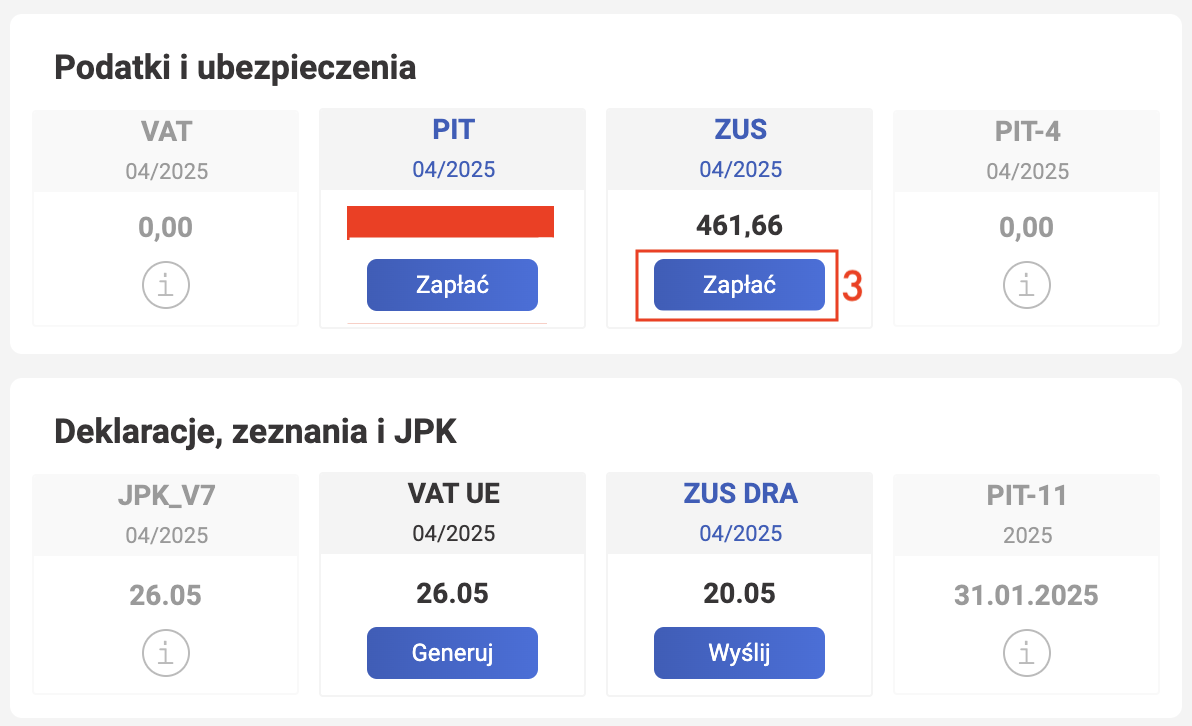
If the amount matches your expectations, click Zapłać to pay. Payment deadline: by the 20th of the month following the reporting month. The screenshot (from 2025) shows ZUS = 461.66 zł — the first payment for entrepreneurs on ryczałt who use the Ulga na Start benefit. In 2026 this payment is 498.35 zł: składka zdrowotna is tied to the average salary in Poland and grows every year.
-
If the amount doesn't match your expectations, you need to investigate...
- Double-check the parameters selected in the previous step: click Modyfikuj → Zaawansowane tab
- Double-check the health insurance contribution calculations (wFirma shows them step by step): click Modyfikuj to make changes → Zaawansowane tab → uncheck "Automatyczne wyliczenie miesięcznej składki zdrowotnej"
- Cross-reference with the Składki ZUS website (ryczałt, 2026)
- Double-check the ZUS settings in your account.
Submitting Declarations
VAT UE (VAT-UE, VAT EU, VAT-EU)
If you provide services to a person within the EU territory, you're required to have a VAT UE registration and submit monthly declarations. Those who had no EU clients last month can safely skip this section.
-
Click Generuj.
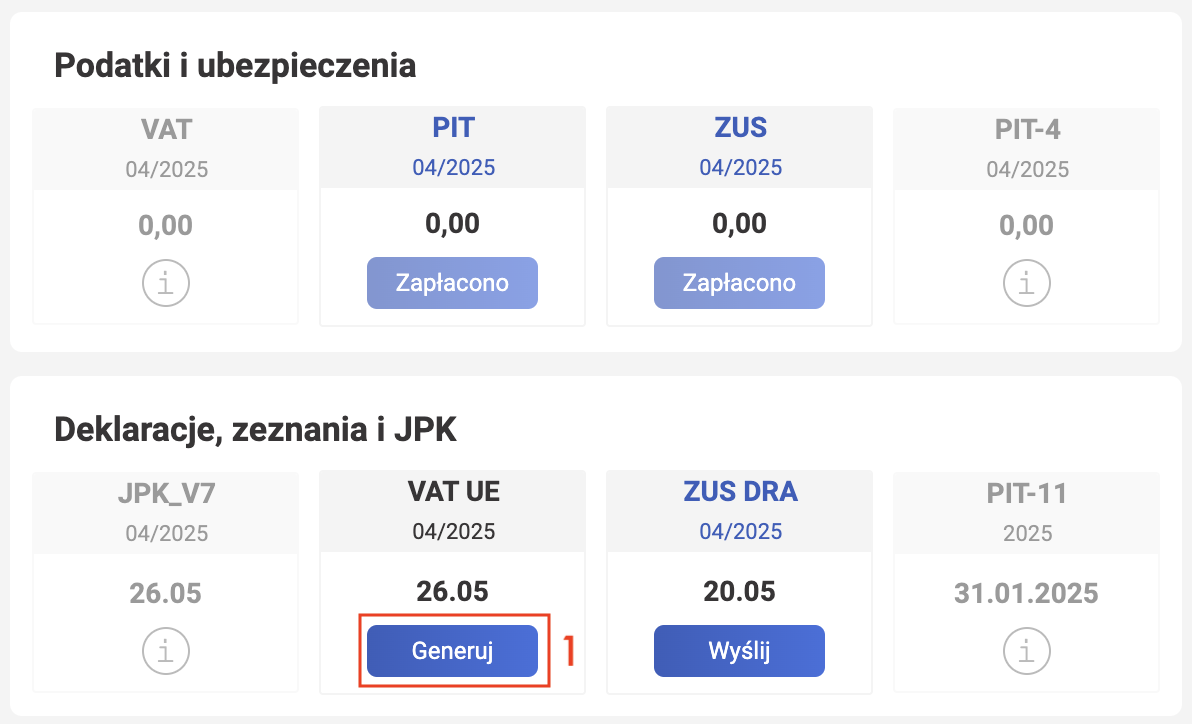
-
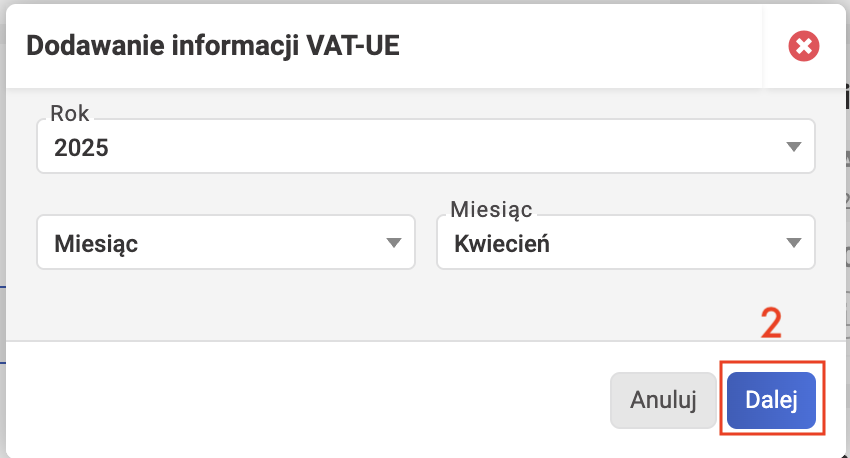
In May we report for April. That's why on the screenshot the Dodawanie informacji VAT-UE window shows Rok: 2025 and Miesiąc: Kwiecień. Verify that the previous month is selected and click Dalej.
-
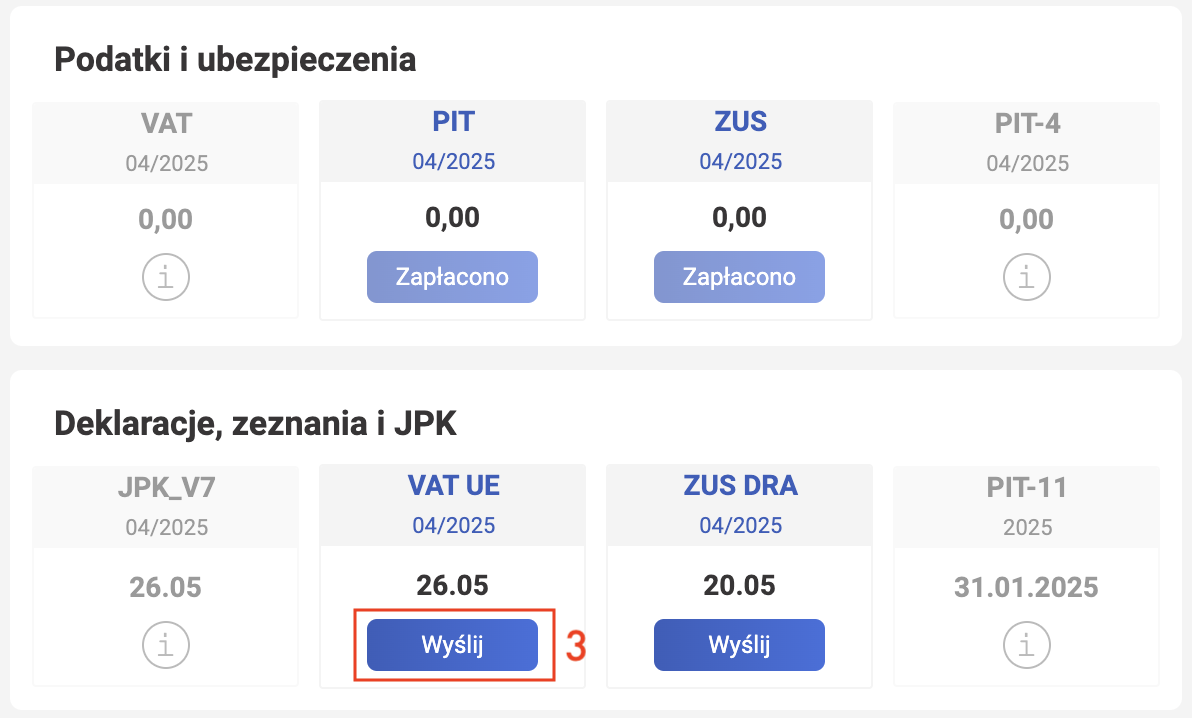
Click Wyślij.
-
In the Wysyłanie deklaracji do urzędu skarbowego window, on the "Bez podpisu" tab, enter your personal details and the income amount from last year's PIT declaration.
0if you didn't file one back then. Click Wyślij do urzędu to submit VAT UE to the tax office.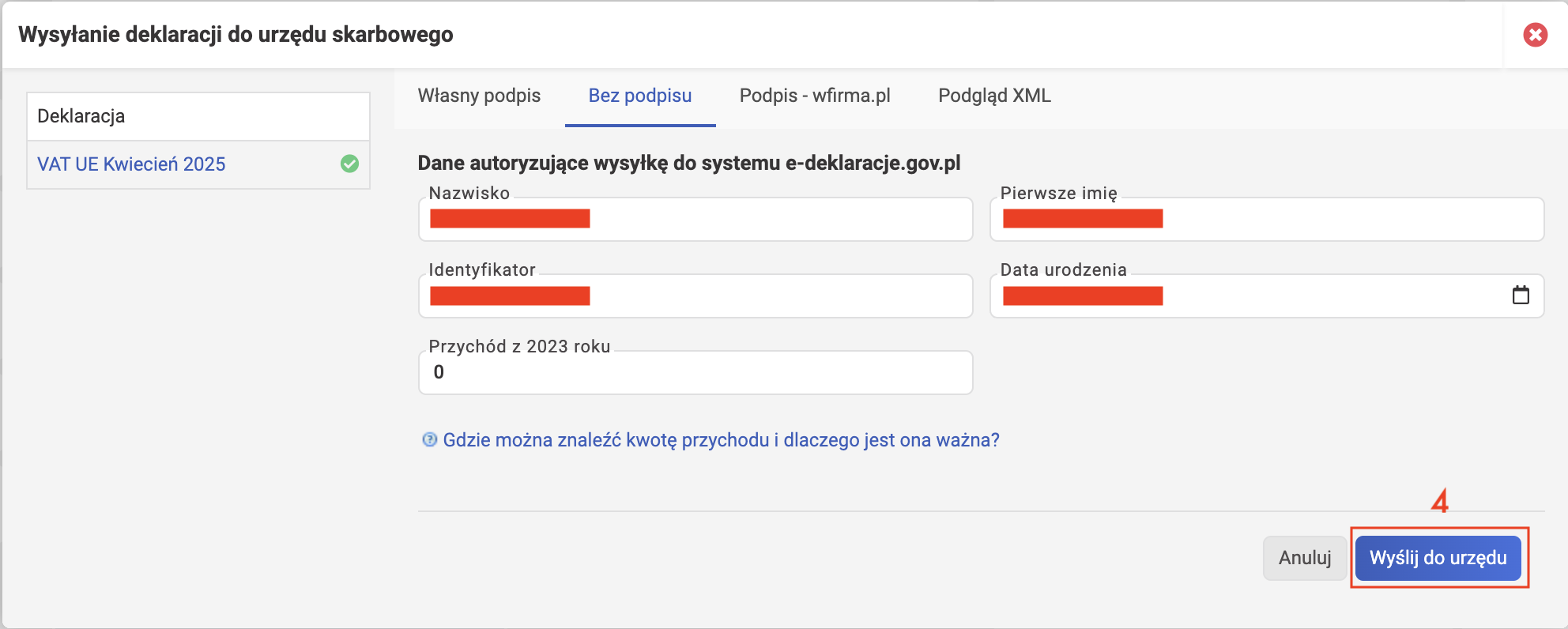
Note: the tax office verifies the income from your PIT for the year before last. For example, to sign VAT UE in 2026, we need to find the PIT that was filed in 2025, i.e. the income declared in it was for 2024.
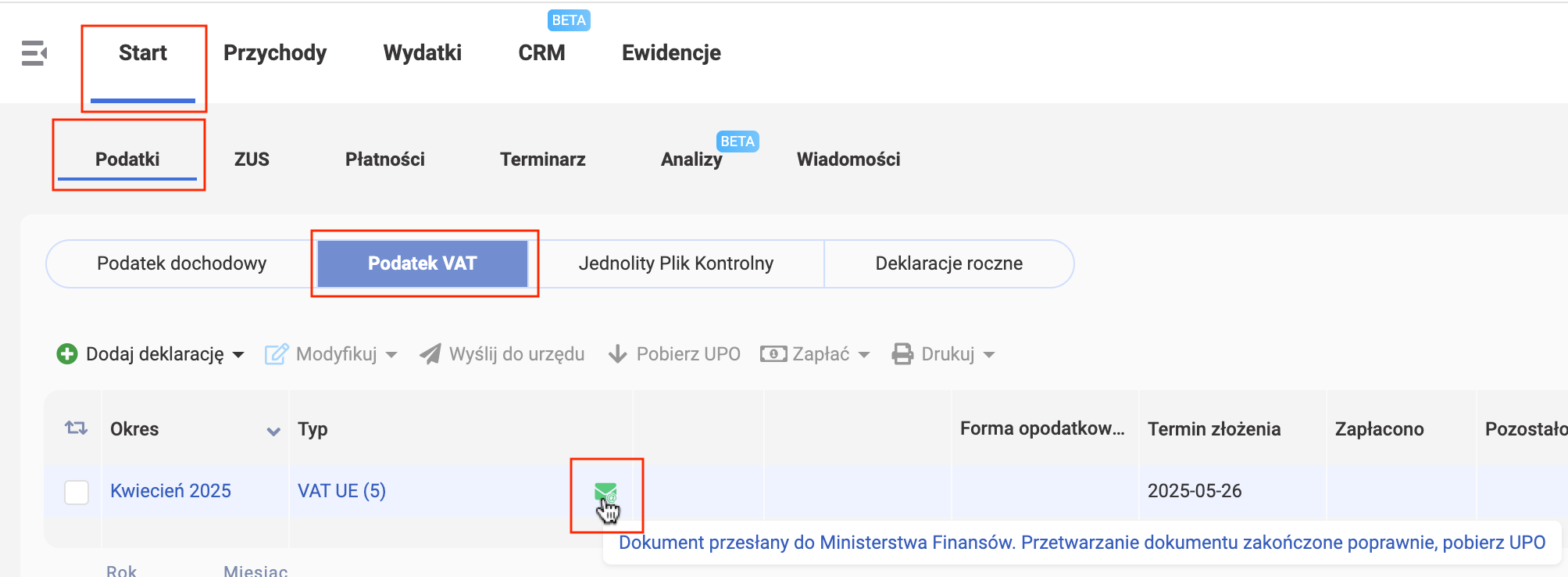
After submission, check the status. Go to Start - Podatki - Podatek VAT. If it's green, everything is fine — the tax office received your declaration.
ZUS DRA
To submit the ZUS DRA declaration from wfirma, you first need to verify your profile.
Info
It's worth noting that verification is not mandatory. wFirma provides one year of free use upon registration. If you don't verify your profile, after a year you can register again and get another free year (assuming the promotion is still available). Whether it's worth the effort — that's up to you. However, in that case you'll need to download the ZUS DRA file yourself and upload it to the ZUS portal. To do this, in the "Deklaracje, zeznania i JPK" block, click "ZUS DRA", and in the window that appears, click "Eksportuj deklarację ZUS". Then import the downloaded XML file (zus_kedu.xml) to the ZUS portal as described in the example with infact, step 2.
After verifying your profile, follow these steps:
-
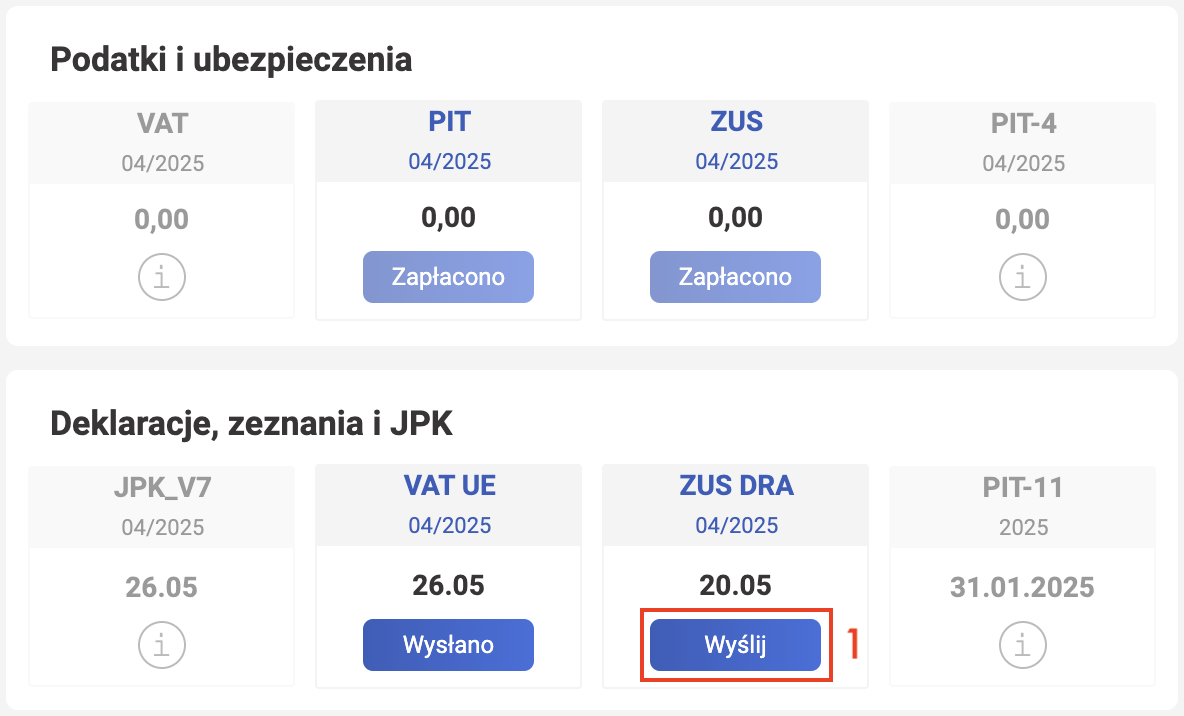
Click Wyślij.
-
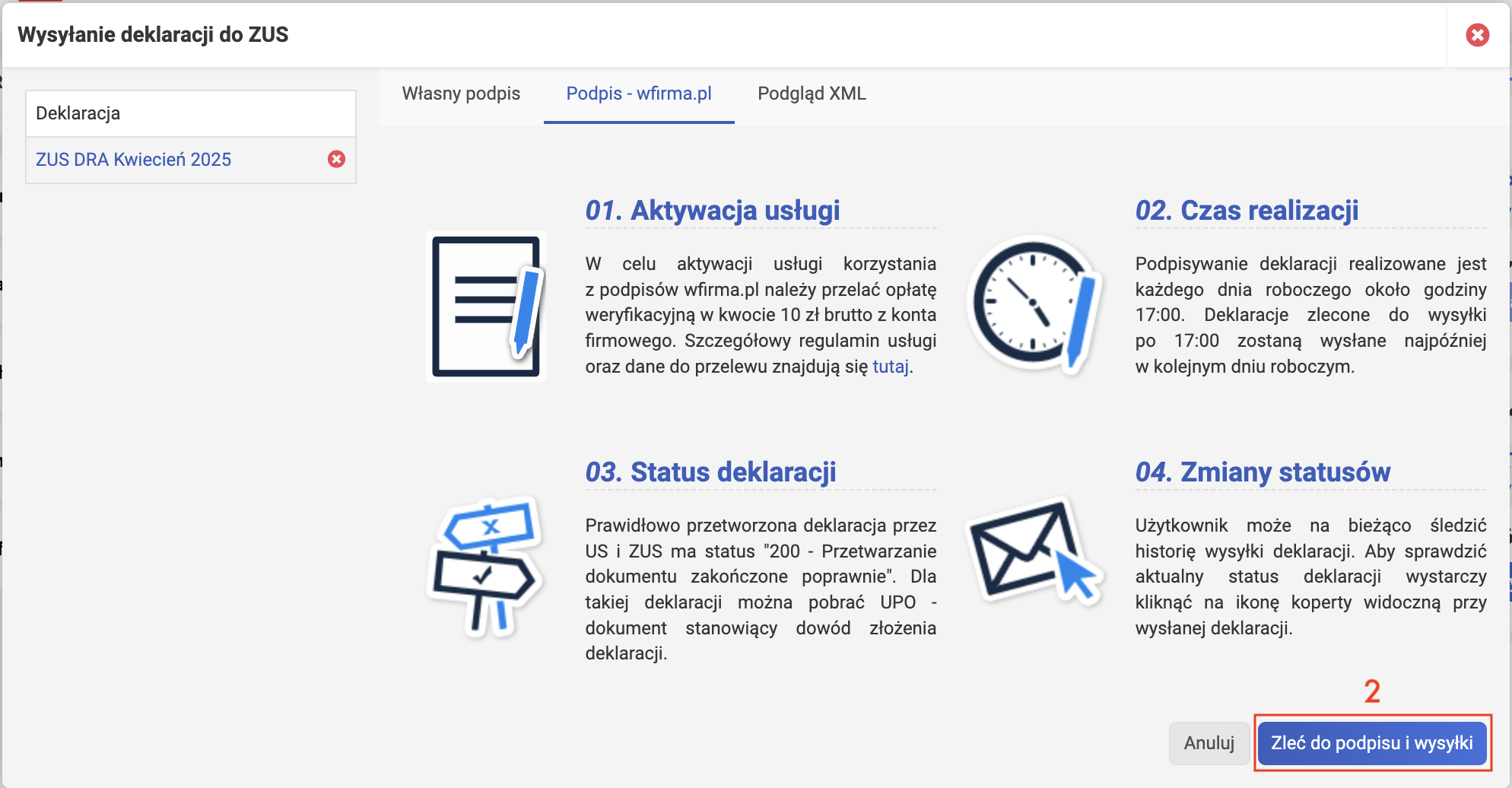
In the Wysyłanie deklaracji do ZUS window, on the "Podpis - wfirma.pl" tab, click Zleć do podpisu i wysyłki to submit the ZUS DRA for signing and sending.
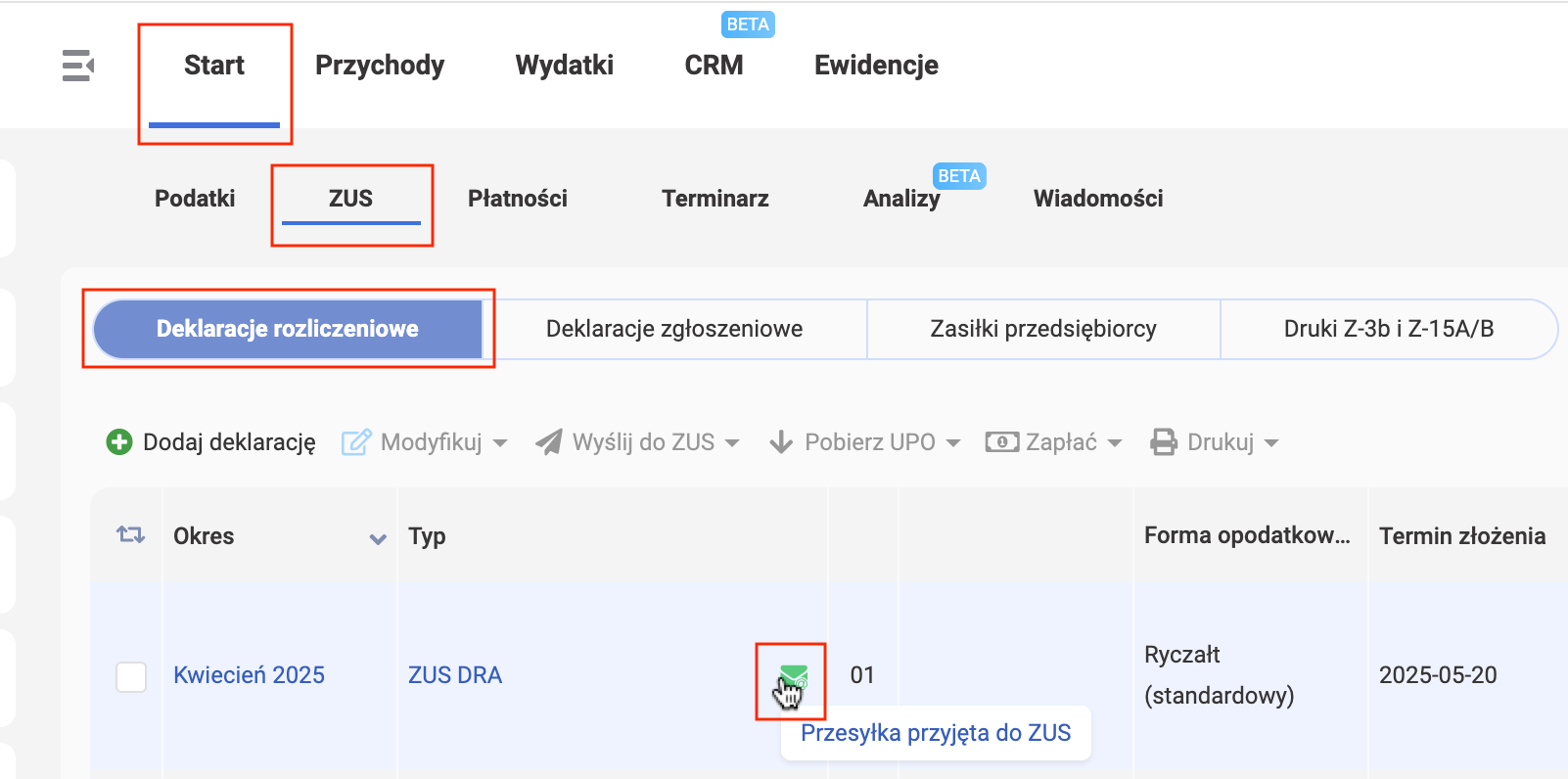
After submission, check the status. Go to Start - ZUS - Deklaracje rozliczeniowe. If there's a green icon and the status is "Przesyłka przyjęta do ZUS", everything is fine — ZUS has accepted the declaration.
You can also verify this on the ZUS portal under ePlatnik - Dokumenty - Dokumenty w ZUS, but the record may not appear there immediately — it can take at least a few days.
VAT
VAT payers submit the JPK_V7M declaration monthly — the process is described in the VAT declarations guide.
Exchange Rate Differences from Own Funds (od środków własnych)
If you receive payment in a foreign currency and sell it later for expenses related to your business activity, for example to pay taxes, you also need to account for exchange rate differences from own funds (środków własnych). For the calculation, we'll use a calculator and the LIFO method (choose FIFO or LIFO for yourself).
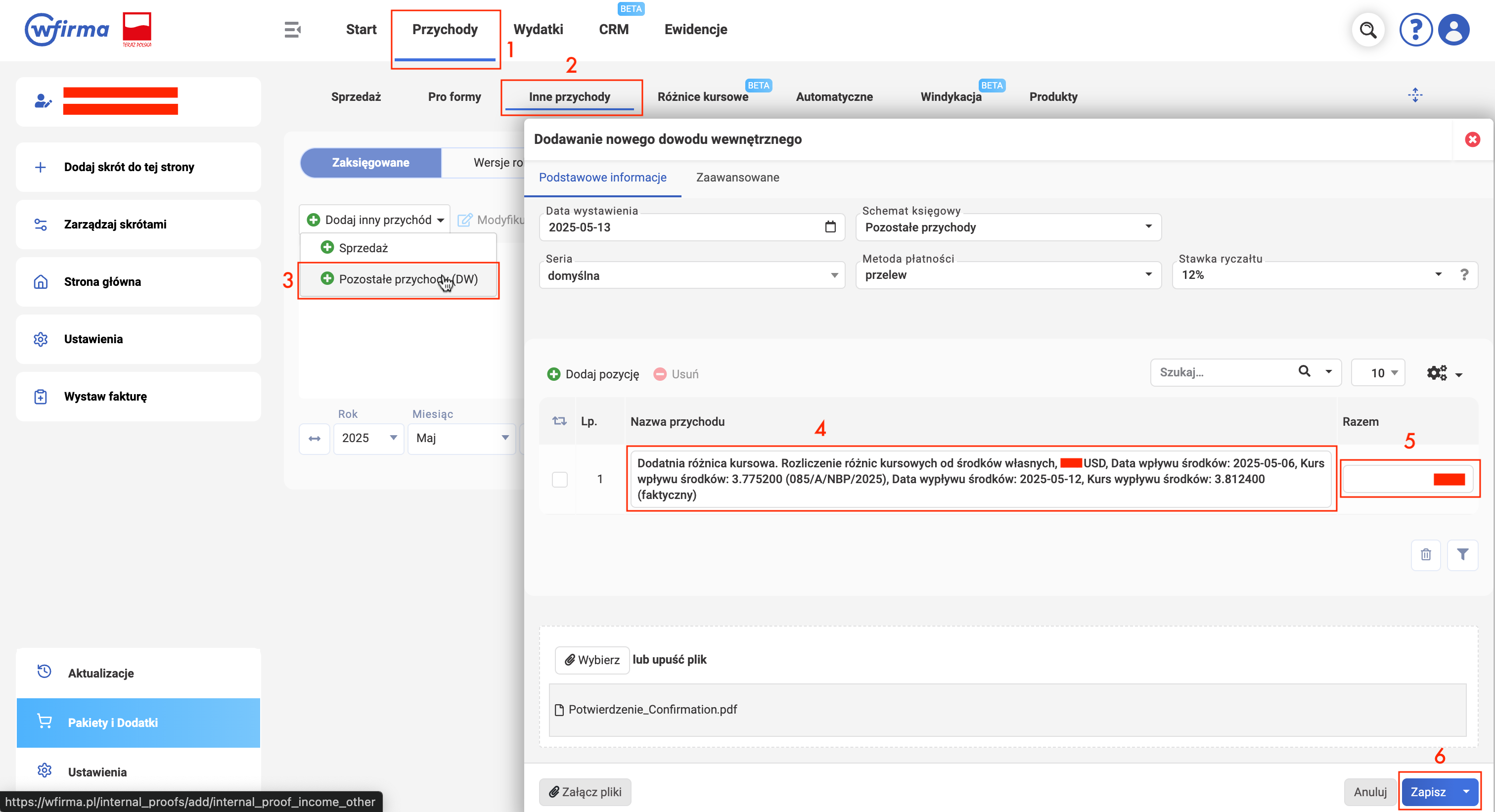
- Click Przychody.
- Click Inne przychody.
- Click Dodaj inny przychód and select Pozostałe przychody (DW).
-
In the Dodawanie nowego dowodu wewnętrznego window, on the Podstawowe informacje tab, fill in Nazwa przychodu. Sample text for a positive exchange rate difference:
Dodatnia różnica kursowa. Rozliczenie różnic kursowych od środków własnych, 100 USD, Data wpływu środków: 2025-05-06, Kurs wpływu środków: 3.775200 (085/A/NBP/2025), Data wypływu środków: 2025-05-12, Kurs wypływu środków: 3.812400 (faktyczny)
-
Enter the amount.
- Click Zapisz i drukuj to save and print.
Done, the exchange rate difference has been added and will be taken into account when calculating the tax base.
Support our guide with a cup of coffee ♥