Migrating to wFirma
This document describes a personal experience of migrating bookkeeping to wFirma.pl. After the initial setup, it's time to calculate your first month in the new system. That's exactly what this article is about.
Who Is This For
This guide is suitable for a typical freelancer sole proprietor (JDG) on ryczałt without VAT, with one invoice per month for services (programming). Monthly reporting, metoda memoriałowa, the date on the last invoice from last year is 31.12.2025, the payment date is in January 2026. Payment was received in a foreign currency, so we'll also cover migrating exchange rate differences from the old system. No company (spółka), no Umowa o pracę employment, no hired employees, no import of services from other countries. In short, as simple as it gets.
Preparation
The wFirma setup is described on the wFirma setup page. That page also covers setup specifics related to transitioning from another accounting system.
Theory
To correctly calculate the PIT income tax and ZUS insurance contributions, you need to add the following for the reporting month (January):
- INVENTORY: only the initial remanent for 2026.
- INCOME: all invoices issued in the reporting month.
- INCOME: other income, such as positive or negative exchange rate differences that arose in the reporting month.
- ZUS PAYMENT: actually made in the reporting month.
For entrepreneurs who are migrating their bookkeeping from another system mid-year (i.e. not starting from January), it's recommended to follow the instructions from wFirma.
Practice
January was already calculated in the old system. You just need to repeat it exactly. I think it's best to enter documents in chronological order.
Inventory
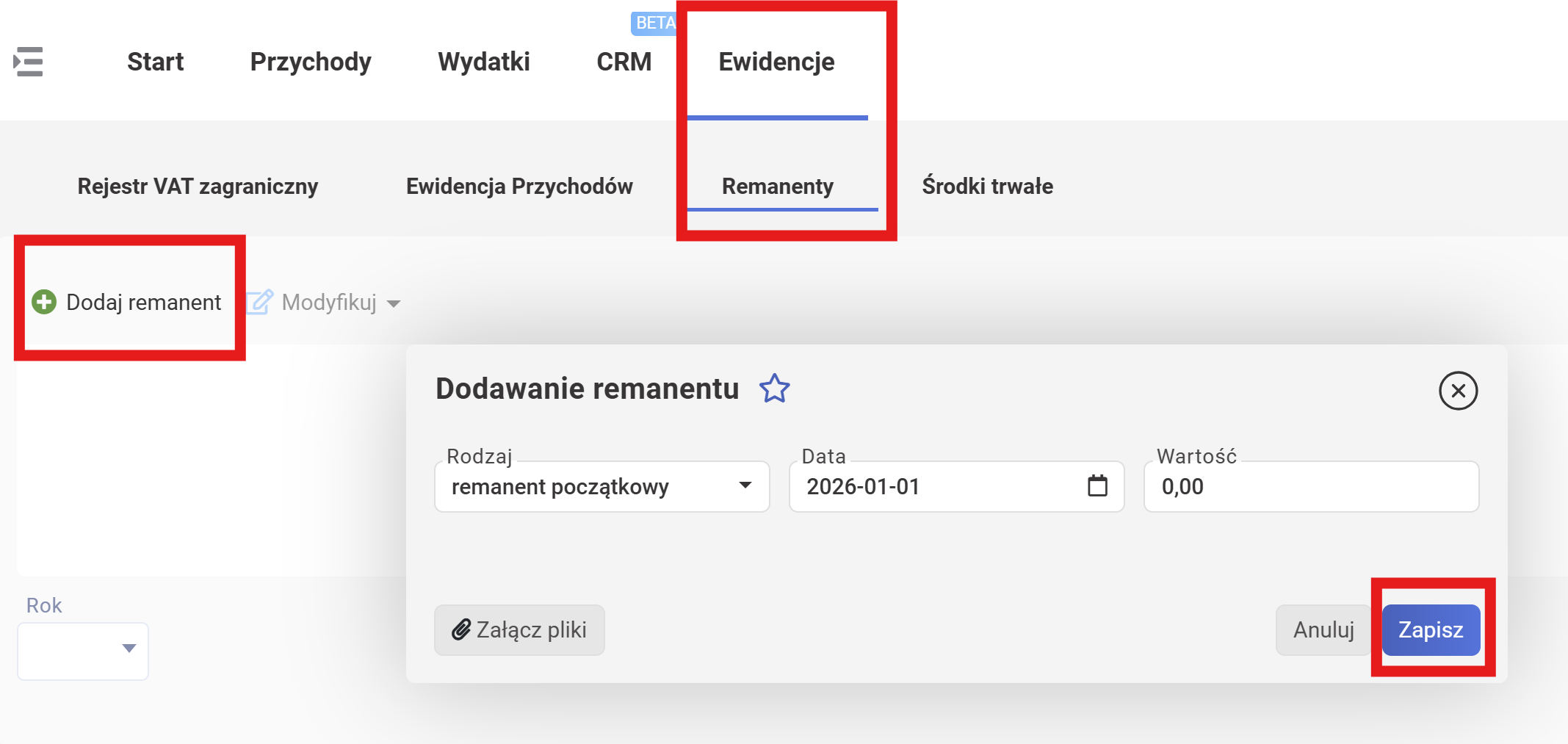
For ryczałt this isn't mandatory, but just in case, the first thing we'll do is create a zero remanent.
- Click Ewidencje.
- Click Remanenty.
- Click Dodaj remanent.
- Select "Rodzaj: remanent początkowy"
- Date: 2026-01-01 (beginning of the year).
- Wartość: 0 (no goods or materials).
Migrating Exchange Rate Differences
The next thing I needed to add for January was a DW for the exchange rate difference on an invoice that was issued in December (which I didn't transfer to wFirma). But the payment on the invoice arrived in a foreign currency in January, so the exchange rate difference belongs to January and must be taken into account when calculating the tax base for January. Find the Dowód wewnętrzny (DW) in the previous system and add it for the first reporting month of bookkeeping in wFirma.
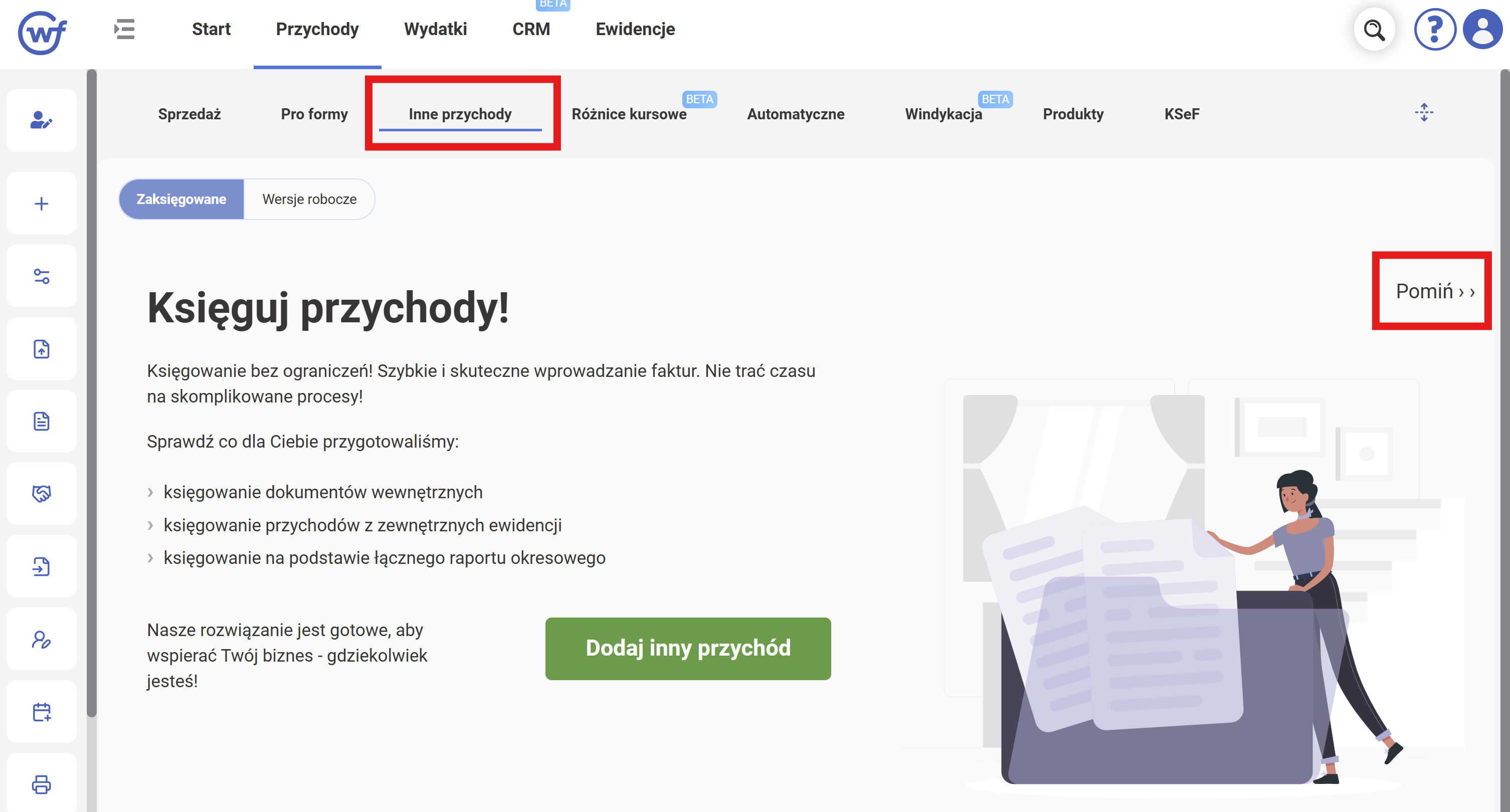
- Click Przychody.
- Click Inne przychody.
-
Click Pomiń >> (Skip).
-
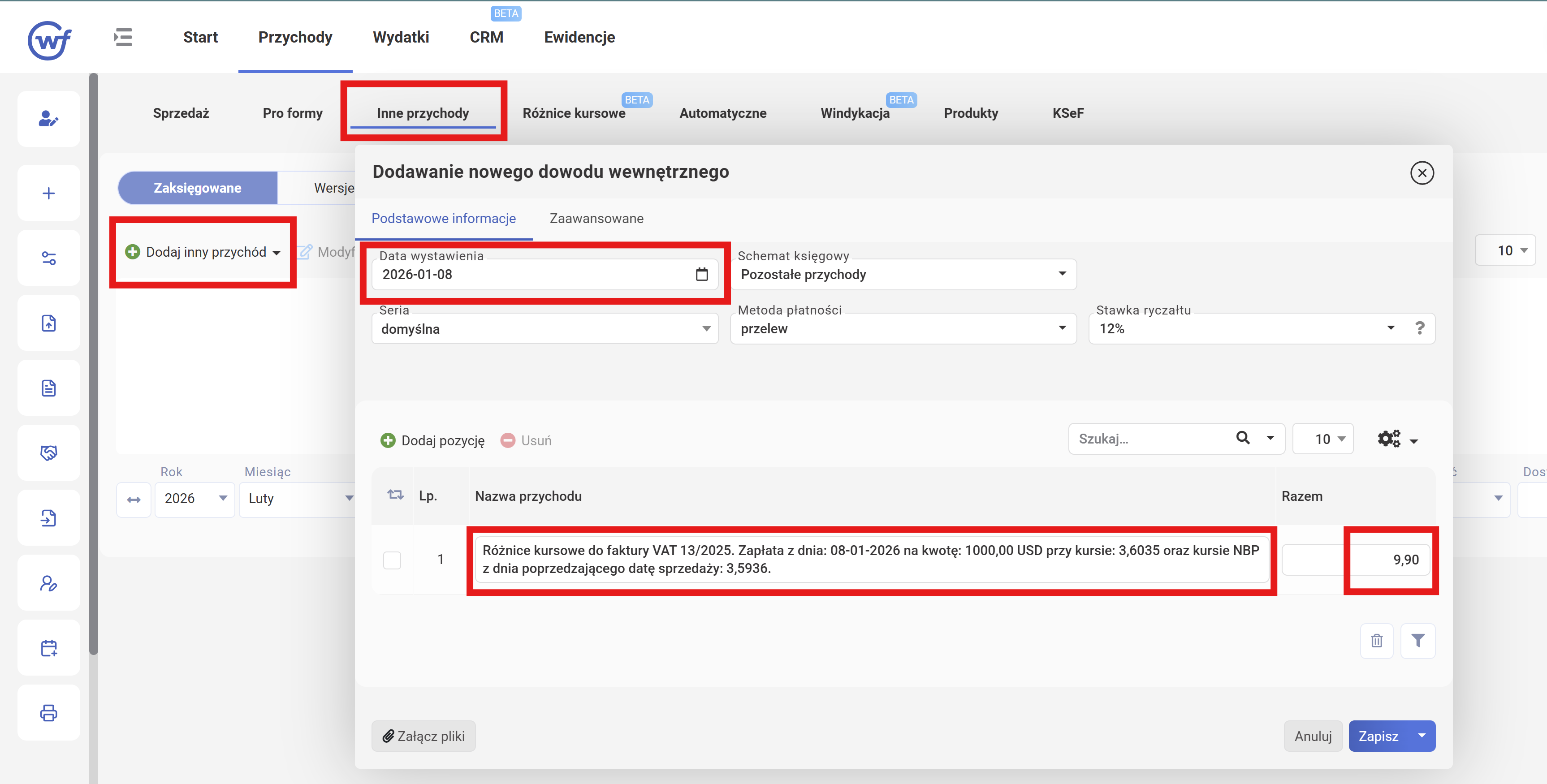
You'll land on the right page. Hover over Dodaj inny przychód and select Pozostałe przychody (DW) from the dropdown.
-
In the Dodawanie nowego dowodu wewnętrznego window, on the Podstawowe informacje tab, fill in Nazwa przychodu. Sample text for a positive exchange rate difference:
Różnice kursowe do faktury VAT 13/2025. Zapłata z dnia: 08-01-2026 na kwotę: 1000,00 USD przy kursie: 3,6035 oraz kursie NBP z dnia poprzedzającego datę sprzedaży: 3,5936.
-
Enter the amount in the Razem field. Negative exchange rate differences are also added as Przychody, just with a minus sign.
-
Change the data wystawienia to the date of payment receipt.
-
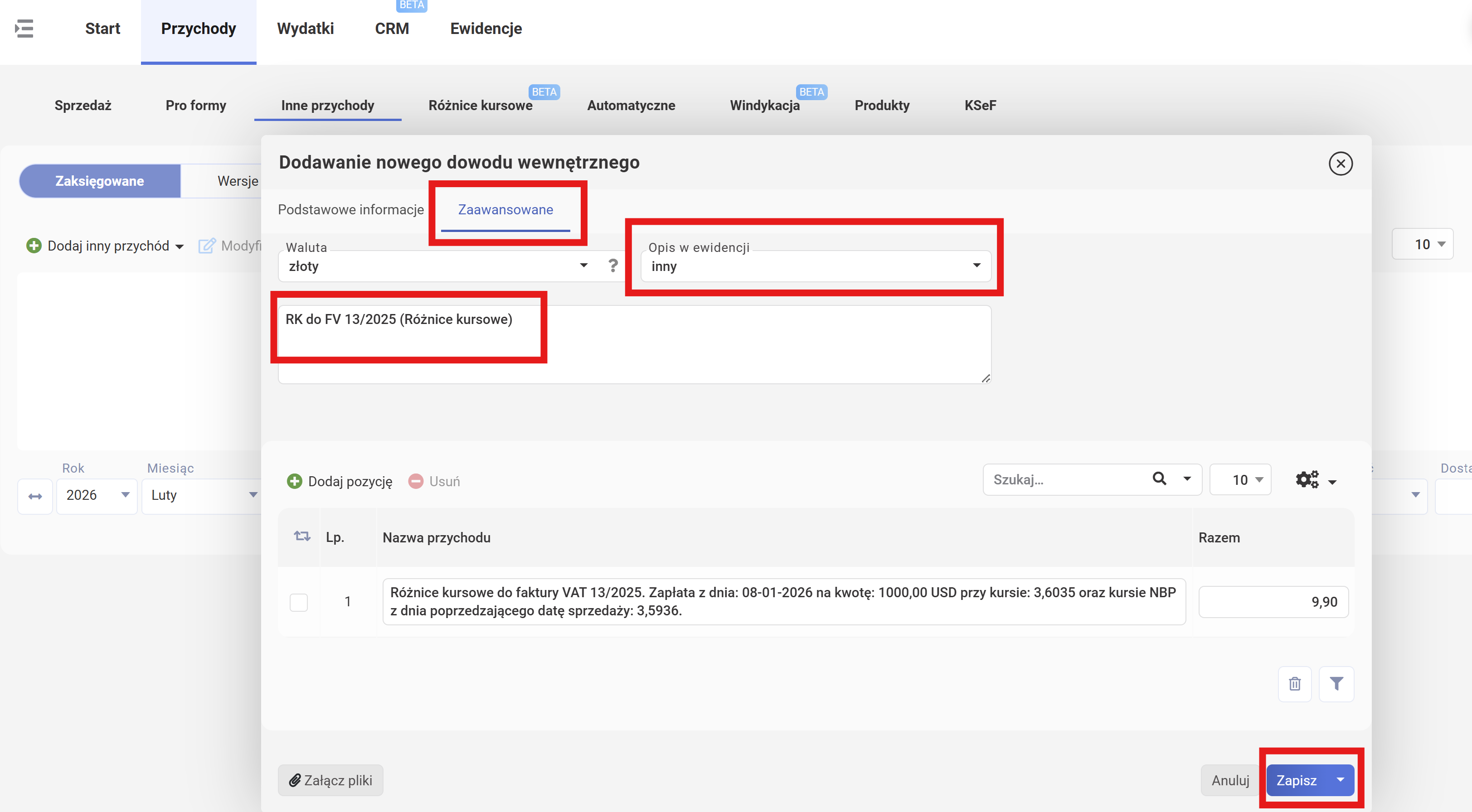
Go to the Zaawansowane tab to enter a shorter description that will go into the Ewidencja Przychodów. Sample text:
RK do FV 13/2025 (Różnice kursowe)
-
Click the Załącz pliki button and select (or drag and drop) a file to attach a bank statement confirming the incoming payment.
-
Click Zapisz to save.
-
Verify that a new row has been added to the table. You may need to play around with the filters to see it.
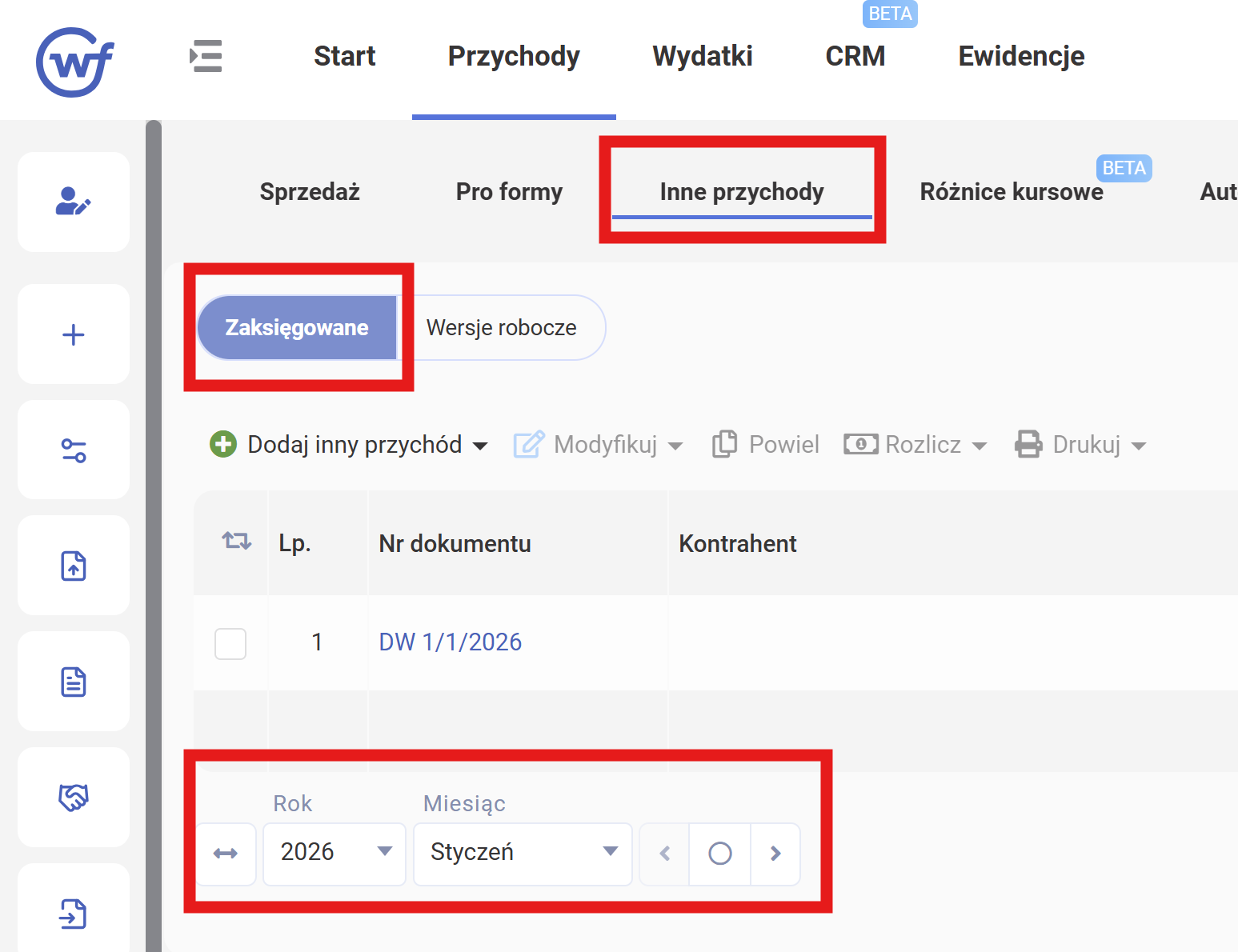
Done, the exchange rate difference has been migrated and will be taken into account when calculating the tax base.
Migrating an Invoice
Now let's add the invoice for services in January. Follow the "Issuing Invoices" instructions from the guide, except:
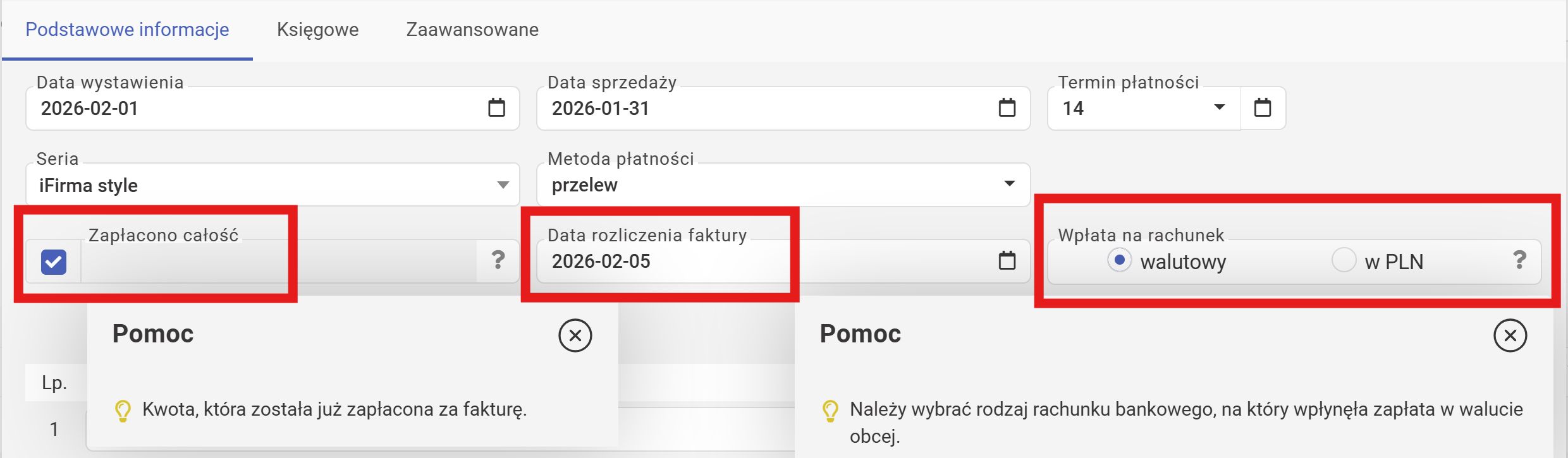
- you can immediately mark the invoice as paid by checking the box next to "zapłacono";
- enter the payment date in data rozliczenia faktury;
-
select "wpłata na rachunek: walutowy" (if payment arrived in a foreign currency account) or "w PLN" (if in złoty).
-
make sure on the "Zaawansowane" tab there is no checkmark next to "automatyczna wysyłka na adres e-mail". This is a duplicate of an old invoice — no need to send it to the client again.
After that, go to Przychody - Różnice kursowe and generate a DW as described further in the guide instructions. Repeat for all existing invoices that fall within the period between the start of bookkeeping in wFirma and the current date, in the order they were issued.
Paying ZUS
Disclaimer
I'm not sure this section is useful, but I've already gone through it and documented it in the guide, and I can't go back to check how the migration would have gone without it. The thing is, the "składki społeczne" and "składka zdrowotna" deductions paid in January are still asked for by wFirma when calculating PIT for January anyway. Besides, I'm not sure that if you go this route, you should enter składki społeczne (1646.47 zł) here rather than składki społeczne WITHOUT fundusz pracy (1646.47 - 127.49 = 1518.98 zł). I'd appreciate it if someone could verify and make corrections.

- Click Start → ZUS;
- Click Dodaj deklarację;
-
Right away, wFirma asks a few important questions:
- Forma opodatkowania w roku 2025 — Tax form in the previous year (ryczałt is selected in the screenshot, choose yours).
- Składki społeczne zapłacone w styczniu 2026 — Social contributions paid in January 2026. Enter how much you paid for yourself and for osoba współpracująca in January of the new year. It doesn't matter which period it's for. What matters is that the payment date on the bank statement falls in January.
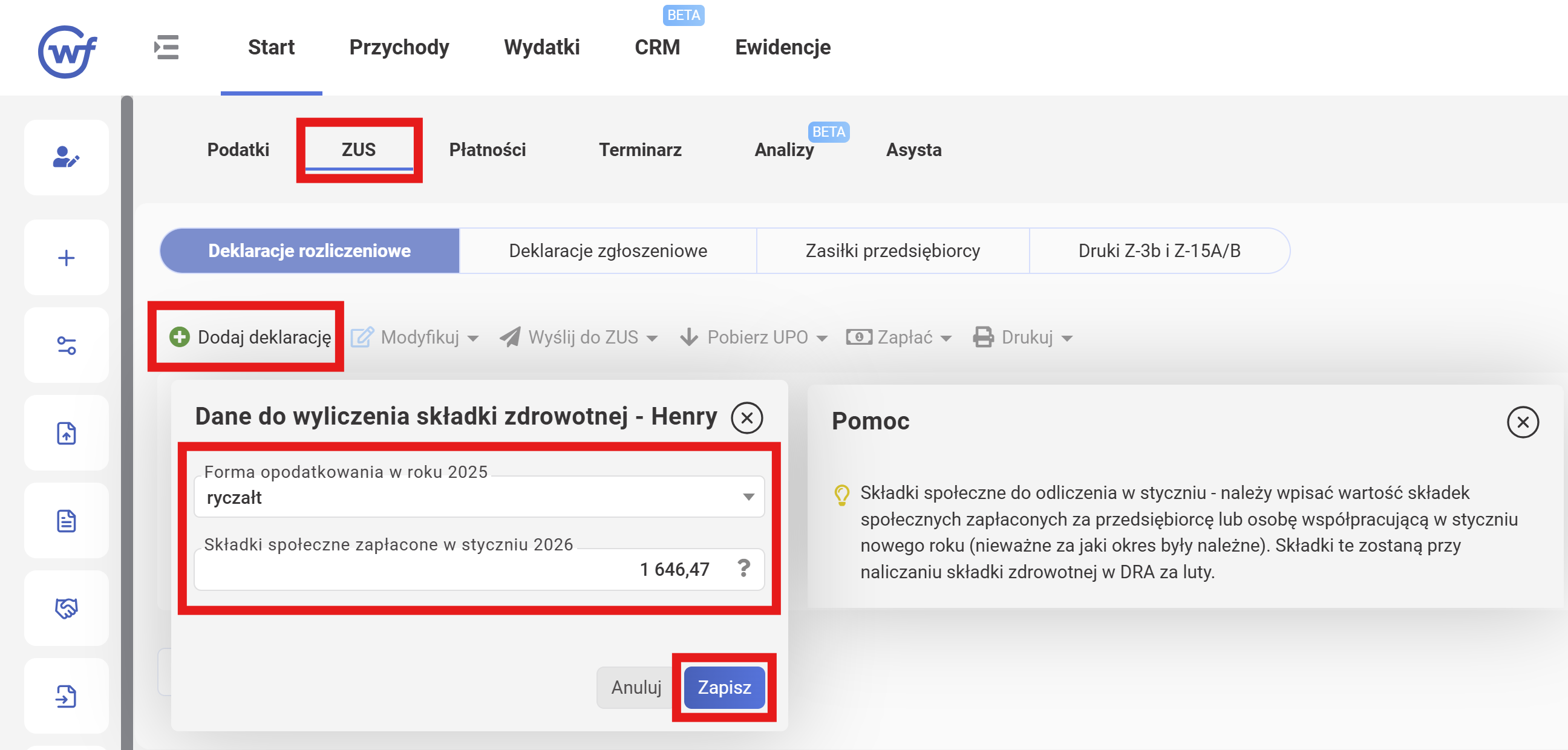
The screenshot shows ZUS = 1646.47 zł. That's exactly how much the minimum social contributions to ZUS came to for entrepreneurs on ryczałt without benefits (full or duży ZUS) for December 2025.
-
Click Zapisz to save.
- In the next window, click Anuluj to close.
What's Next
That's where the specifics of migrating bookkeeping to wFirma end. All that's left is to calculate the PIT advance payment for January, prepare the ZUS DRA 01/2026 declaration, and pay.
Calculating Taxes
I don't want to repeat myself, so for further PIT and ZUS steps, please refer to the Monthly Operations in wfirma.pl guide — see "Calculating and Paying Taxes". When PIT and ZUS for the reporting month are calculated, you can compare them with what was calculated in the old system to verify the migration.
Payment and Submission
Attention! You do NOT need to submit ZUS and VAT declarations again if they've already been submitted from the old system.
-
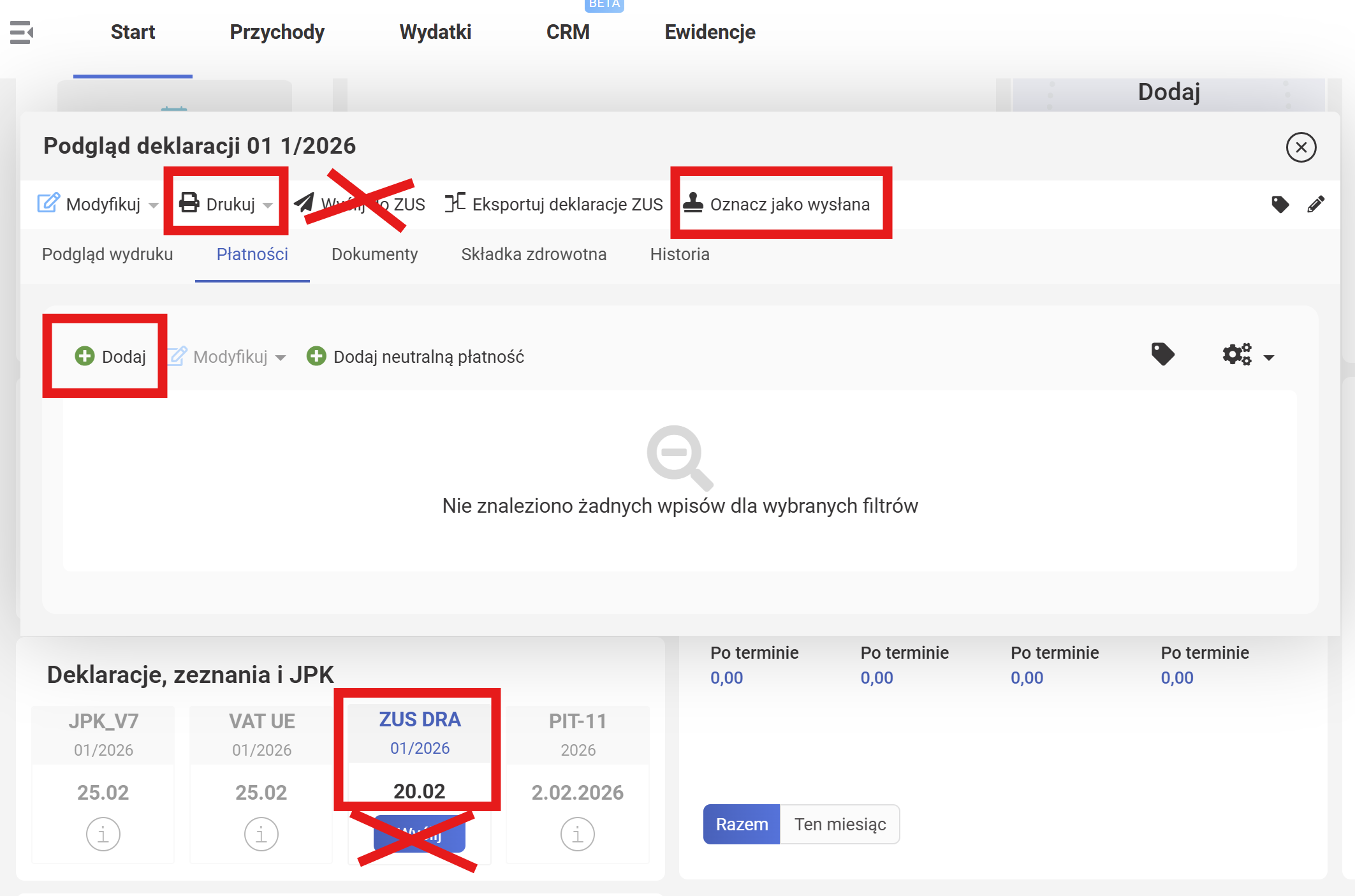
Open the ZUS DRA in preview mode. To do this, click on the ZUS DRA tile just above the blue button.
-
"Drukuj" button: Print to PDF.
- "Wyślij do ZUS" button: submit the declaration to ZUS. In this case, not needed.
-
"Oznacz jako wysłana" button: mark as sent. Click it! And agree to the warning that says the selected declaration has already been submitted by the user outside the wFirma system (e.g. through another service or an accountant).

-
"Płatności" tab — "Dodaj" button: click it after paying ZUS, if the payment was made outside wFirma. Fill in the simple form and click Zapisz to save.
Similarly, PIT zaliczki also need to be marked as paid if the payment was made outside wFirma.
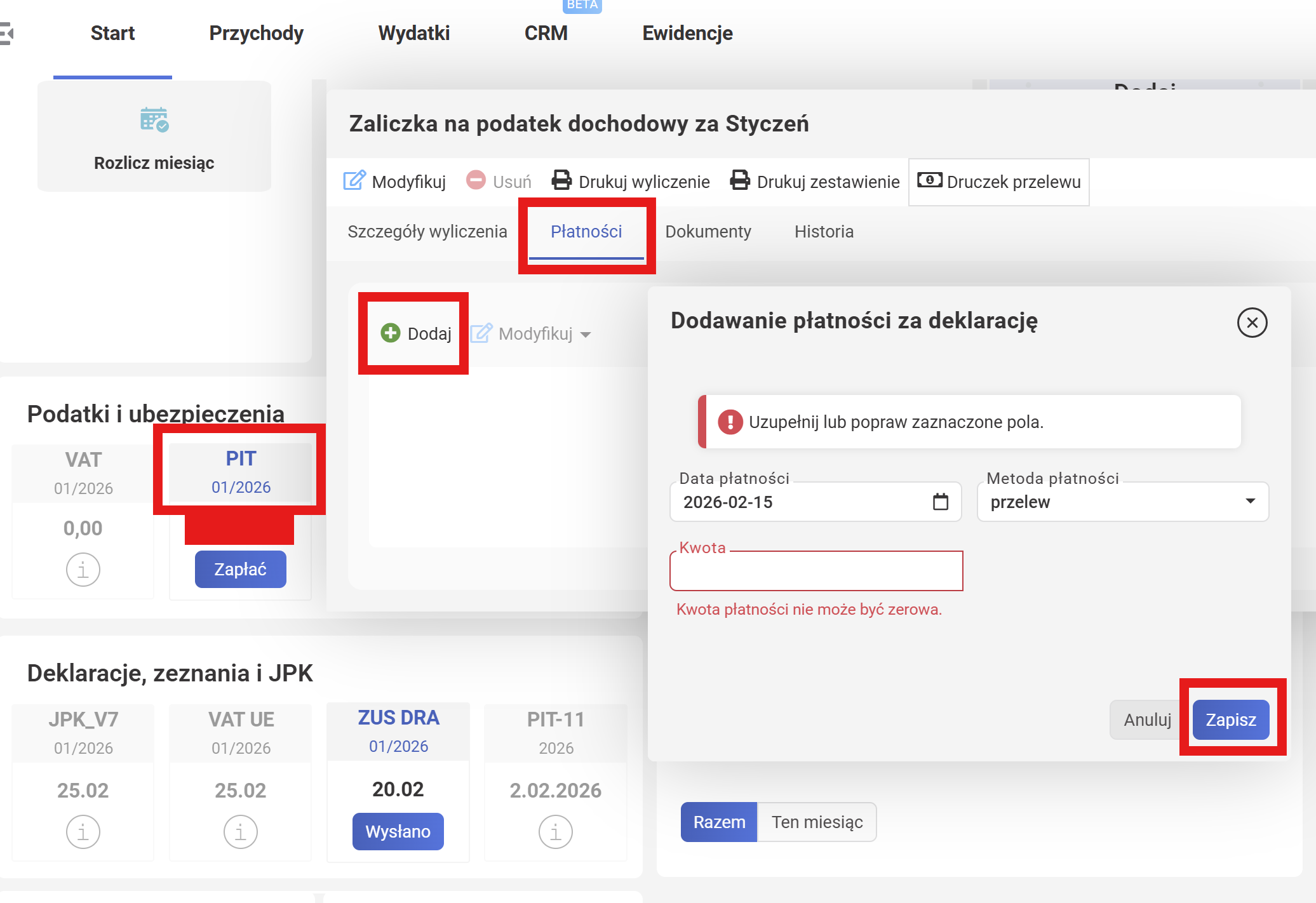
Path shown in the screenshot: Start → PIT → in the Zaliczka na podatek dochodowy za (...) window, go to the Płatności tab → Dodaj button → fill in the Dodawanie płatności za deklarację form → save.
Good luck!
You can run parallel bookkeeping in both systems for a while (mirroring what your accountant does), and once you feel confident, fully switch to managing your own bookkeeping in wFirma.
Troubleshooting
If something went wrong or you ran into issues, you can reach out to wFirma support:
- Pomoc: click the (?) icon in the top right corner.
- Asysta: assistant
- email: buiro@wfirma.pl
Note: the first 2 methods are only available for authorized users.
Support our guide with a cup of coffee ♥