Registering a JDG (Sole Proprietorship)
Before you begin, make sure you already have
- PESEL
- a trusted profile (Profil zaufany)
- an address (at least a correspondence address)
Registering a sole proprietorship on biznes.gov.pl
- First, click
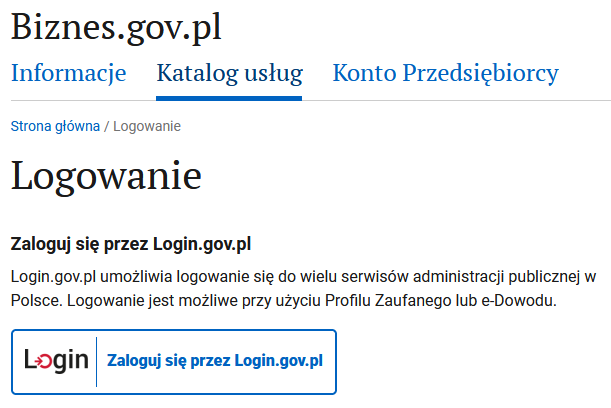
Logowaniein the upper-right corner. You will be taken to a page with login options (as shown in the screenshot). - Select
Zaloguj się przez Login.gov.pland log in using your trusted profile.
- Click the large blue button
ZAREJESTRUJ FIRMĘ:
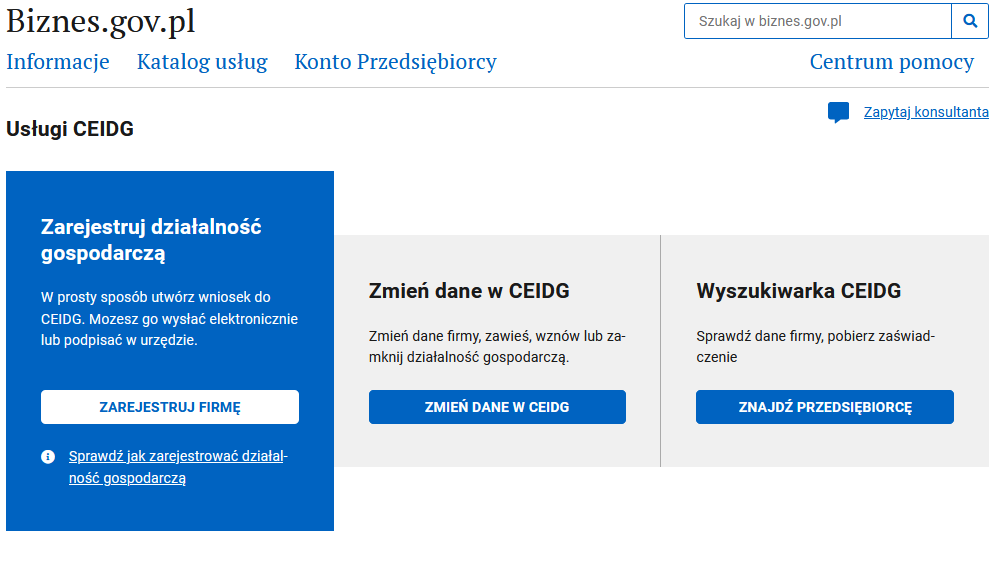
After that, you will be guided through a step-by-step form to register your sole proprietorship.
Filling out the registration form
1. Welcome screen
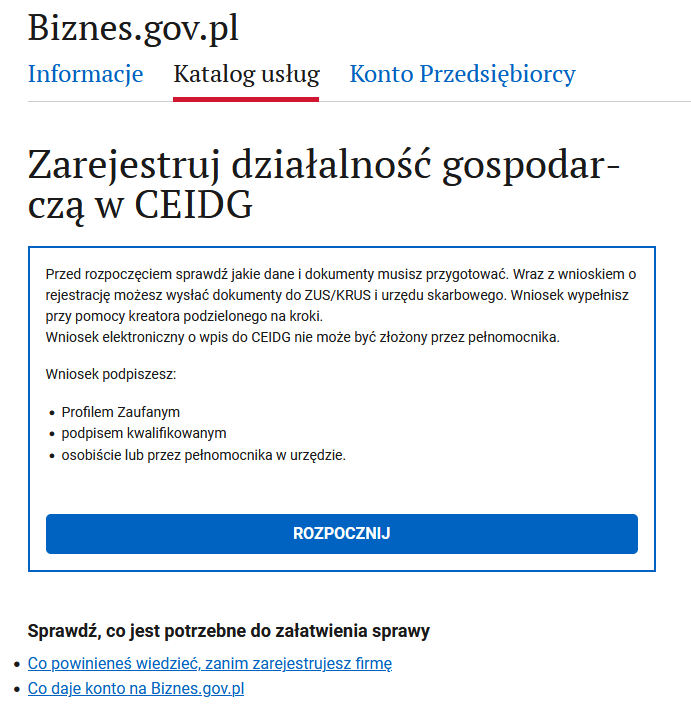
Click ROZPOCZNIJ
2. Important information
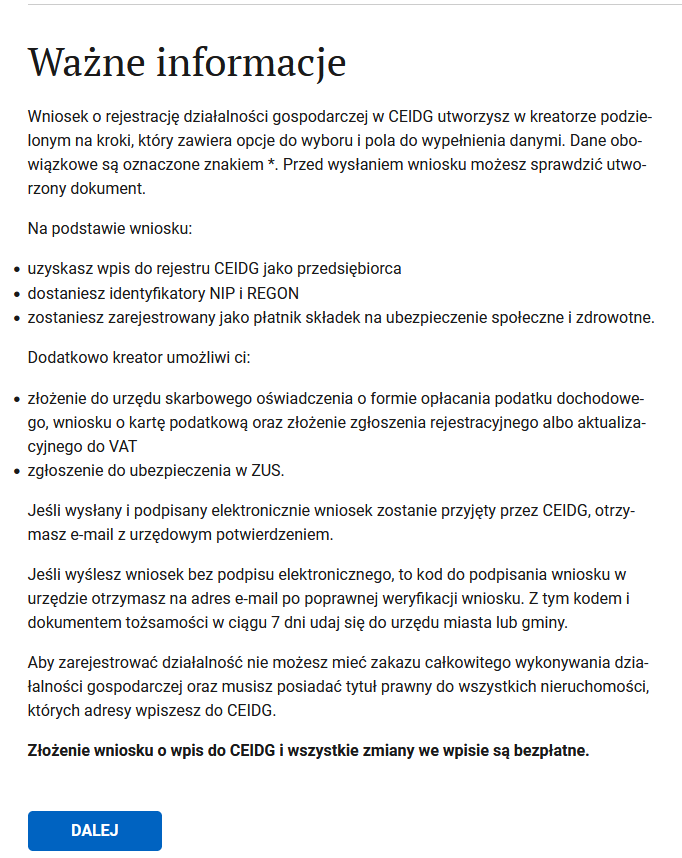
Click DALEJ
3. Applicant details
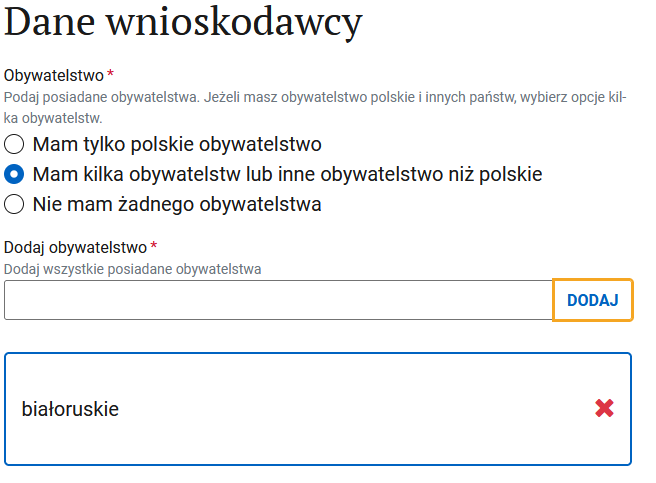
This is the Dane wnioskodawcy step. Remove Polish citizenship and add your own. The result should look like the screenshot below.
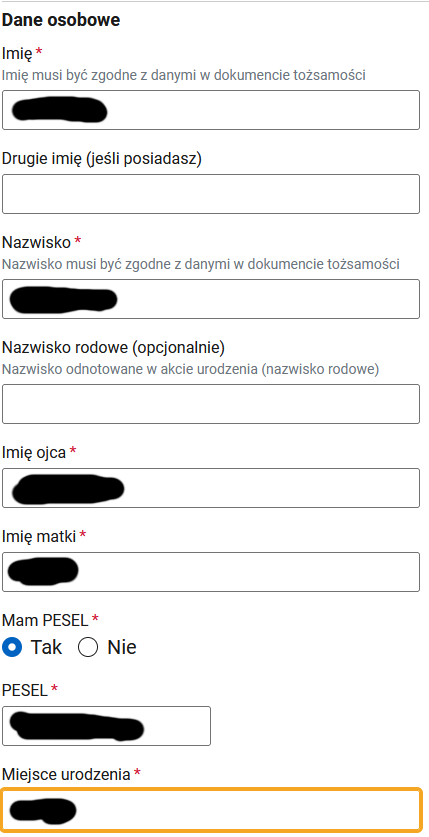
Next, fill in your personal details: first name, last name, father's name, mother's name, PESEL, place of birth:
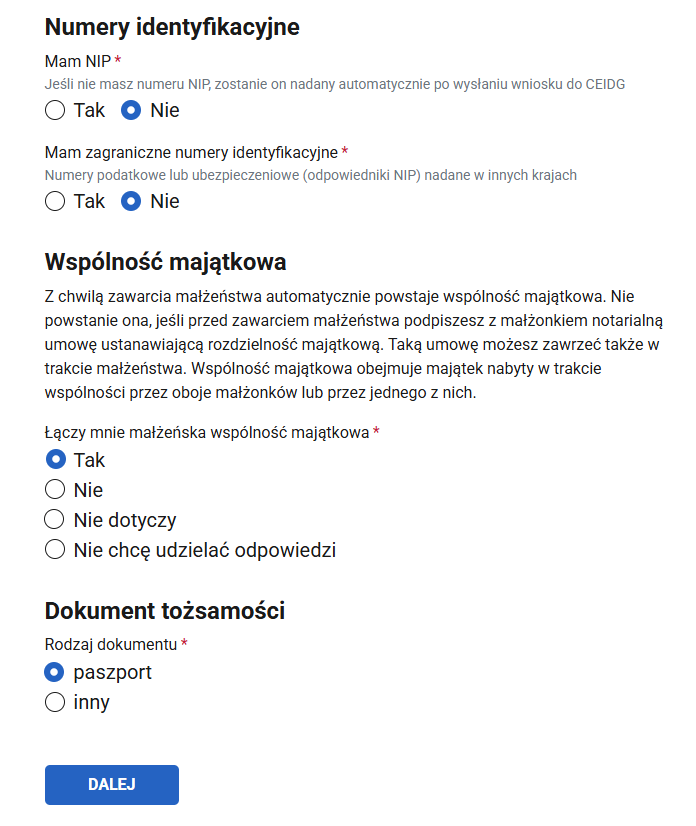
And a few more questions:
- You most likely do not have a NIP number yet.
- Foreign identification number (they are mainly interested in European tax IDs, but you can also enter a Belarusian/Ukrainian one).
- Marital property regime (Wspólność majątkowa):
- if married without a prenuptial agreement — tak,
- if married with a prenuptial agreement — nie,
- if not married — nie dotyczy,
- if you prefer not to answer — Nie chcę udzielać odpowiedzi.
The result should look like this:
Click DALEJ
4. Foreigner details
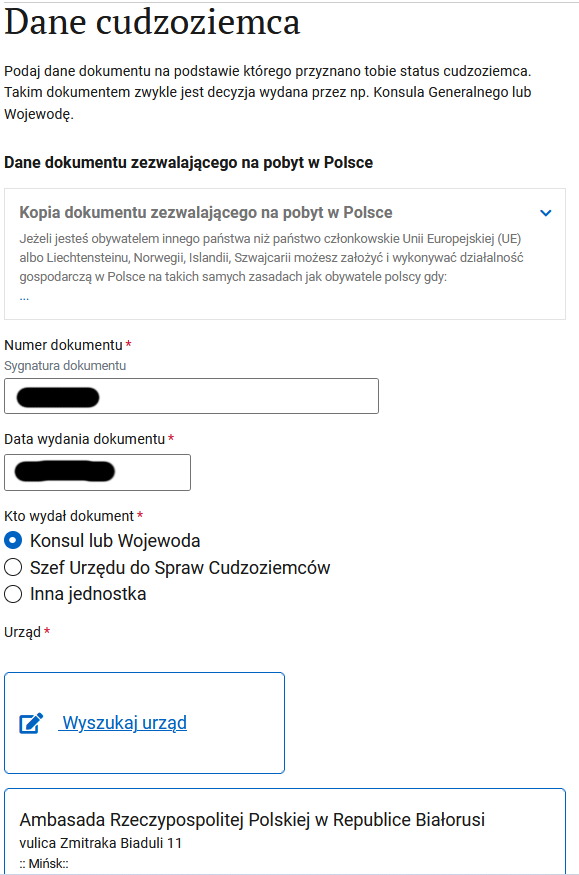
- If you are on a PBH visa, enter the visa number and issue date, leave the consul checkbox selected, click Wyszukaj, and choose the embassy that issued your visa (for example, for Minsk: Ambasada Rzeczypospolitej Polskiej w Republice Białorusi vulica Zmitraka Biaduli 11 :: Mińsk::). Note that the search uses Polish names, so "Minsk" won't return results — you need to type "Mińsk".
- If you are registering based on a Karta Polaka, enter the card details and the issuing organization accordingly.
- For Ukrainian citizens this dialog may not appear at all, but if it does, there are two options:
- if you have a PESEL UKR: enter your PESEL.
- if you don't — indicate that you arrived before the war and upload your passport or another document.
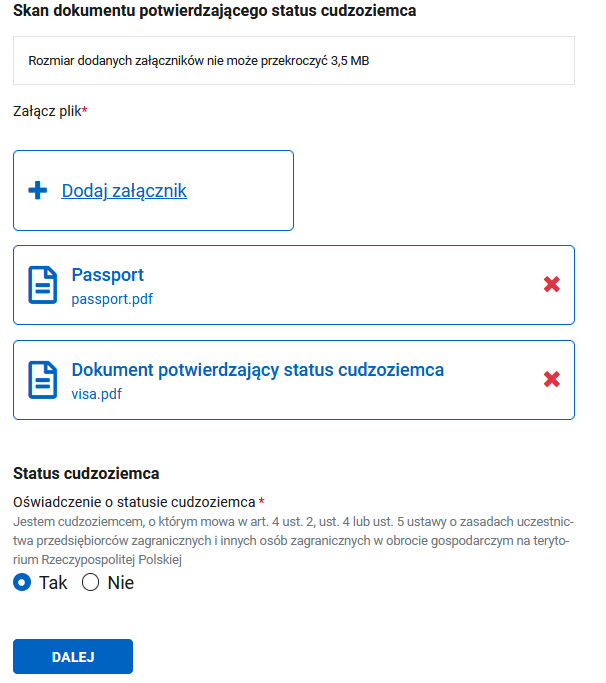
- Attach scans of your passport and visa/residence card. If you are applying on the basis of a Blue Card, also attach a scan of the decision. Do not rename the documents from the names suggested by the portal, otherwise you will receive the following error in response to your application: Kod błędu: -4 Komunikat: Wniosek odrzucony przez moduł Weryfikacji Obywatelstwa (the total file size must not exceed 3.5 MB, otherwise you will have problems signing the application).
- Check the box confirming that you are allowed to operate a sole proprietorship in Poland:
Click DALEJ
5. Residential address
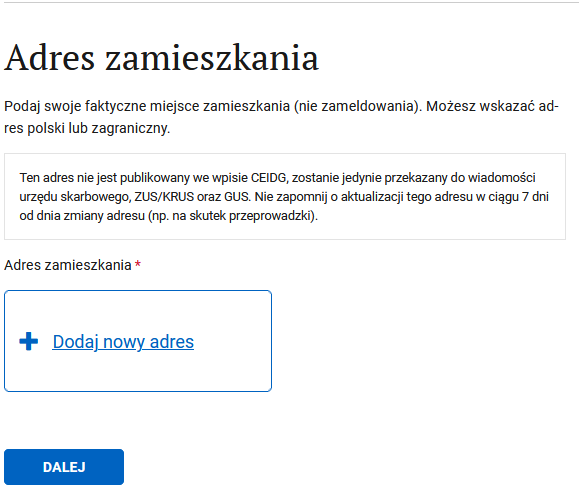
Click Dodaj nowy adres
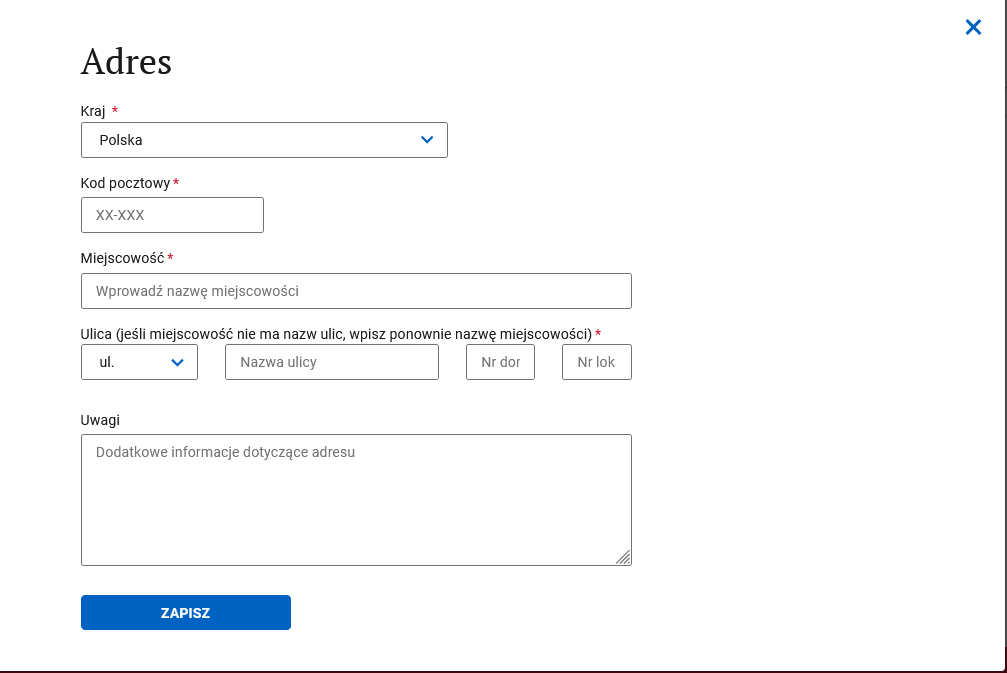
Enter your address and click ZAPISZ.
Note
You can enter a foreign address here if you currently live abroad. You can change it later. It will not affect your business activity in any way.
The result should look like this:
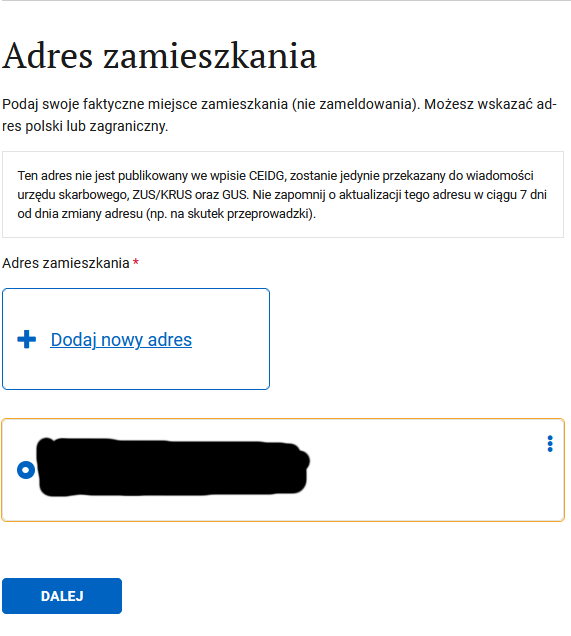
Click DALEJ
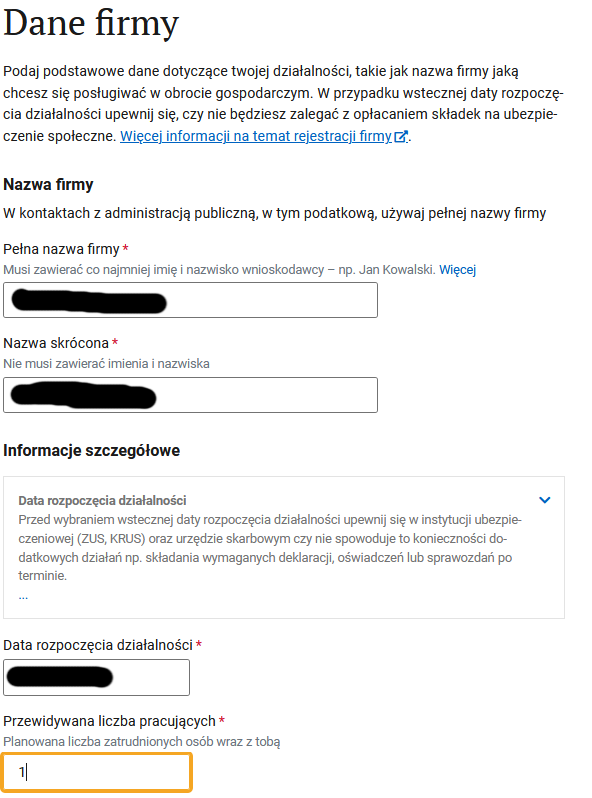
6. Company details
- The full company name must include at least your first and last name in Latin characters. The short name can be anything. For simplicity, it is recommended to use "First Name Last Name" for both the full and short names.
- The start date of activity can be today or a future date. You can change it later.
- You also need to specify the planned number of employees including yourself (if you don't plan to hire anyone, enter 1).
- Additionally, check the box if you plan to employ people with disabilities.
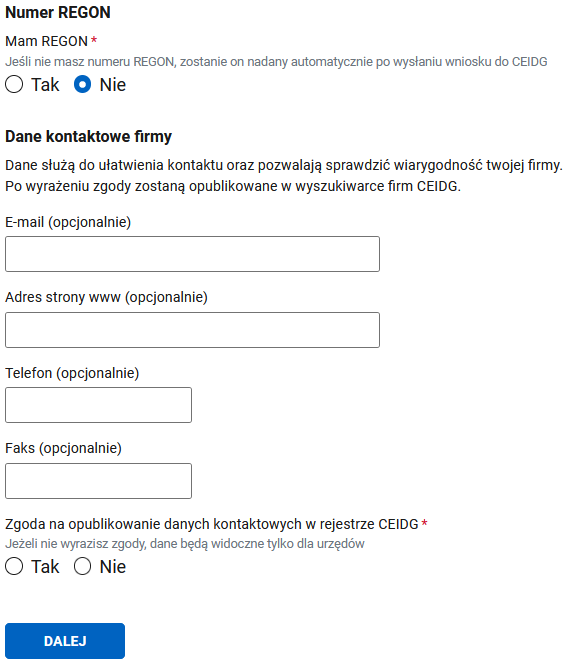
- You most likely do not have a REGON number yet.
- Contact details — these will be visible in the public CEIDG register. The "optional" fields are self-explanatory, and you can decline to publish them in CEIDG.
Note
It is recommended not to publish your contact details (select Nie), otherwise you will be flooded with spam immediately after registration.
Click DALEJ
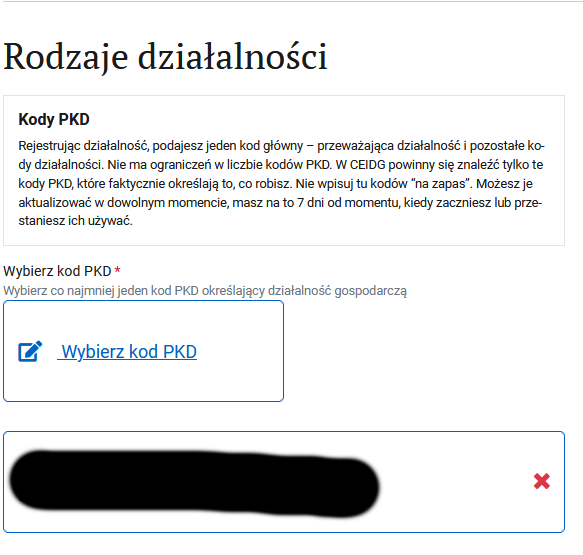
7. Activity codes
Click Wybierz kod PKD, find the appropriate code — it will be your primary one. You can add more if needed (but one must always be selected as the primary code).
Click DALEJ
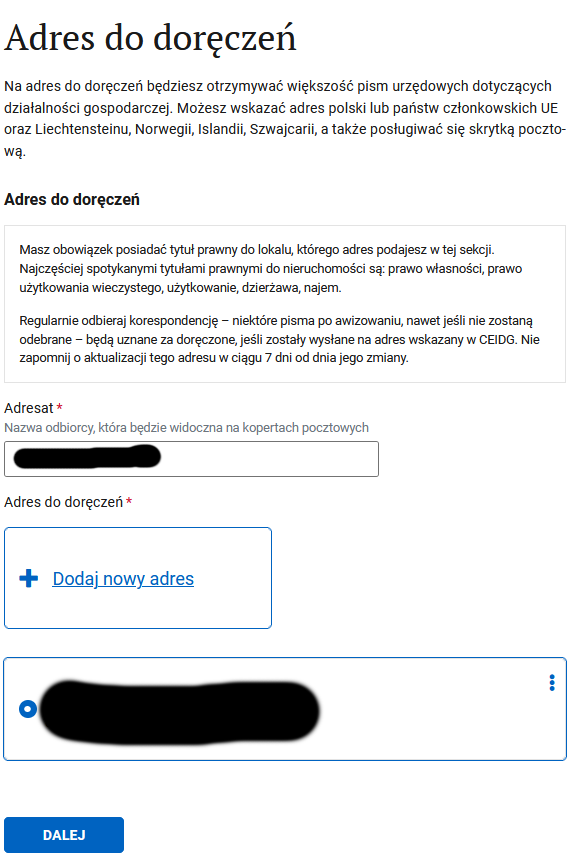
8. Correspondence address
Here you need to provide the recipient and correspondence address. Government agencies will send paper mail to this address. You can safely use your rented apartment address — nothing will change for your landlord.
Click Dodaj nowy adres and the result should look like this:
Click DALEJ
8a. e-Doręczenia — electronic document delivery system
Info
e-Doręczenia is an electronic system for delivering official documents and correspondence. It allows organizations, entrepreneurs, and individuals to receive and send legally binding messages digitally, replacing traditional paper mail. These messages are legally equivalent to registered mail with acknowledgment of receipt. Each user is assigned an electronic delivery address (Adres do Doręczeń Elektronicznych, ADE). The recipient receives a notification about a new document and can view it through a secure portal. You can read more on the official e-Doręczenia page.
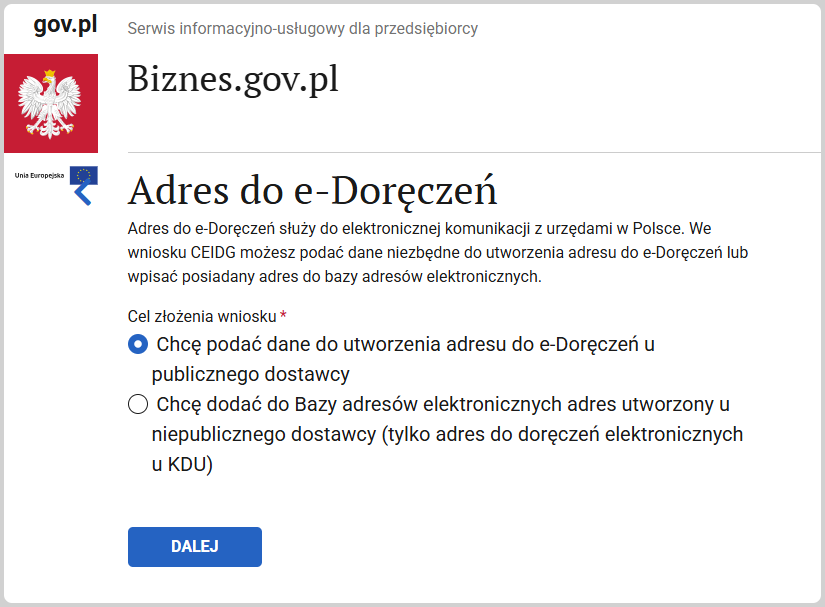
At the Adres do e-Doręczeń step, you will be offered to register for electronic delivery. You most likely don't have such an address yet, so select the first option — I want to submit data to create an e-Doręczenia address.
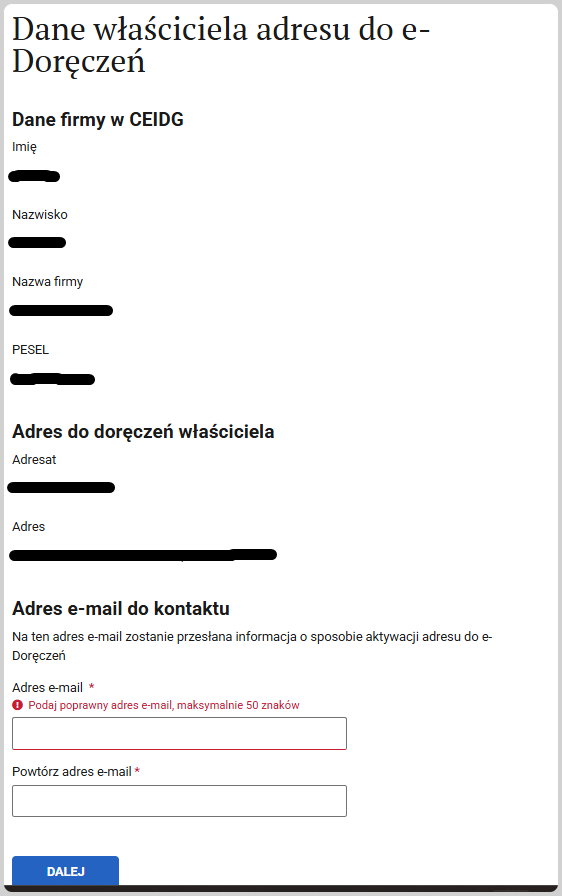
At the Dane właściciela adresu do e-Doręczeń step, the system will display the user data you entered earlier. All you need to do is enter the email address where notifications will be sent.
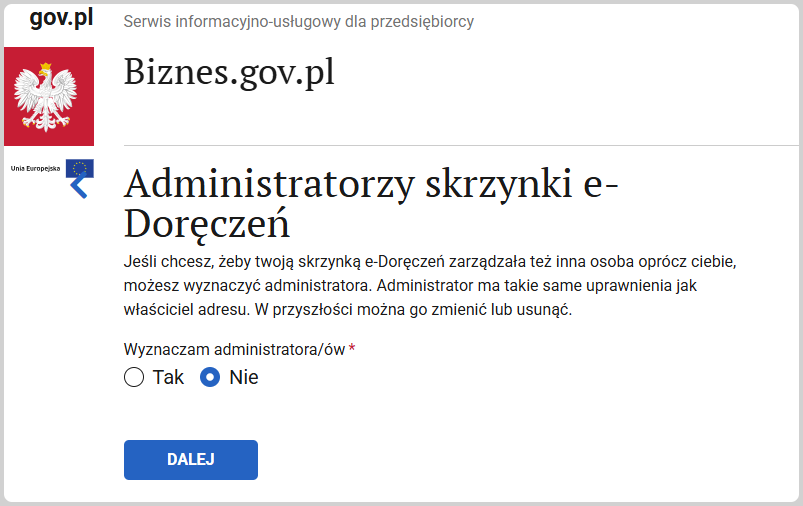
Step Administratorzy skrzynki e-Doręczeń. If you want another person (an administrator) to have access to your e-Doręczenia address, add them here. They will have the same permissions as the owner. You can remove them later. If not, select Nie.
Click DALEJ
9. Business activity address
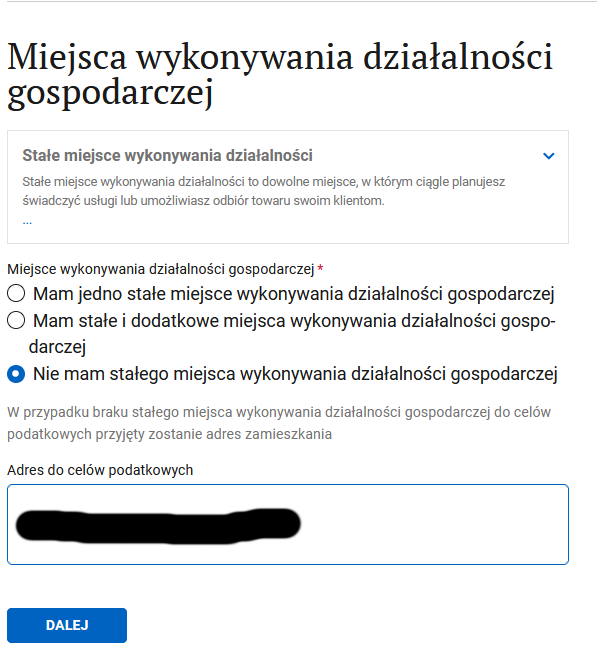
For IT professionals there is an option: "I do not have a permanent place of business" — select it. You probably don't want to use your rented apartment address here.
If you do have such an address (a real or virtual office), then enter it.
Click DALEJ
10. Choosing an insurance scheme
All entrepreneurs in Poland are required to pay ZUS contributions, so select ZUS and specify the date from which you will start paying (this will most likely match your business start date):
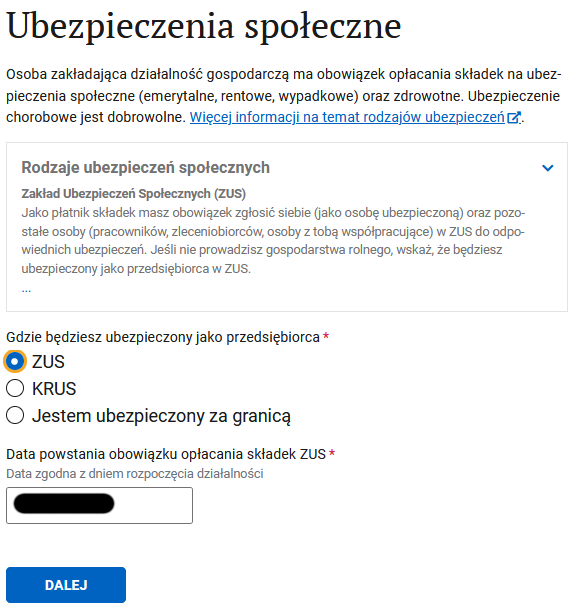
Click DALEJ
11. Tax office
This is filled in automatically based on the address you entered earlier. If you know you belong to a different tax office, you can search for the correct one:
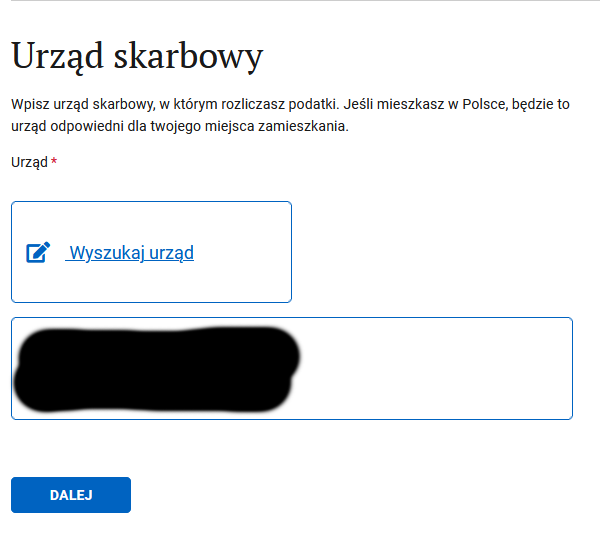
Click DALEJ
12. Additional information
You could stop here, but there is an option to register with ZUS and choose your tax system right away. Let's take advantage of that by selecting the first option:
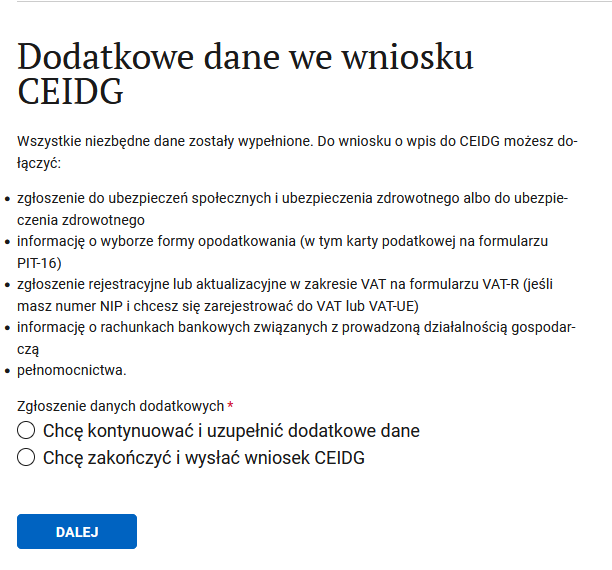
Click DALEJ
13. ZUS registration
Check the box indicating that you want to register and that you are registering only yourself (or select the appropriate options depending on your situation), and choose the ZUS ZZA form:
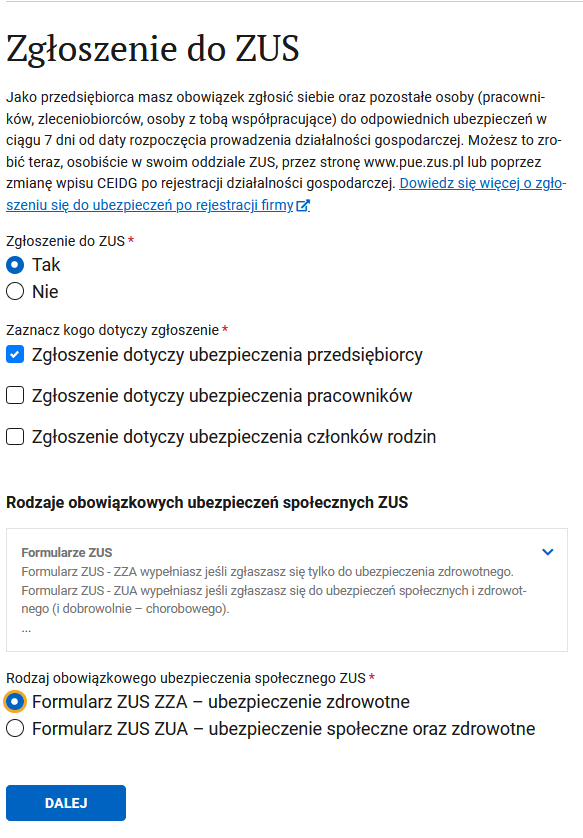
Click DALEJ
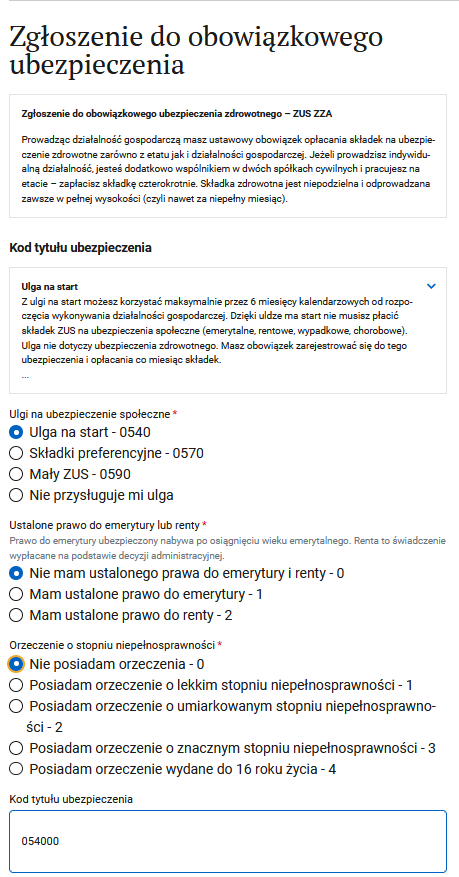
14. ZUS details
Here you can select the startup relief (ulga na start). Also, indicate if you receive a pension and/or have a disability:
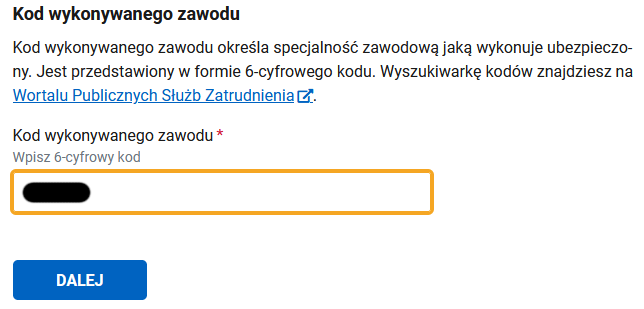
You need an occupation code — click the link and search for the appropriate one (for example, Programista Aplikacji):
Click DALEJ
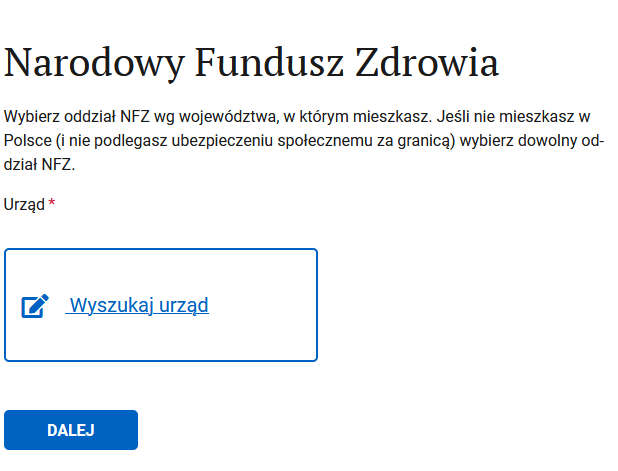
15. NFZ branch selection
Search for your branch based on your place of residence:
Click DALEJ
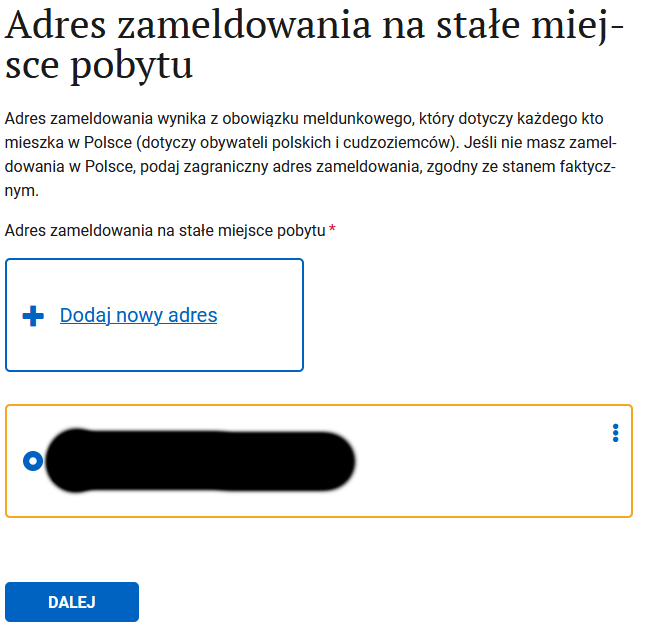
16. Registration address (zameldowanie)
This is your registered address. If you do not have a Polish zameldowanie (registration), enter your foreign registered address:
Click DALEJ
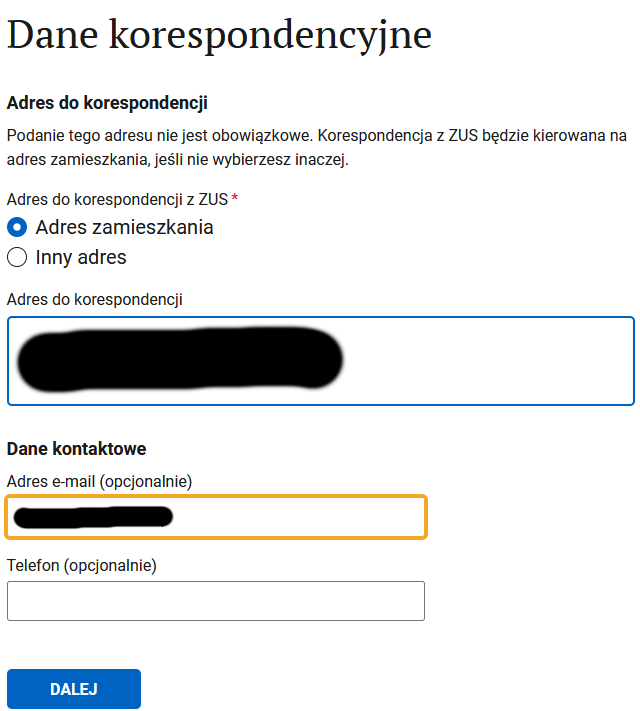
17. Correspondence address
Choose where ZUS paper mail should be delivered. Optionally, provide an email and phone number for contact:
Click DALEJ
18. Taxes
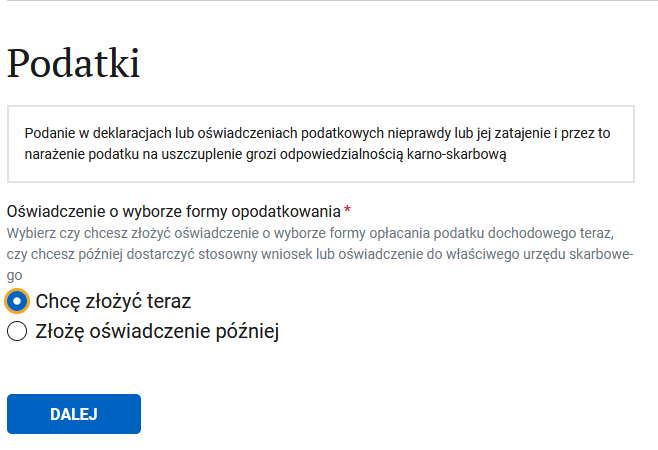
You can choose your tax system right away or temporarily skip this step.
Warning!
Only skip the tax system selection if you are absolutely sure you know what you are doing! If you forget to make a selection before paying your first tax, the default will be the general system (Skala podatkowa). You will only be able to change it from the beginning of the next year.
Click DALEJ
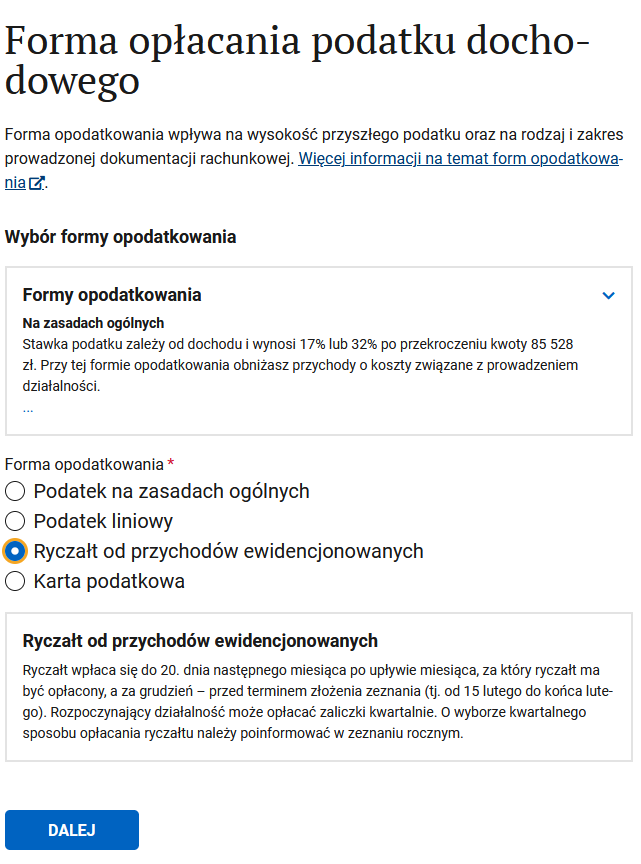
19. Choosing a tax system
Select your tax system:
Click DALEJ
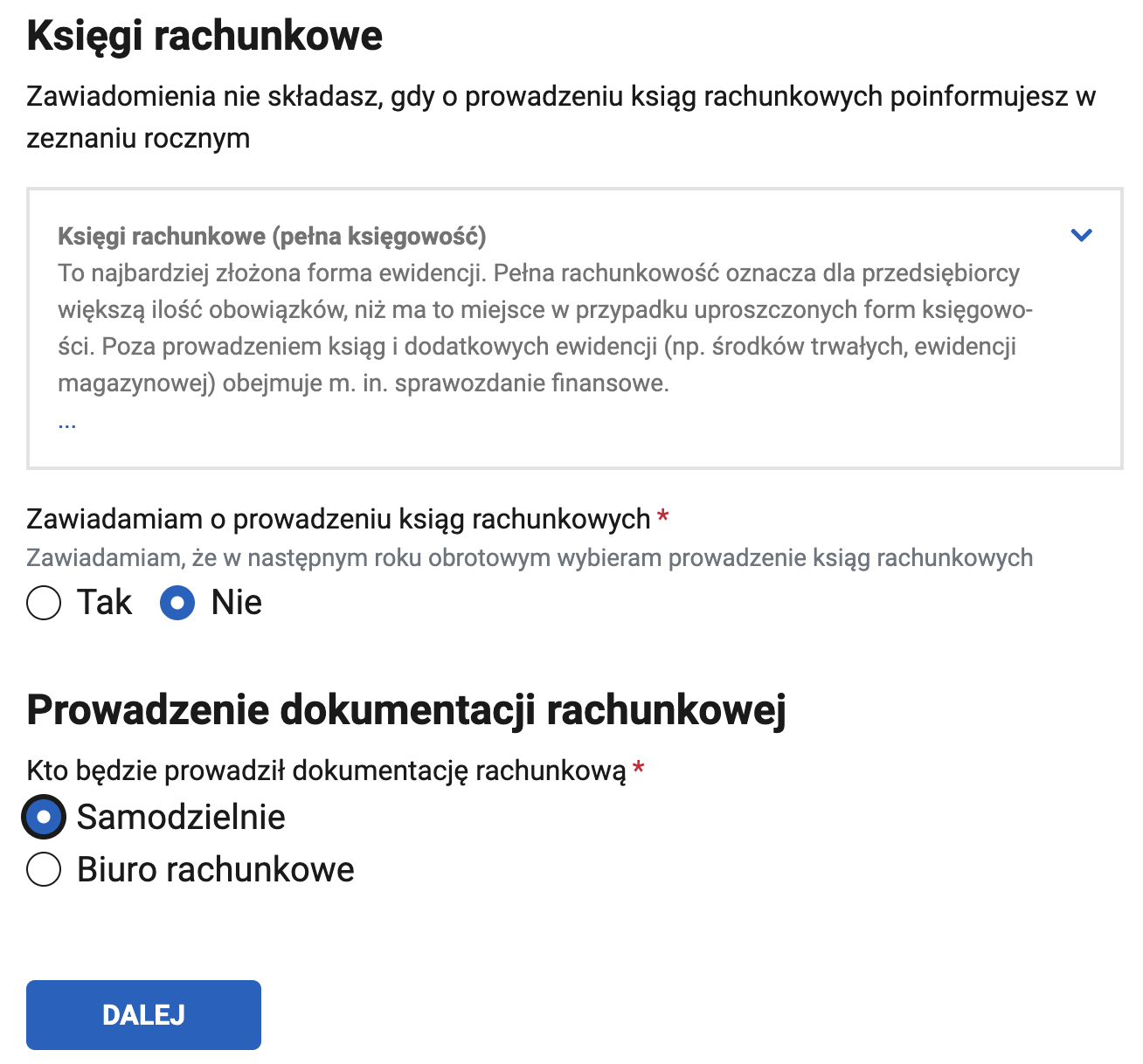
20. Accounting records
- If you chose the ryczałt tax system, you can opt for simplified record-keeping: (Zawiadam o prowadzeniu ksiąg rachunkowych — Nie).
- Indicate who will handle your accounting: yourself or an accountant. You can change this later.
Click DALEJ
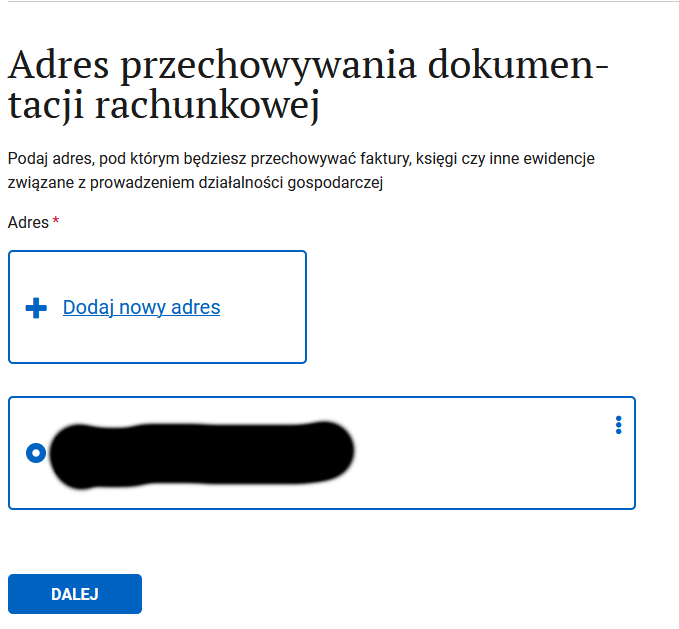
21. Address for storing accounting documents
Choose the address where your accounting documents will be kept:
Click DALEJ
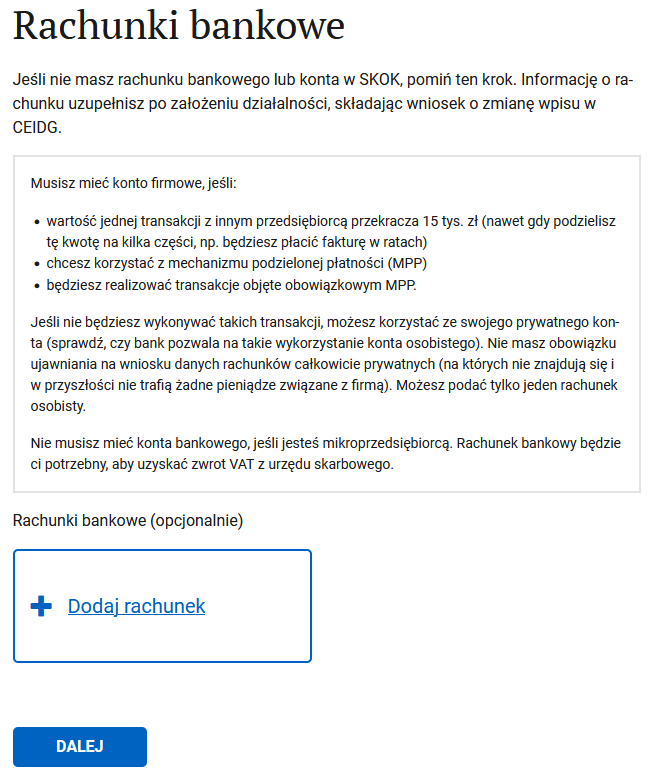
22. Bank accounts
Info
You will need a PLN account to pay taxes. USD/EUR accounts are needed for receiving payments from abroad. You are allowed to use a personal account (konto osobiste) for your sole proprietorship. In some cases, a business account (konto firmowe) is mandatory.
A konto firmowe is required if any of the following apply:
- You are registered as an active VAT payer (czynny płatnik VAT). For settlements, you will be able to use the split payment mechanism (mechanizm podzielonej płatności (MPP)).
- A single transaction with another entrepreneur exceeds 15,000 PLN (even if you pay the invoice in installments).
- Sensitive operations: by law, certain operations are considered "sensitive" and require a business account. The list of such operations can be found in Annex 15 to the VAT Act. More details at Biznes.gov.pl - MPP, https://t.me/JDG_PBH/9236 and https://t.me/JDG_PBH/18806
- If you plan to use only a personal account, you can enter it here.
- If you plan to open a business account, you don't have one yet.
Click DALEJ
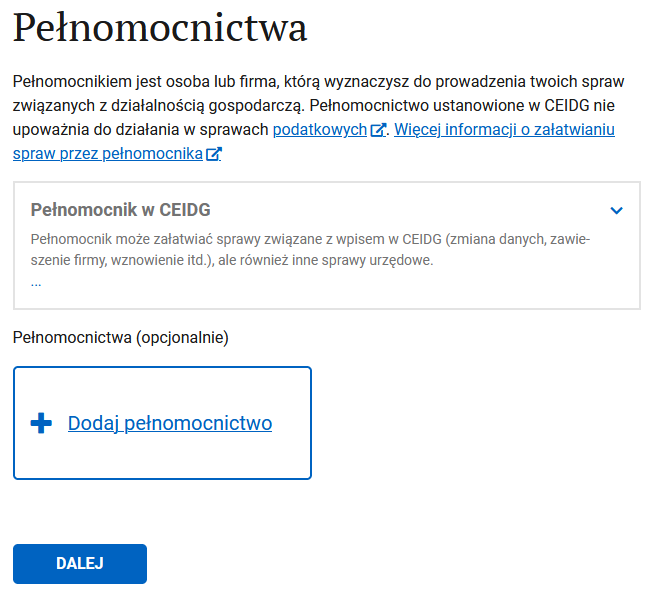
23. Power of attorney
You may need a representative who will have power of attorney from you for certain actions. You can add them at this step.
Click DALEJ
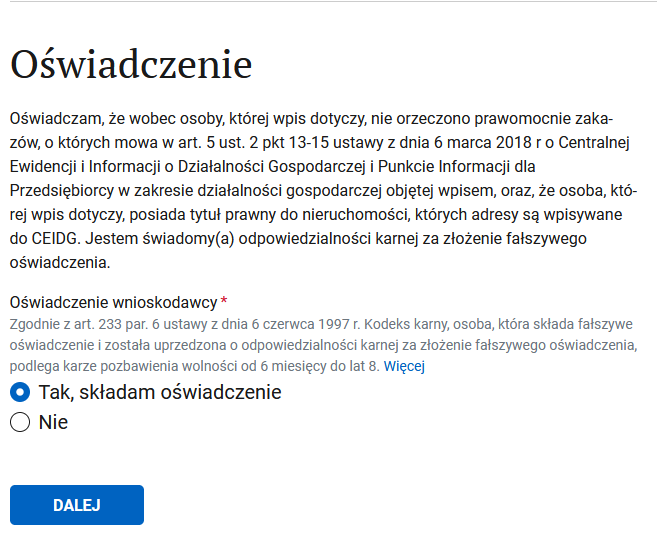
24. Declaration
A statement about legal responsibility:
Click DALEJ
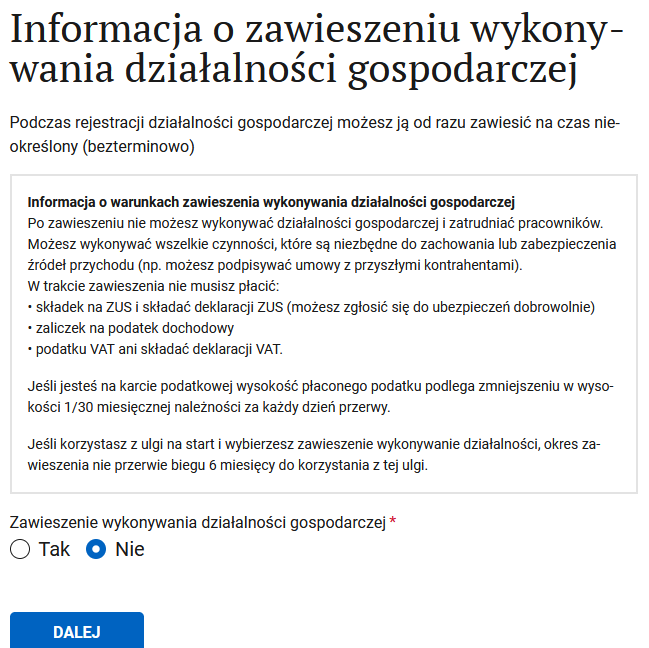
25. Suspending business activity
You most likely do not want to suspend your activity right away:
Click DALEJ
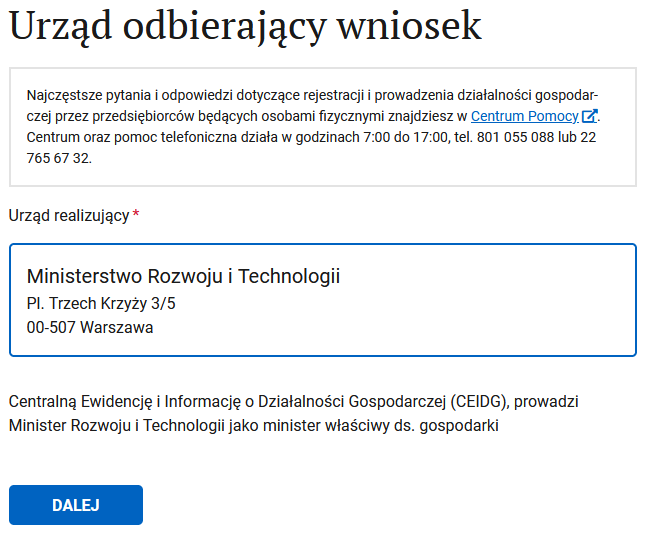
26. Reference information
This section tells you where and from whom you can get more information and assistance, as well as who is responsible for reviewing your application.
Click DALEJ
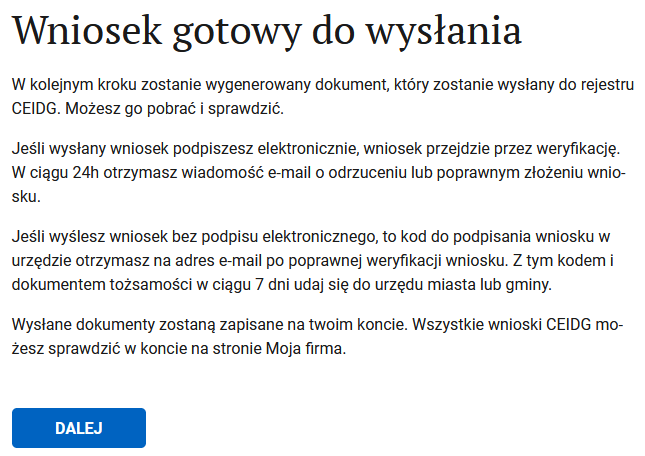
27. Final summary
This prepares you for the fact that the process is almost over:
Click DALEJ
28. Signing the document
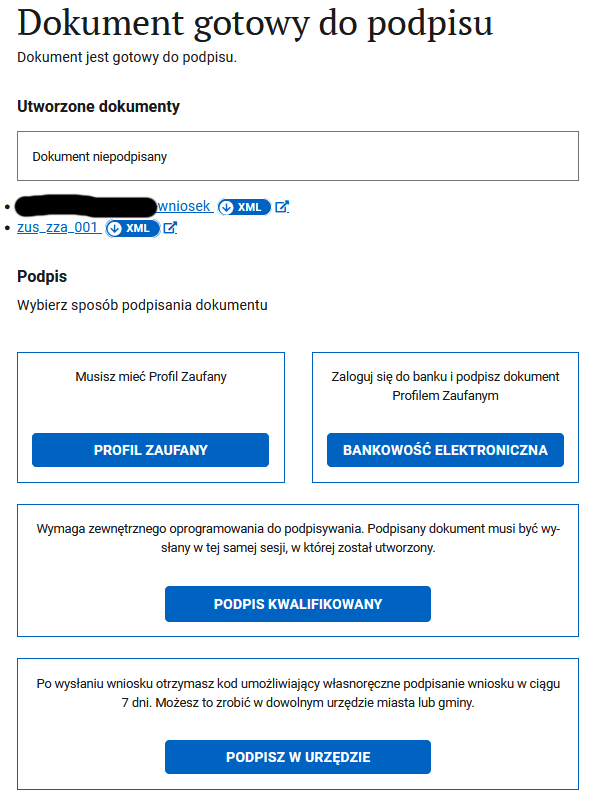
Step Dokument gotowy do podpisu. If you click the XML links, you can download the forms for your records.
Choose to sign with your trusted profile (PROFIL ZAUFANY and BANKOWOŚĆ ELEKTRONICZNA will most likely lead to the same result — I chose the banking option because I registered my profile through a bank):
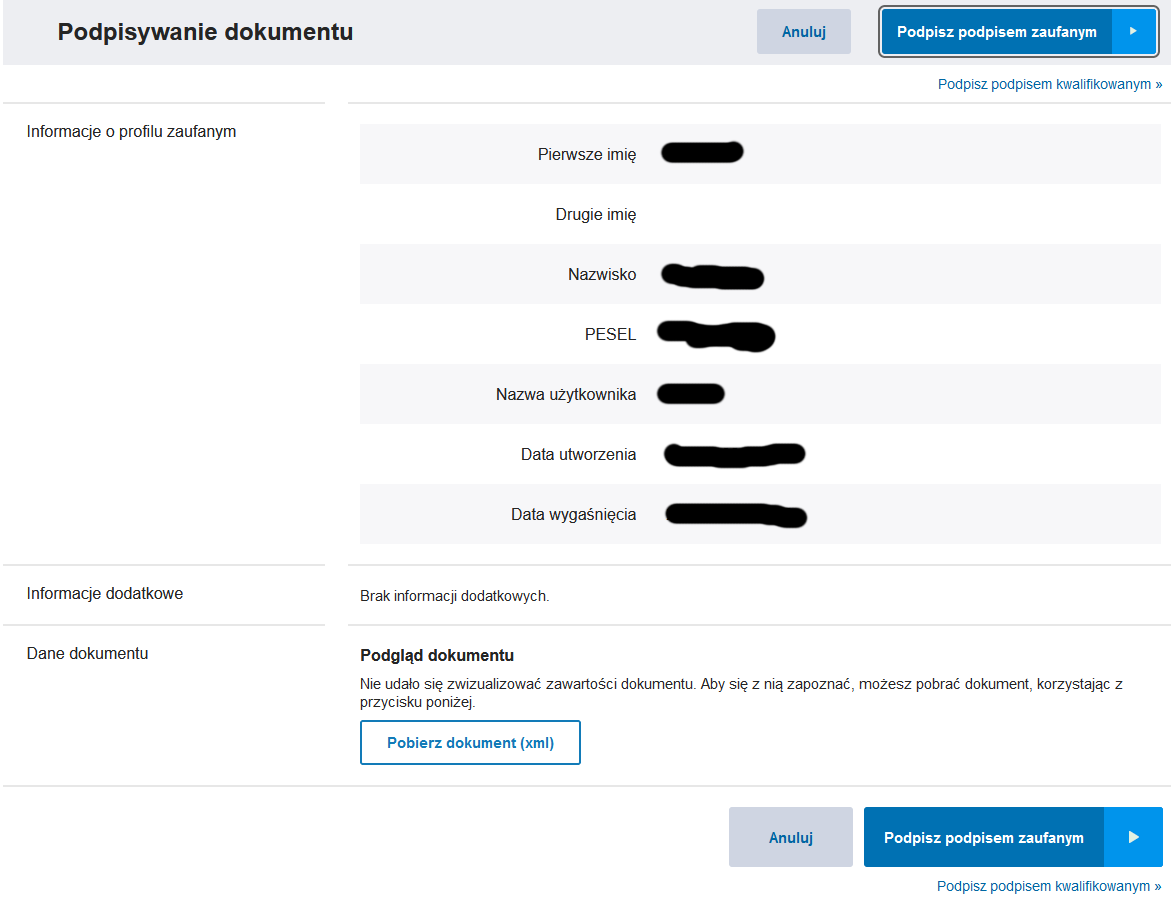
Next, proceed to signing. Click Podpisz podpisem zaufanym:
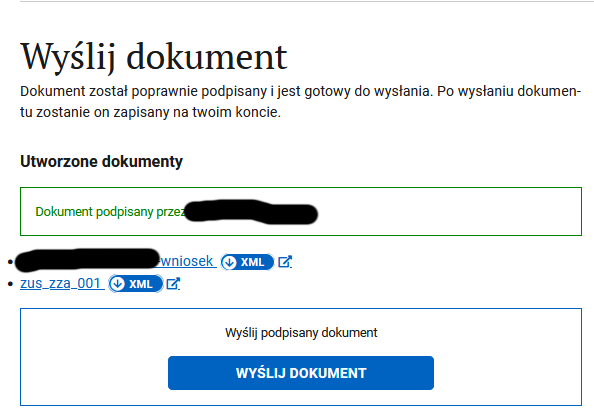
And finally, you can send the signed documents:
It is highly recommended to download and double-check your application
- Go to your konto.biznes.gov.pl account
- Select the entry Zarejestruj działalność gospodarczą w CEIDG in your cases
- Next to 202NNNNN-NNNN-NNNN-wniosek.xml, click Podgląd
- In particular, make sure the tax system is selected — for example, ryczałt (check section 15. Oświadczenie o formie opłacania podatku dochodowego). There was a case where the tax system was left unselected in the application for some (technical?) reason. The person ran their business and diligently paid taxes under the ryczałt system, but after filing the PIT-28 declaration the following year, an inspector contacted them and said the PIT-28 form could not be accepted because no tax system had been selected, meaning the general system applied by default, which meant recalculating and paying additional taxes under the general system. Naturally, this was a shock and a financial blow. So check your application right away.
What's next
You will be notified that your application has been accepted and that you should expect a response within 24 hours.
Your NIP number may be assigned within one to two days. REGON takes longer — it can take up to a week. If there are any errors in the process, you will receive a message asking you to correct them.
You can verify all your company data on biznes.gov.pl
If something went wrong or you encountered problems, you can write to the chat on biznes.gov.pl and ask your question.
Support our guide with a cup of coffee ♥