Routine operations for a sole proprietor (monthly) using infakt.pl
This document describes the typical monthly operations for a sole proprietor on ryczałt using infakt.pl. The minimum infakt setup is described on the infakt setup page.
Sign up for infakt using our referral link and get 100zł cashback.
Issuing invoices
On the last day of the month (if you have a monthly billing agreement with your client), or upon completion (delivery) of work, you need to generate and issue an invoice to the client. To do this, go to the Przychody section and click the Nowa faktura button.
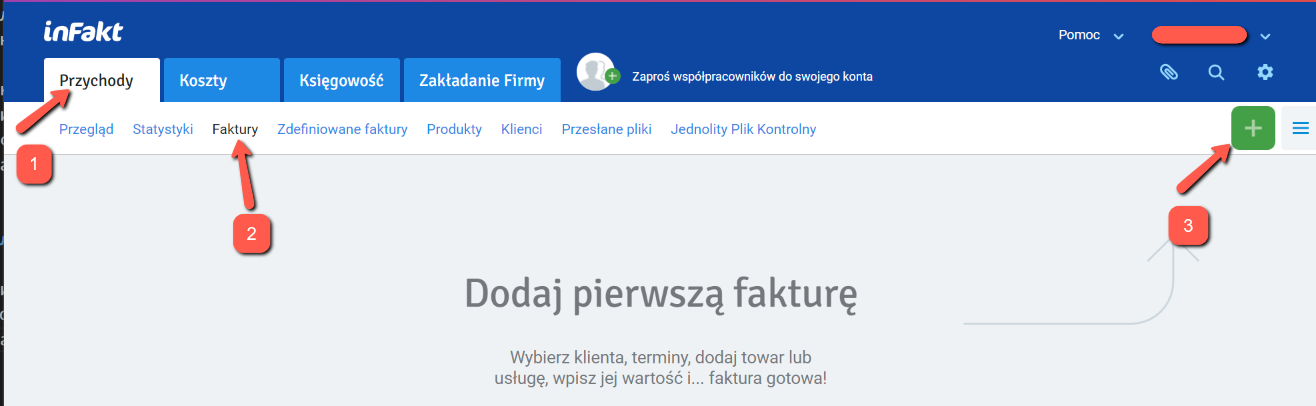
You can also do the same from the client list:
Przychody -> Klienci -> Nowa faktura
For the selected client, or from the services list:
Przychody -> Produkty, check the desired service, and select Nowa faktura.
In the new invoice, select/adjust the required fields (if not already filled in):
- client (from the list)
- service date (last day of the month or the actual service date if services are irregular)
- payment method — most likely Przelew (bank transfer) and select the account (if you have several). If no account has been added yet, the service will prompt you to add one
- service
- quantity of the "service" (if hourly — the number of hours worked; if a fixed rate — leave it as 1, since the net amount already equals the rate)
- VAT rate (more details on the VAT page)
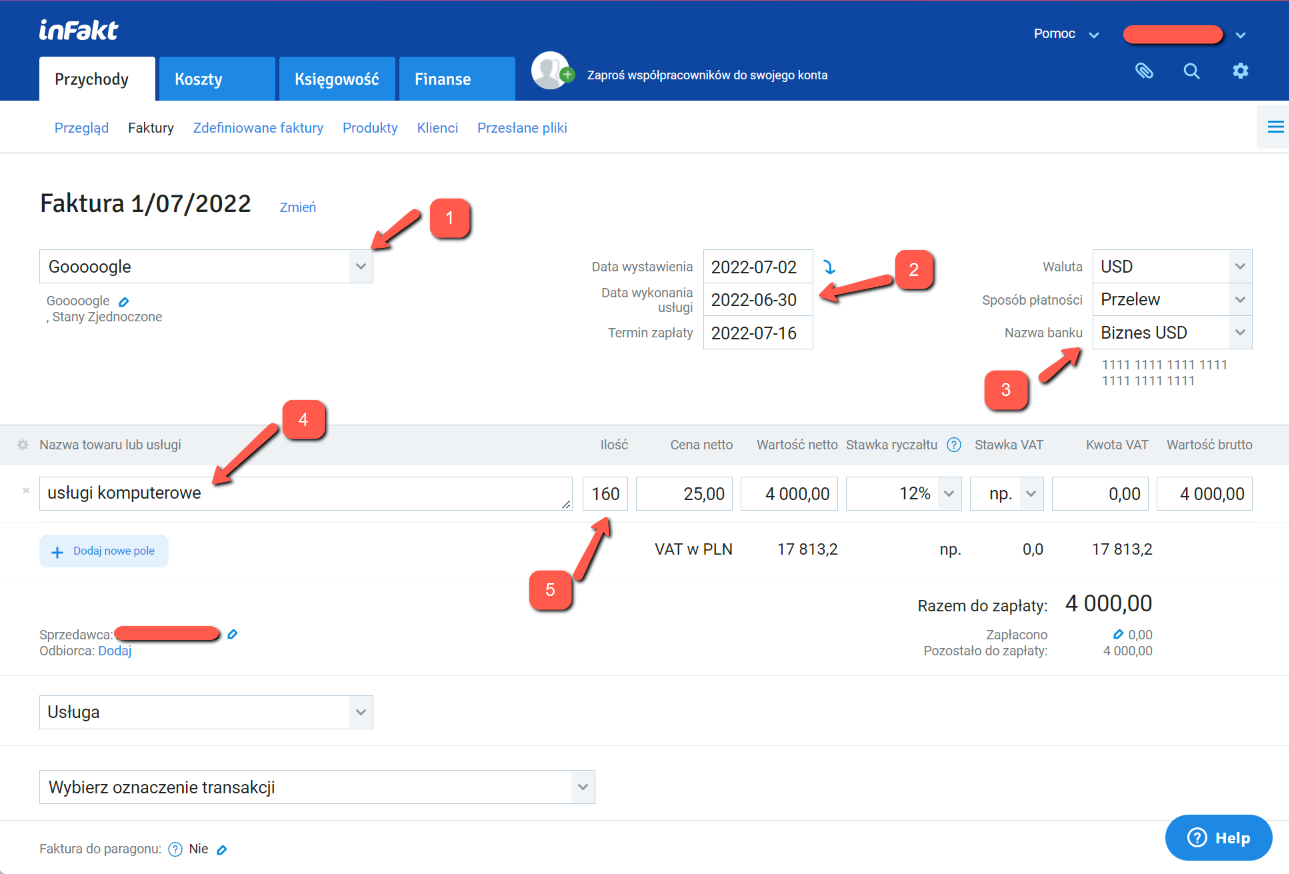
Click Zapisz szkic to save. The invoice is saved!
Important
At this stage the invoice is not yet included in the tax base calculation for the selected month (while it remains in SZKIC status). For the invoice to count, you need to print it or send it to the client.
To do this, go to the invoice list, select the invoice, and choose Pobierz PDF — you'll also find language options there.
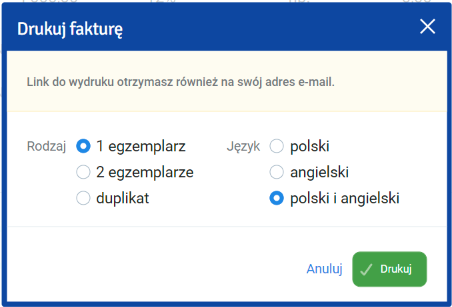
After printing, the invoice status changes to WYDRUKOWANO and it starts counting toward the next month's tax and ZUS.
You can also send the invoice directly to the client's email by choosing Wyślij e-mailem.
Paying taxes
Important
Make sure all invoices have been added and are in WYDRUKOWANO or WYSŁANO status, and that all exchange rate differences for the reporting period have been entered and accounted for.
You can find your tax payment account number using the instructions on the taxes page. Infakt retrieves the account number automatically during setup.
Tax must be paid by the 20th of the month following the reporting month. In infakt, under Księgowość -> Przegląd, you can see the amount due for the current month based on the issued invoices and recorded exchange rate differences.
There are two payment options:
- Manually — from your banking app.
- Via infakt.
The second option is paid — the fee depends on the payment amount (roughly 3–5 PLN for the tax itself). However, it's the simplest and most convenient: just click Opłać z inFakt and confirm the payment depending on the payment method.
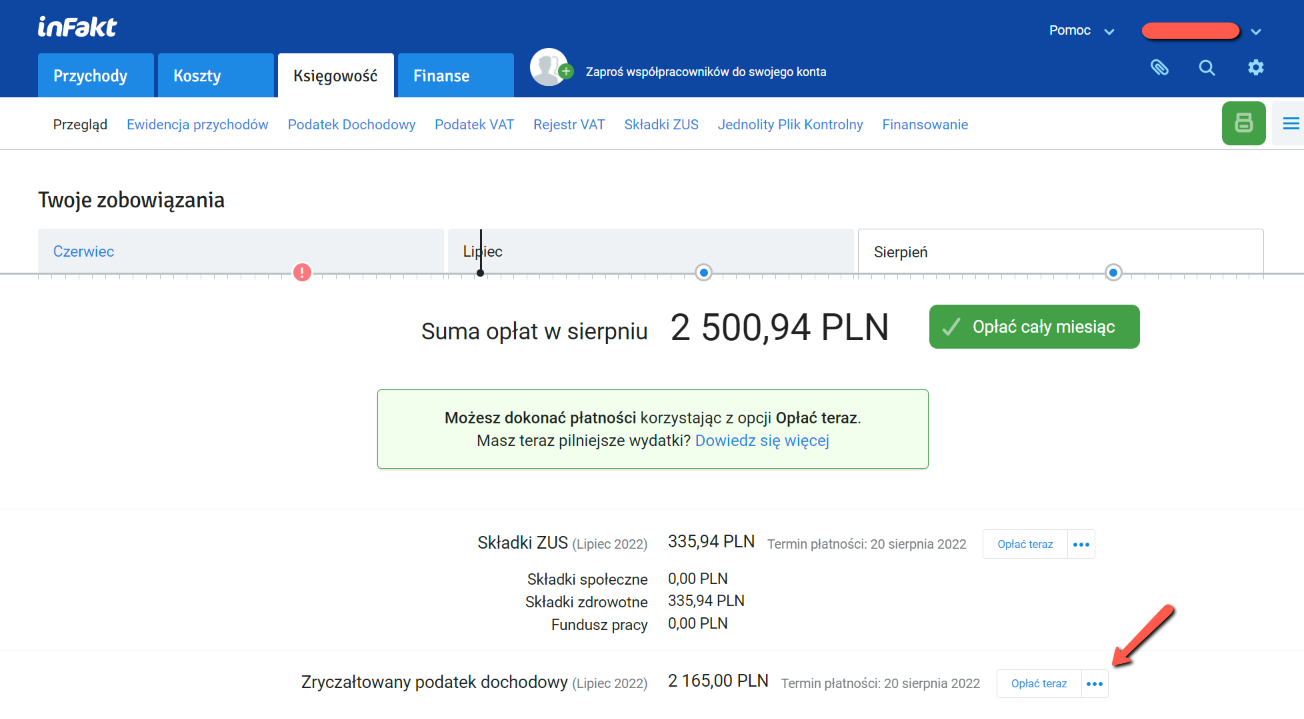
Manual payment is done through your banking app.
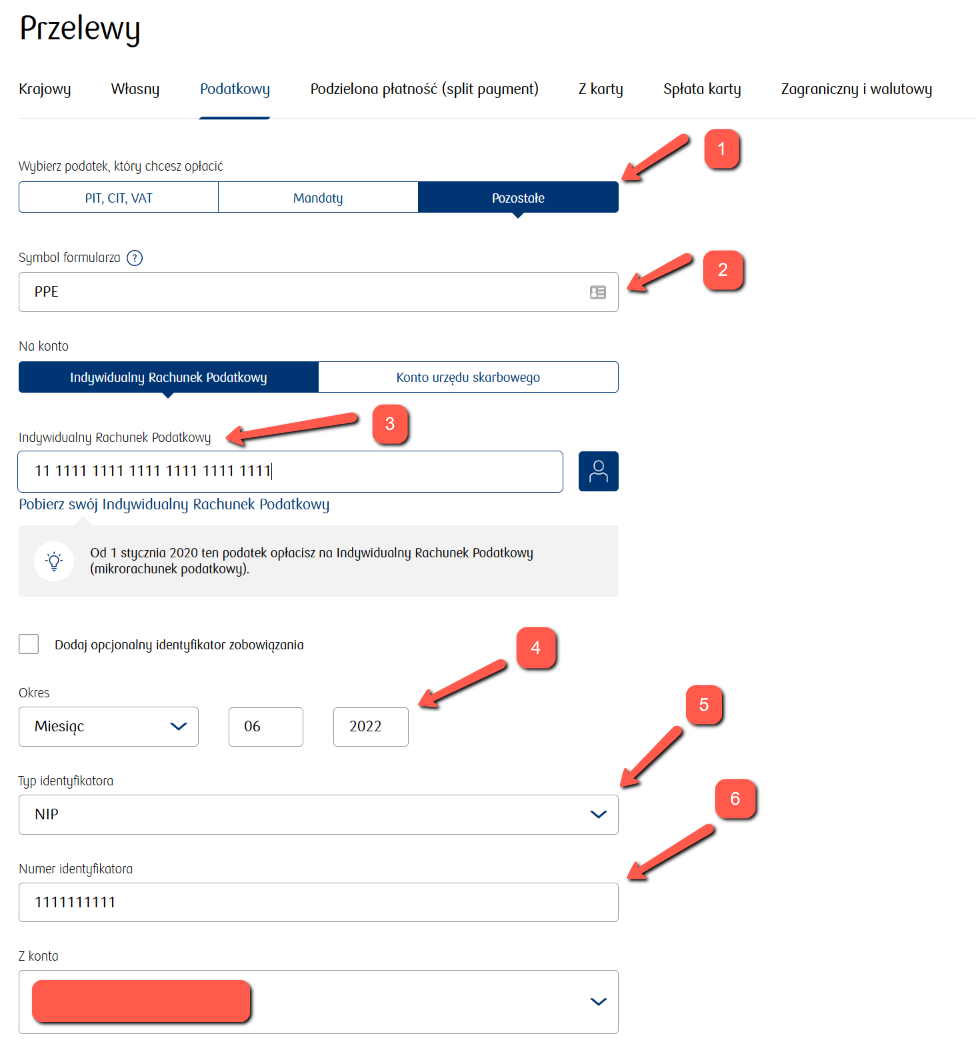
PKO example
Execute a Przelew Podatkowy
- select the
Pozostałesection - type
PPEin the search box - enter your tax account number
- enter the period the tax is being paid for
- select
NIPin the Typ identyfikatora list - enter your NIP number
Select the account you want to pay the tax from.
Millenium example (bank website)
Go to Płatności -> Podatkowy/Celny
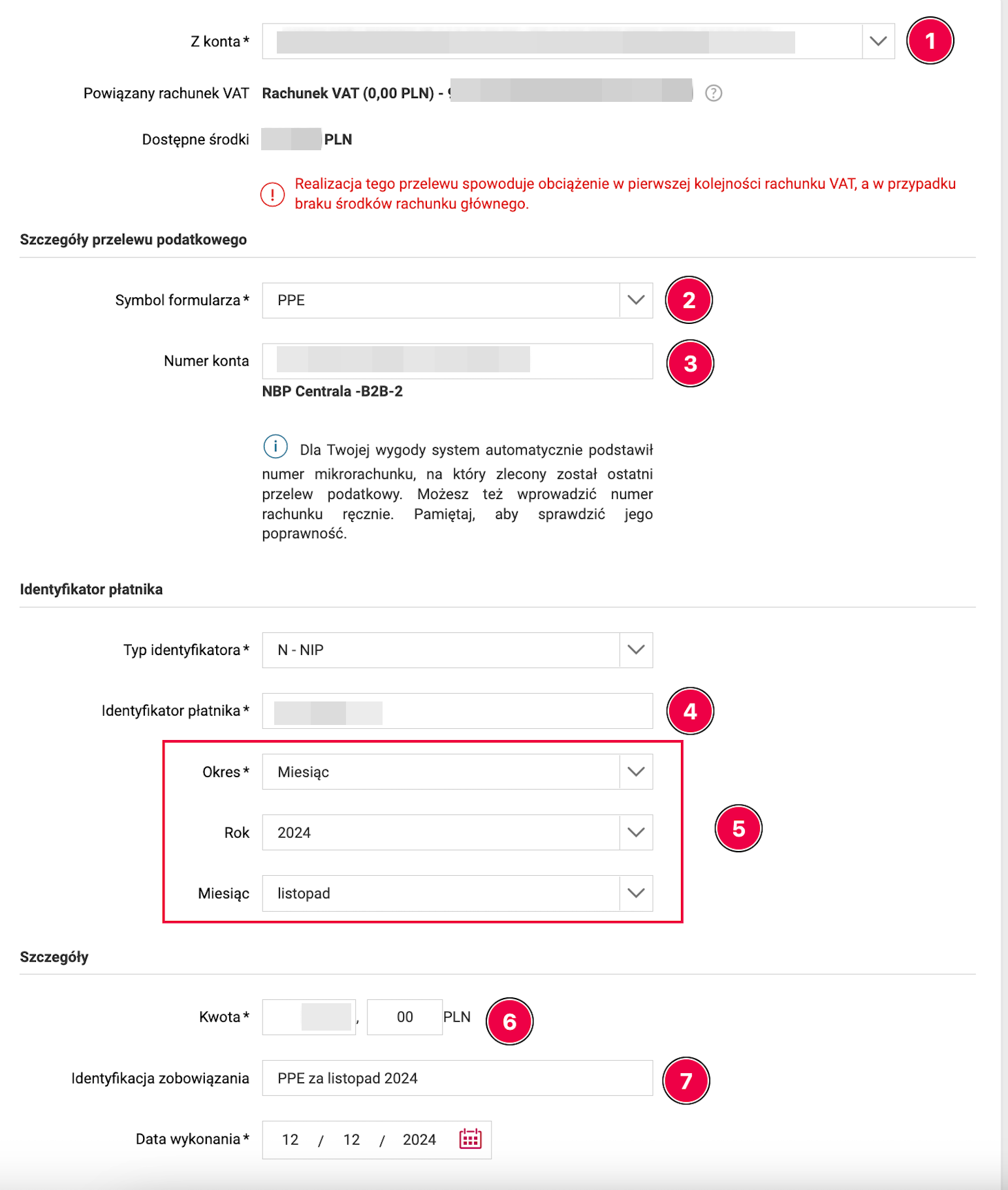
- select the account you're paying from (PLN)
- specify the payment identifier:
PPEfor income taxVAT-7for Polish VAT
- enter your tax payment account number
- enter your NIP
- select Okres — Miesiąc and the corresponding year and month the tax is being paid for
- enter the payment amount
- optionally add a comment to the payment (optional field), e.g.
PPE za październik 2024
At the bottom, click DALEJ and confirm the payment.
It makes sense to pay from the business account, since banks often require account activity as a condition for a free account package. Enter the payment amount from the infakt page and complete the payment.
When done, mark the tax as paid in infakt.
Preparing the ZUS DRA declaration and paying contributions
You can find your ZUS micro-account number at eskladka.pl. ZUS setup in inFakt is described in the ZUS data settings section.
By the 20th of each month you need to pay the ZUS contribution and submit the declaration. As with taxes, the same two payment options are available. The infakt fee for ZUS payments is slightly lower (1–2 PLN).
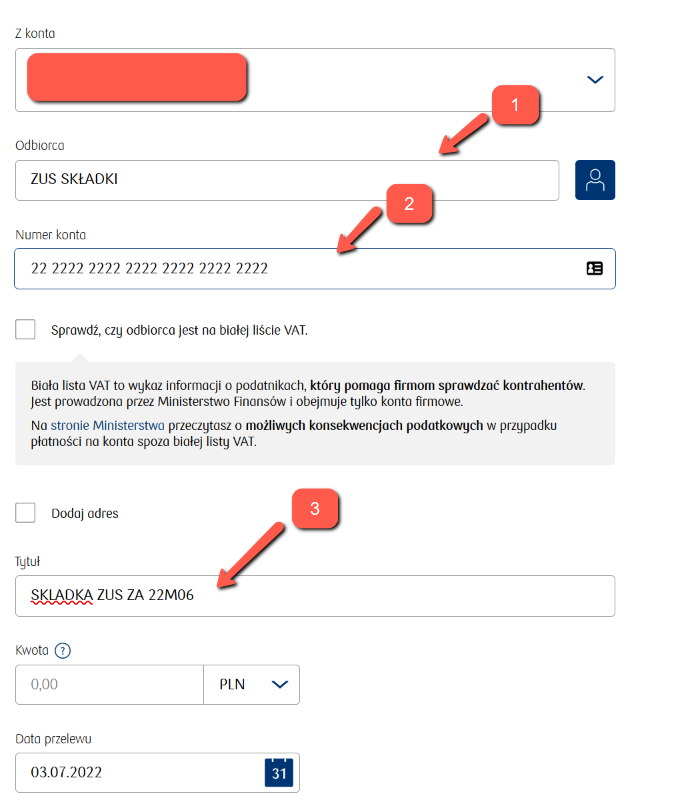
To pay directly through your banking app, execute a Przelew Krajowy, select the account to pay from (as mentioned above, it makes sense to pay from the business account):
- enter the recipient
- enter your ZUS micro-account number
- the transfer title doesn't matter — you can note the payment period for yourself, e.g. "SKLADKA ZUS 06 2025"
Enter the amount from the infakt page and complete the payment.
When done, mark the contribution as paid.
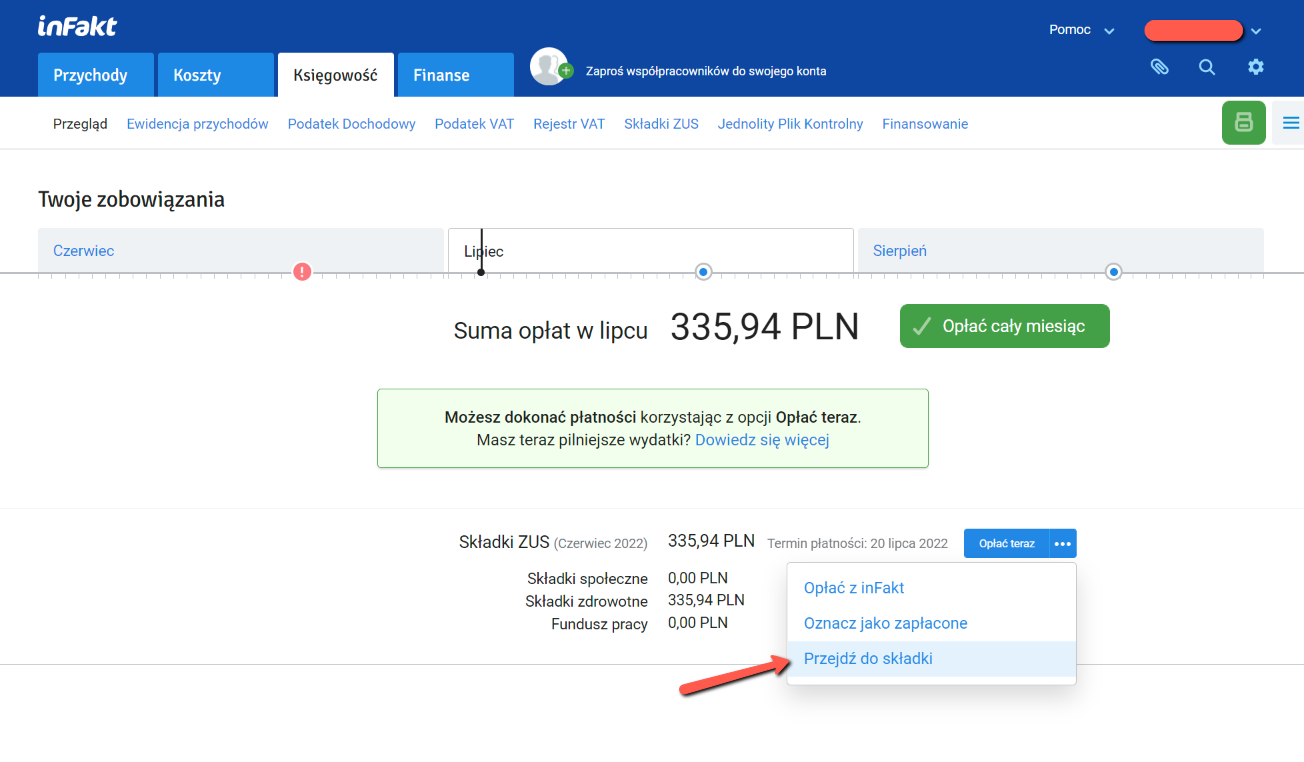
To generate the ZUS DRA declaration file, navigate to the relevant contribution in the contributions list (Przejdź do składki).
- For record-keeping, it's worth attaching the ZUS payment receipt to the entry in infakt (
Dodaj załącznik) - Click
Pobierz ZUS DRAto download the DRA file
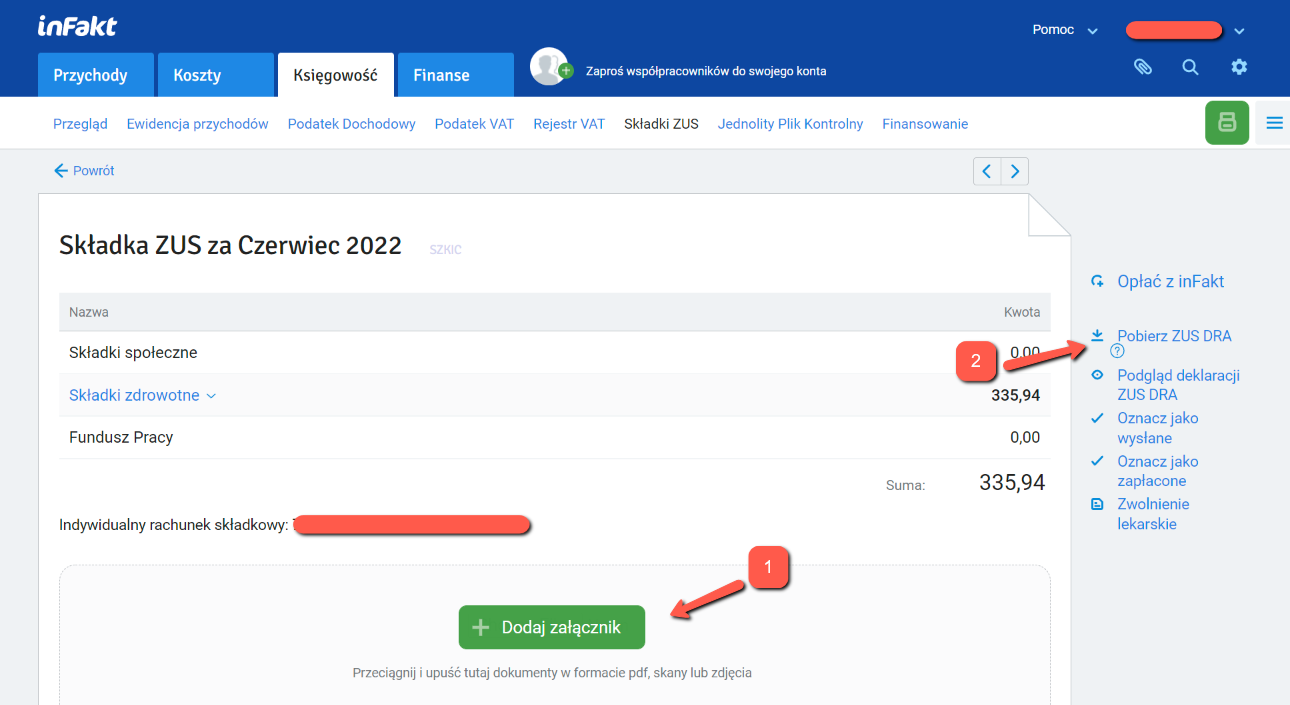
The downloaded file can be imported on the ZUS portal. Alternatively, you can create the same declaration manually, but importing the file is a bit faster.
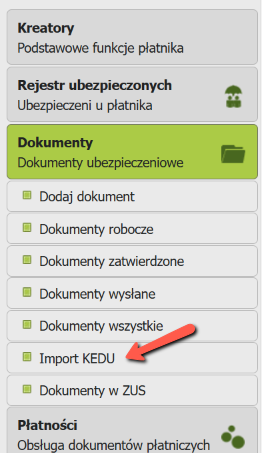
To import the file, log in to the ZUS portal, go to the ePłatnik tab under Dokumenty, and select Import KEDU.
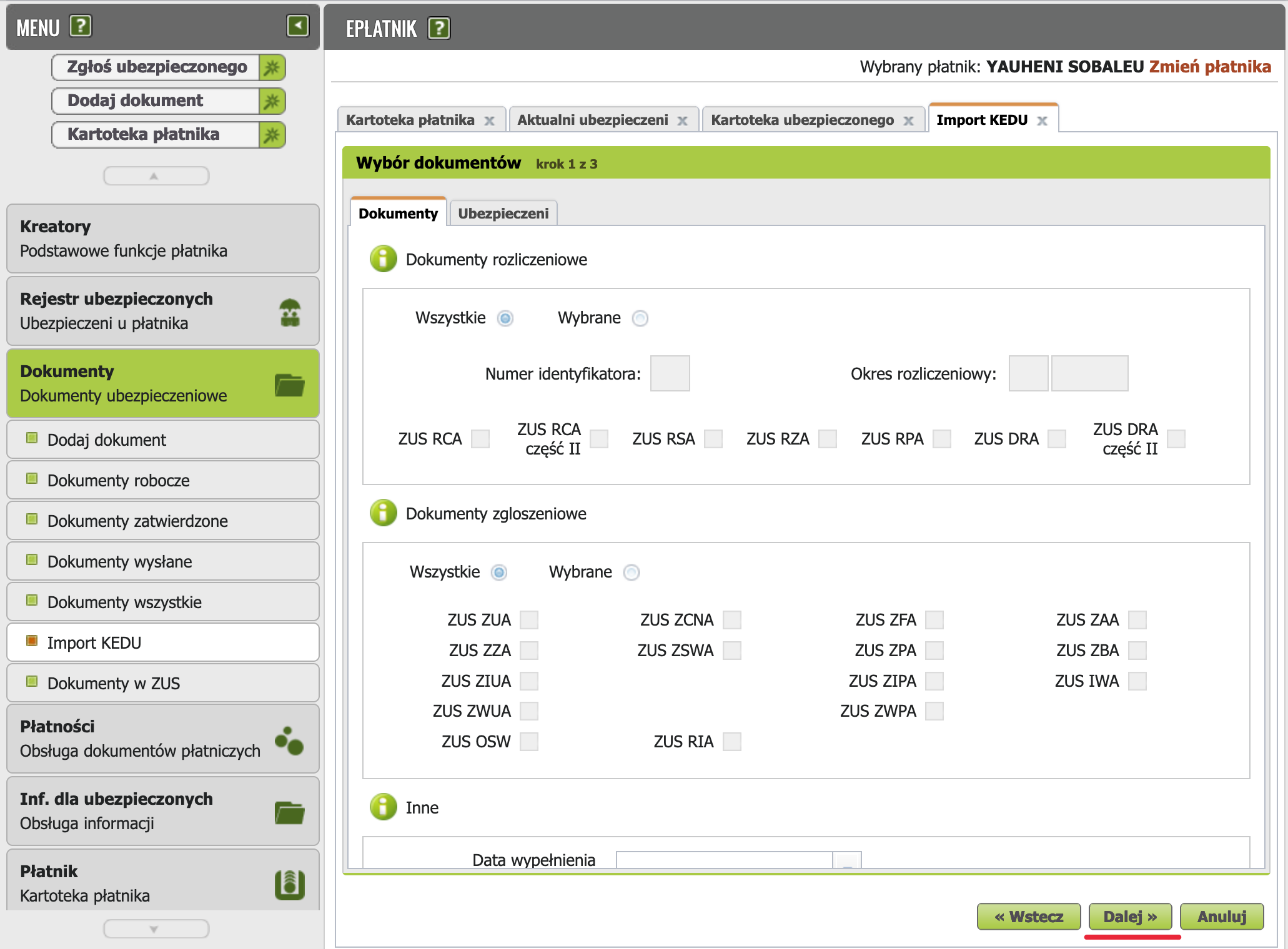
Review your data, click Dalej. On the next screen don't select anything, click Dalej again until you see the "Wybierz plik..." button. Click it and select the XML declaration file downloaded from infakt.
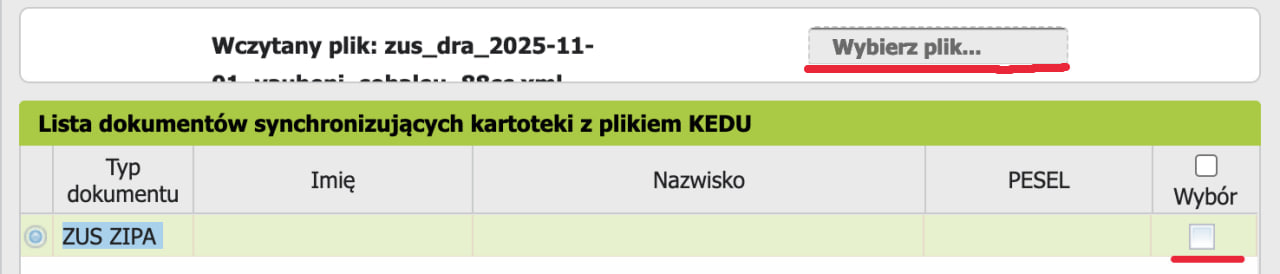
If a ZIPA declaration appears after the import, uncheck it and click Dalej.
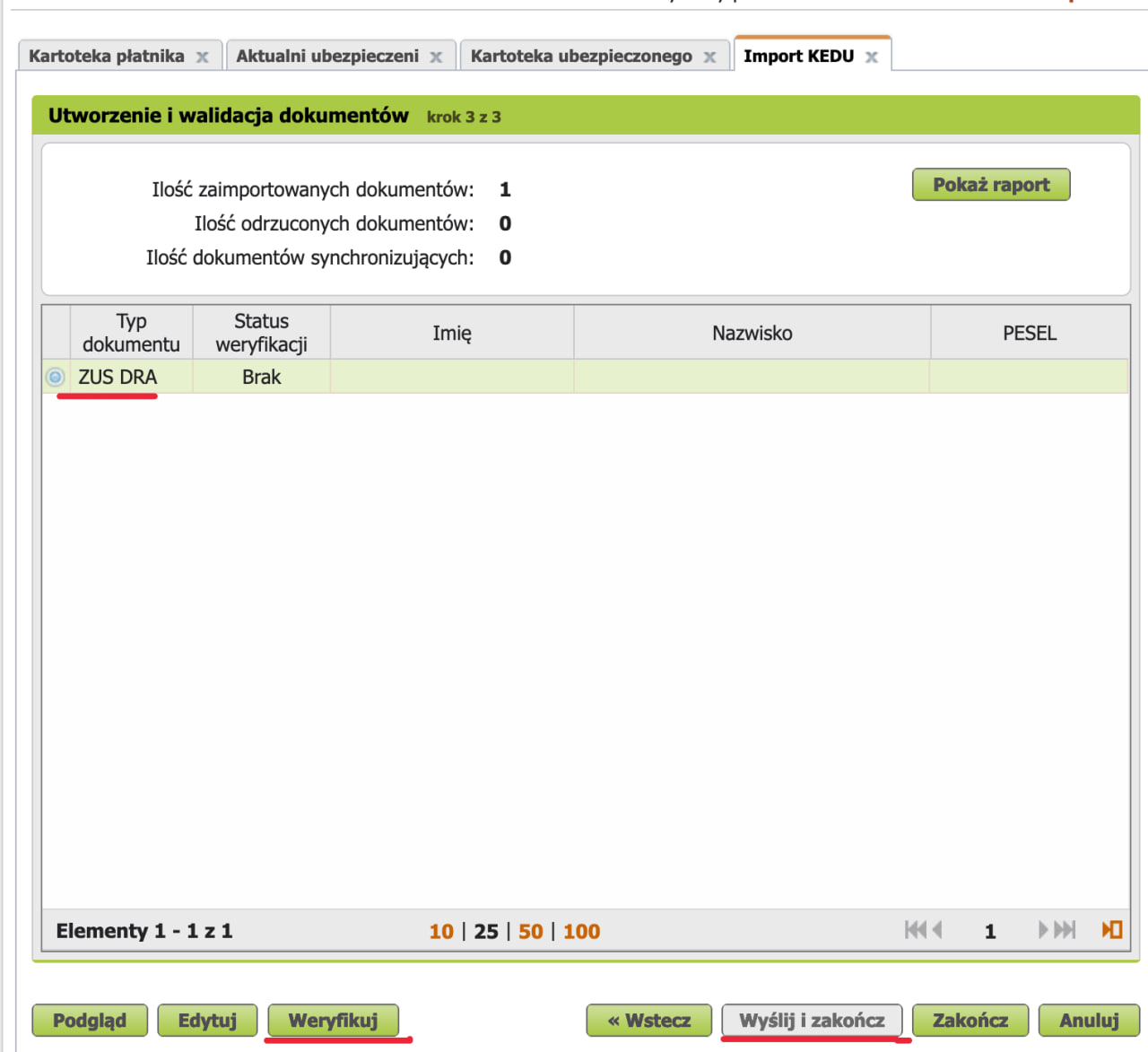
Now you can click Podgląd to verify that the declaration contains the figures you expect. Then click Weryfikuj, followed by Wyślij i zakończ. Sign the declaration with your profil zaufany and you're done. The document should appear in the Dokumenty wysłane folder.
Receiving payment and accounting for exchange rate differences
Info
When receiving payment in a foreign currency, exchange rate differences may arise. The law requires accounting for exchange rate differences — both positive and negative. An exchange rate difference is not treated as income or an expense; it is an income adjustment and is therefore taken into account when calculating income.
To account for exchange rate differences, you need to know the rate (K1) at which the invoice was issued, and the Polish National Bank rate (K2) on the last business day preceding the payment receipt date. If the invoice issue date differs from the sale date, use the earlier date for (K1). If the currency from the business account is sold later, another rate (K3) may arise at the time of the currency sale. It is determined as the actual exchange rate at the time of selling the currency. The actual exchange rate can be determined when exchanging currency for zlotys. If the actual exchange rate K3 is not known, then — as with receiving payment — it is calculated for the business day preceding the currency exchange date. Transferring foreign currency from the JDG currency account to a personal currency account does not create an exchange rate difference, since withdrawal of these funds is not related to business activity.
🧮 K2 ≠ K1 Calculator (Transactional exchange rate differences from income)
Kalkulator różnic kursowych - przychody w walucie obcej
🧮 K3 ≠ K2 Calculator (Exchange rate differences from own funds in a currency account)
Kalkulator różnic kursowych od własnych środków walutowych
🧮 Calculator (Exchange rate differences from expenses)
Kalkulator różnic kursowych - koszty podatkowe w walucie obcej
- In the field marked with an asterisk, enter the actual exchange rate or leave it blank to use the average NBP rate from the previous business day before the transaction date.
Infakt Premium
If you have the Premium subscription plan in Infakt, exchange rate differences will be calculated automatically when you mark the invoice as paid.
If you're on a cheaper subscription plan, you can use the following instructions.
To enter an exchange rate difference (K2 != K1, or K3 != K2), you need to add a Dowód wewnętrzny. To do this, go to Przychody -> Faktury, and there:
- Click the "hamburger button"
- Select
Dowód wewnętrzny
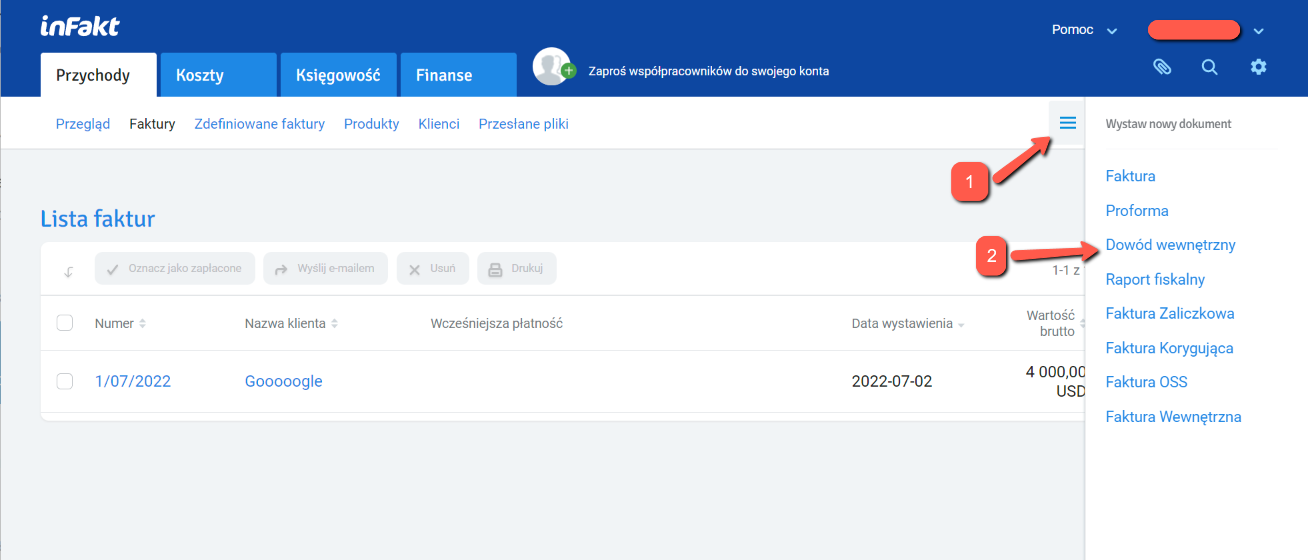
Here you select:
Pozostałe przychody- enter
dodatnia różnica kursowaorujemna różnica kursowadepending on whether the difference is positive or negative - enter the exchange rate difference amount (with a minus sign if it's negative)
- optionally, you can add details about the rates you calculated
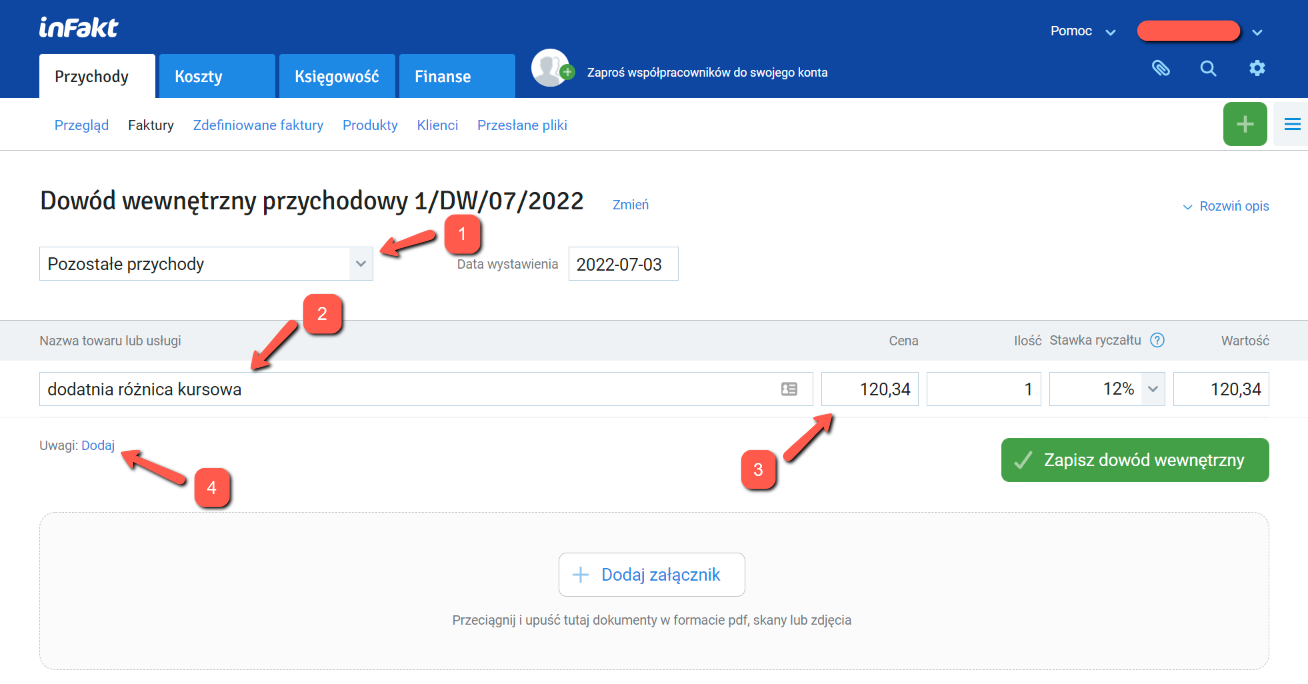
Save the changes and the document immediately starts participating in the tax base calculation.
Submitting the VAT JPK_V7M declaration
An entrepreneur registered on the white list as a czynny VAT payer is required to submit the JPK_VAT declaration for the previous month by the 25th of each month.
Before submitting, make sure you've entered all expenses you want to deduct VAT from in infakt's costs section. Also make sure all your invoices are included in the tax calculation — i.e. you've printed them, marked them as paid, or sent them via email.
Now go to the menu księgowość -> Jednolity Plik Kontrolny and select the month you want to submit the declaration for.
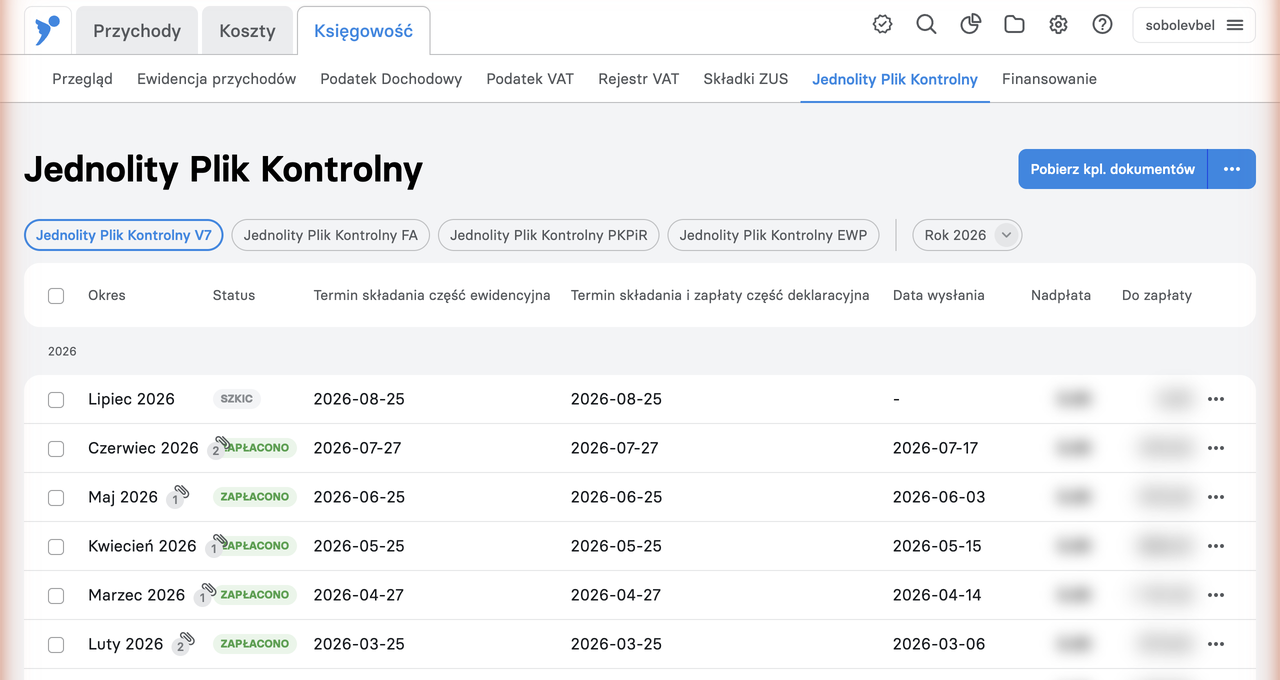
Make sure the amount in the declaration matches your expectations.
If you have a VAT overpayment and want to get it refunded to your account, select Zwrot podatku from the right-hand menu and then choose the appropriate VAT refund option:
- 25 days if you meet certain conditions, including being a czynny VAT payer for at least a year.
- 60 days — available if you had sales and purchases with VAT or cross-border sales in the reporting month.
- 180 days — if you had no sales with VAT or cross-border sales, but you purchased something for the business.
- Refund to the VAT account (within 25 days). No additional conditions required. Money from the VAT account can only be spent on taxes and ZUS.
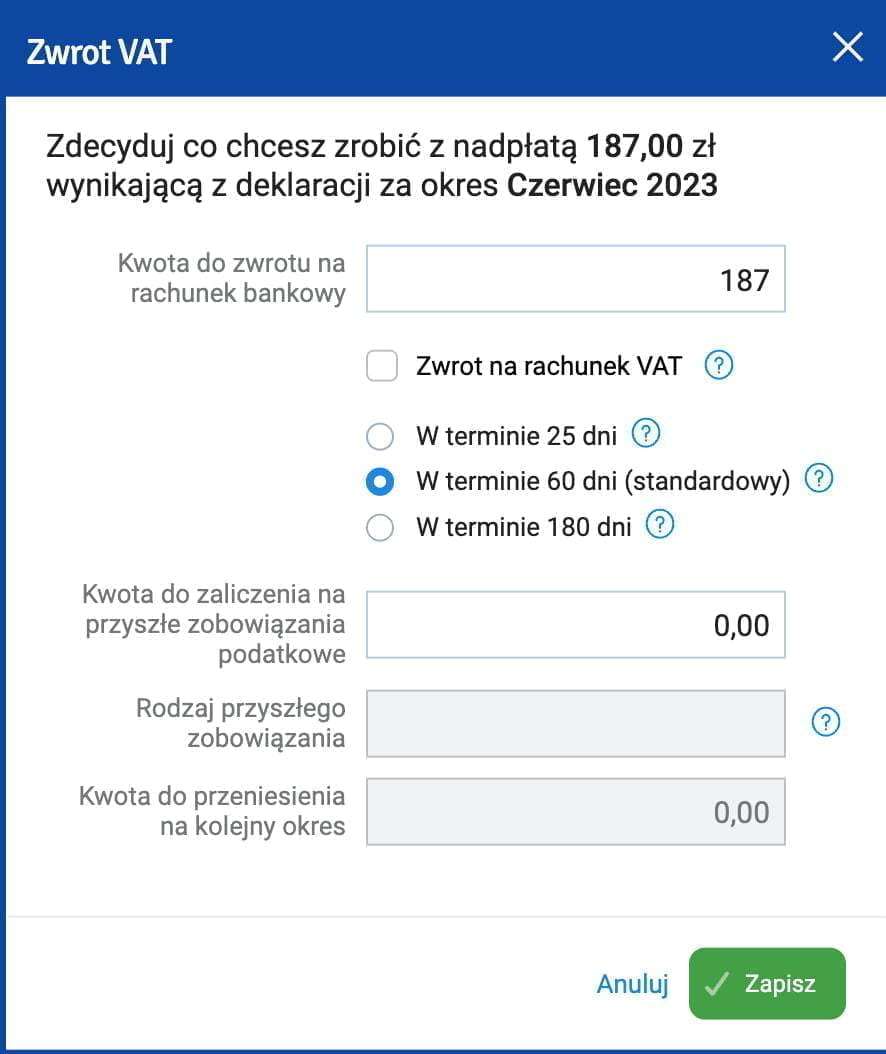
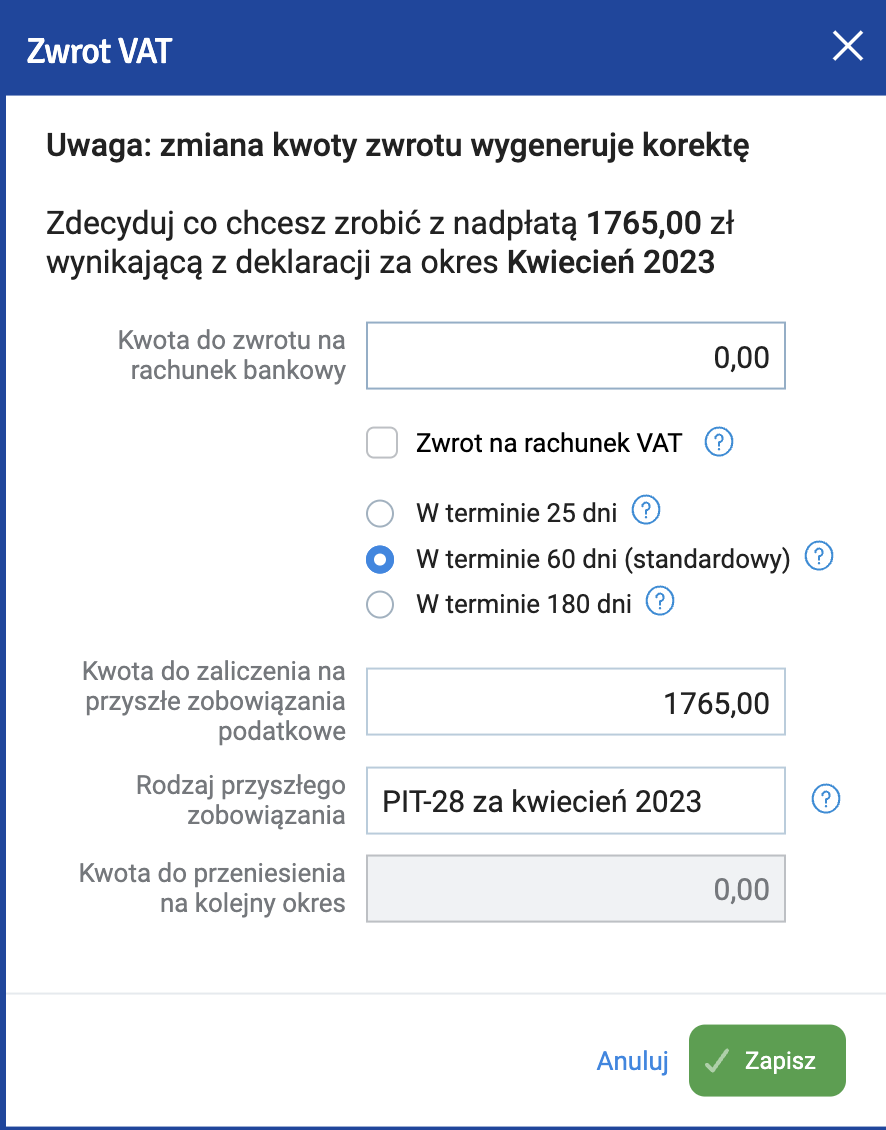
If you don't want to wait months for a VAT refund, you can credit the VAT against another tax — for example, PIT-28 for ryczałt.
- Go to the zwrot podatku menu
- Enter the overpayment amount in the Kwota do zaliczenia na przyszłe zobowiązania podatkowe field.
- Write in words which tax you want to apply the VAT overpayment to. For example: PIT-28 za kwiecień 2026.
- When paying income tax, simply pay less by that amount.
Legal basis: Art. 87
Click zapisz.
Now you can submit the declaration by clicking Wyślij do urzędu.

Verify the declaration using your profil zaufany or last year's tax amount.
You'll receive a UPO from the tax office shortly.
Submitting the VAT-UE declaration
If you're registered in the VAT-UE registry, you are required to submit a VAT-UE declaration for the previous month by the 25th of each month. However, unlike JPK_VAT7, there is no obligation to submit zero VAT-UE declarations if there were no intra-EU transactions in the reporting period.
To submit the VAT-UE declaration, go to księgowość -> Podatek VAT. Select the desired month, verify that the correct amounts have been pulled into the declaration from your invoices, and submit by clicking Wyślij do urzędu.
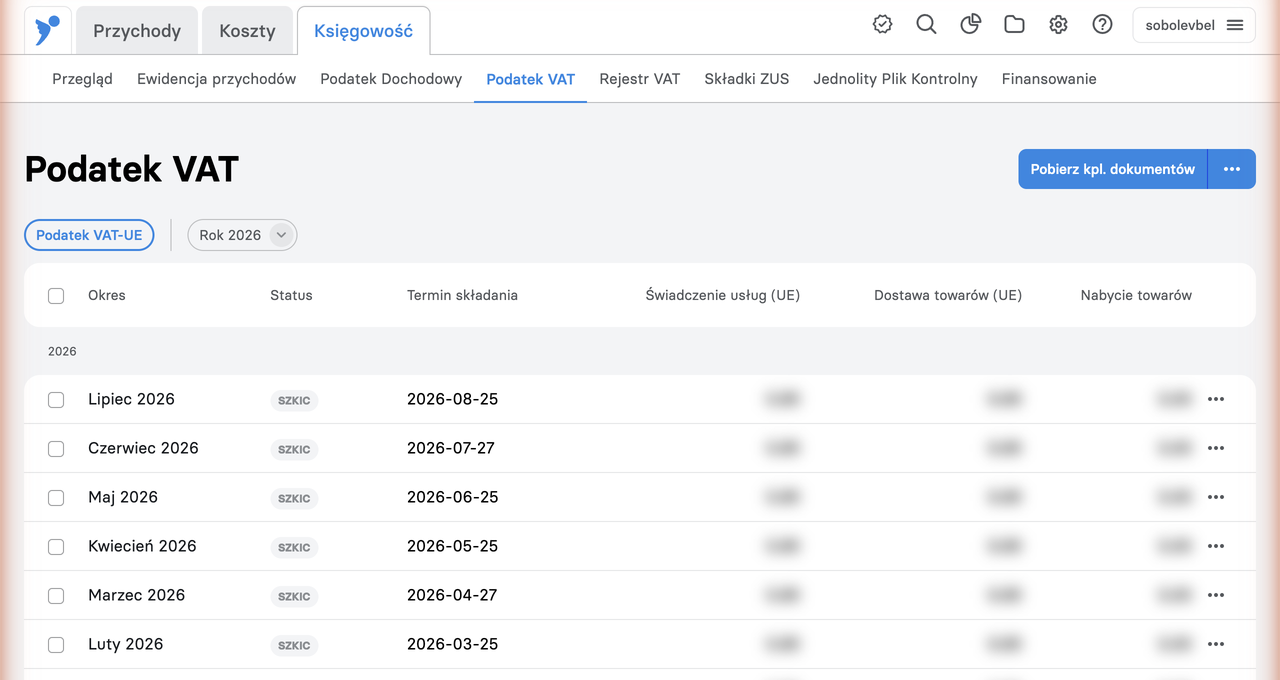
"Weryfikacja negatywna" error when submitting
When submitting the declaration, you may receive a rejection:
Weryfikacja negatywna – błąd w danych autoryzujących (np. błąd w nazwisku, pierwszym imieniu, dacie urodzenia, NIP, numerze PESEL, kwocie przychodu)
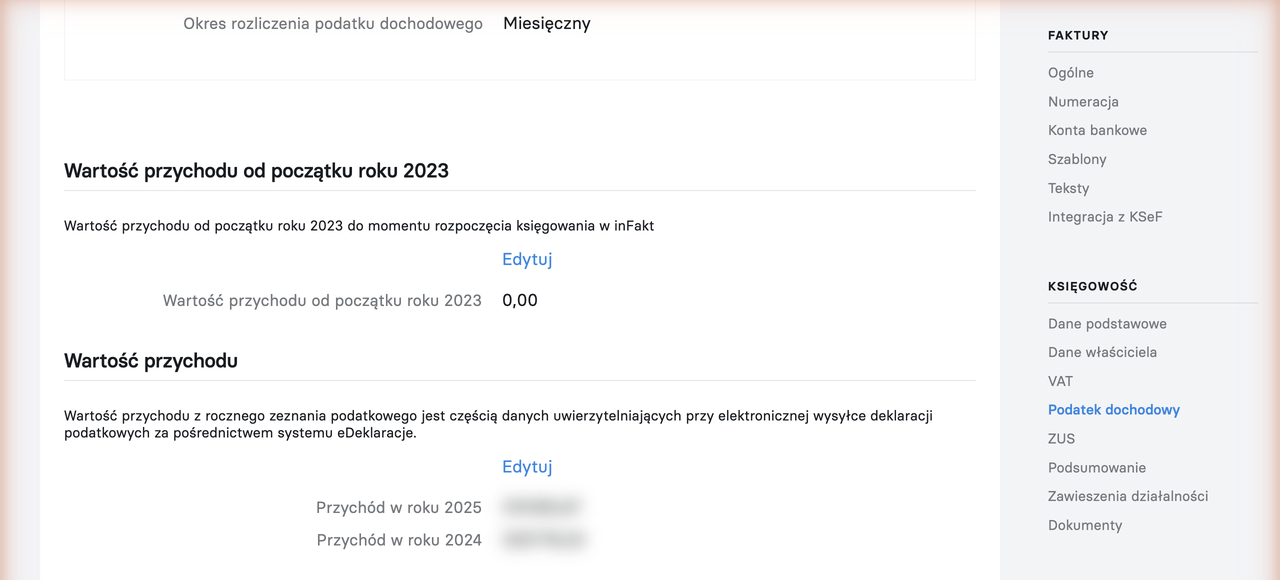
To authorize the submission, the tax office checks the income amount from your PIT declaration for the year before last (for example, when submitting in 2026 — the income from your PIT for 2024). The amount itself has nothing to do with the contents of the VAT-UE declaration; it is used solely for identity verification.
How to fix it:
- Find your PIT declaration for the year before last (for ryczałt that's PIT-28) and take the income amount from it (in PIT-28 — field 62).
-
Enter this amount in inFakt: Ustawienia -> Księgowość -> Podatek dochodowy -> Przychód w roku N (N being that year).
-
Submit the declaration again.
If you had no income in the year before last (or the business didn't exist yet), the field should contain 0 — in that case the declaration goes out without the income amount confirmation.
Editing an invoice
If an error is found after issuing an invoice (e.g. an incorrect invoice amount, whether higher or lower) and taxes have not yet been paid and the ZUS DRA declaration has not been generated for that month, there are several ways to fix it:
- Delete the issued invoice and create a new one with the correct data. Keep in mind that if you're on infakt's minimum plan, you only get 3 free invoices per month, so watch out for extra entries if you need to add other documents that same month (e.g. exchange rate differences).
- Edit the incorrect invoice. From the invoice list (the Przychody / Lista przychodów tab), go to the invoice page you need to edit, then click the
...button in the upper right corner and select Edytuj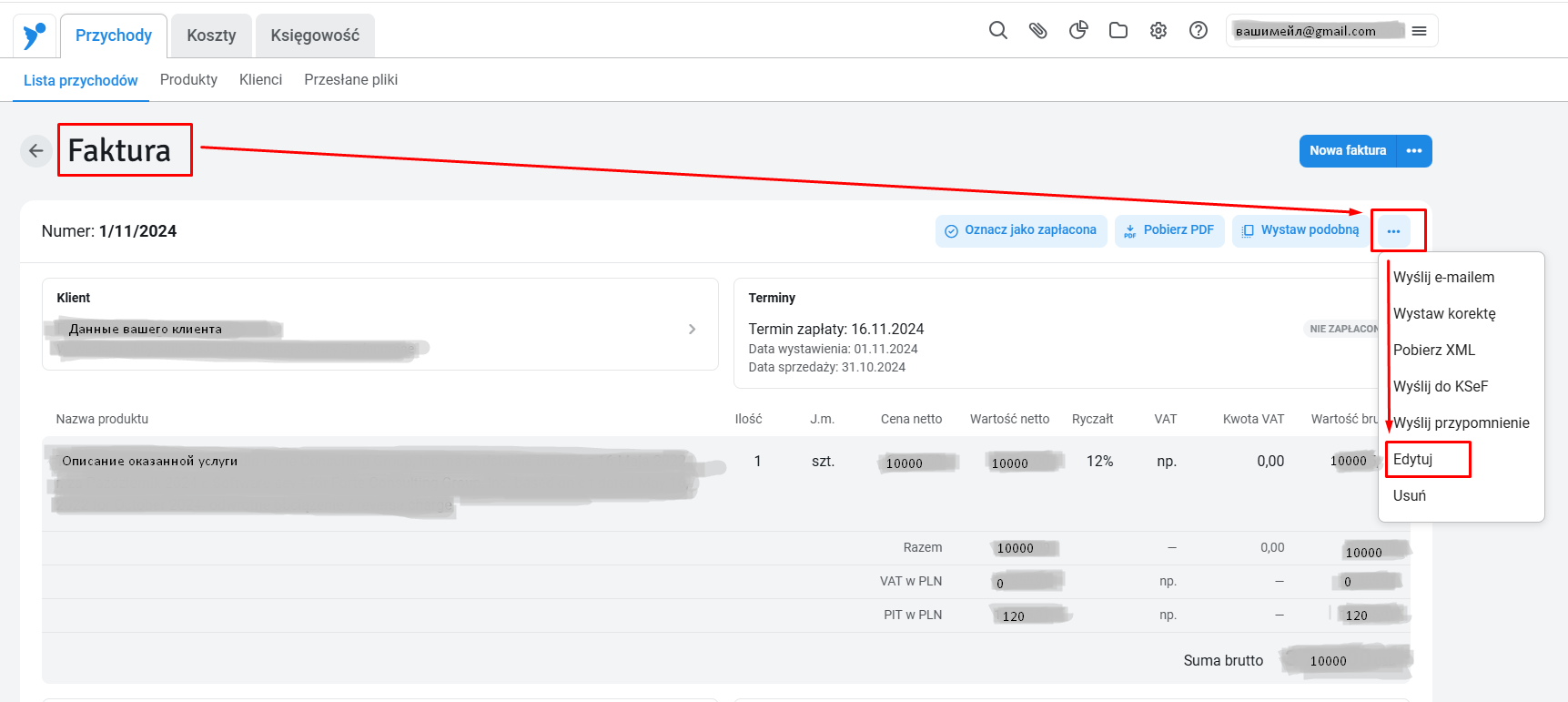
Edit your invoice and click Zapisz in the bottom right corner. 
After saving, you can verify that the corrected data was recorded properly by checking the corresponding entry in the Ewidencja przychodów menu on the Księgowość tab and confirming that the amount in the record matches the amount on the invoice.
Support our guide with a cup of coffee ♥